.png?width=200&height=89&name=CC%20%20fiserv.%20(3).png)
How to set up multi-course punchcard rates
Step 1:
This guide explains how to configure course-specific rates on a shared punchcard so that each course displays only its own applicable rates when a booking is made.
Navigate to Settings, then click on Punchcard Type Center.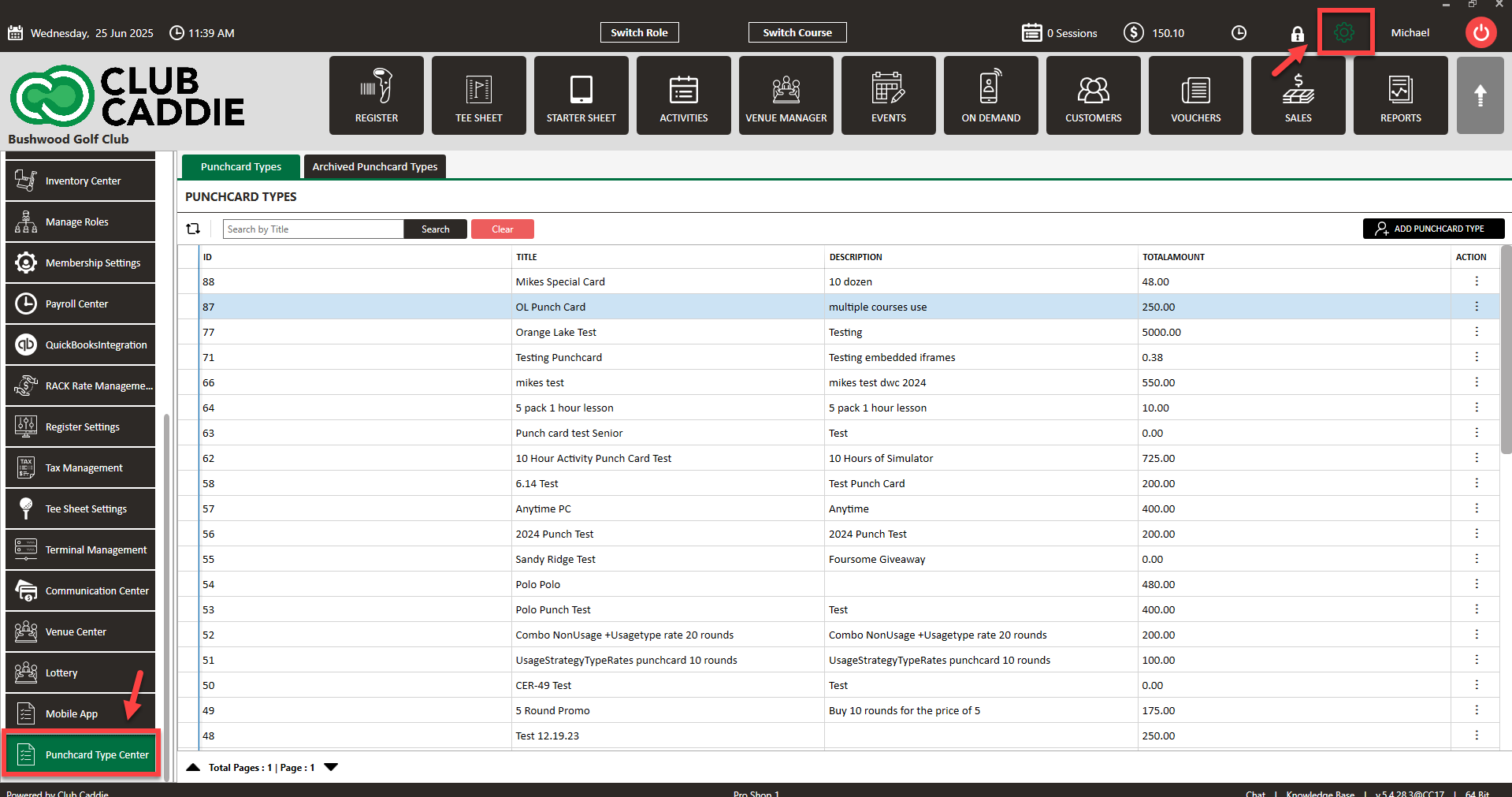
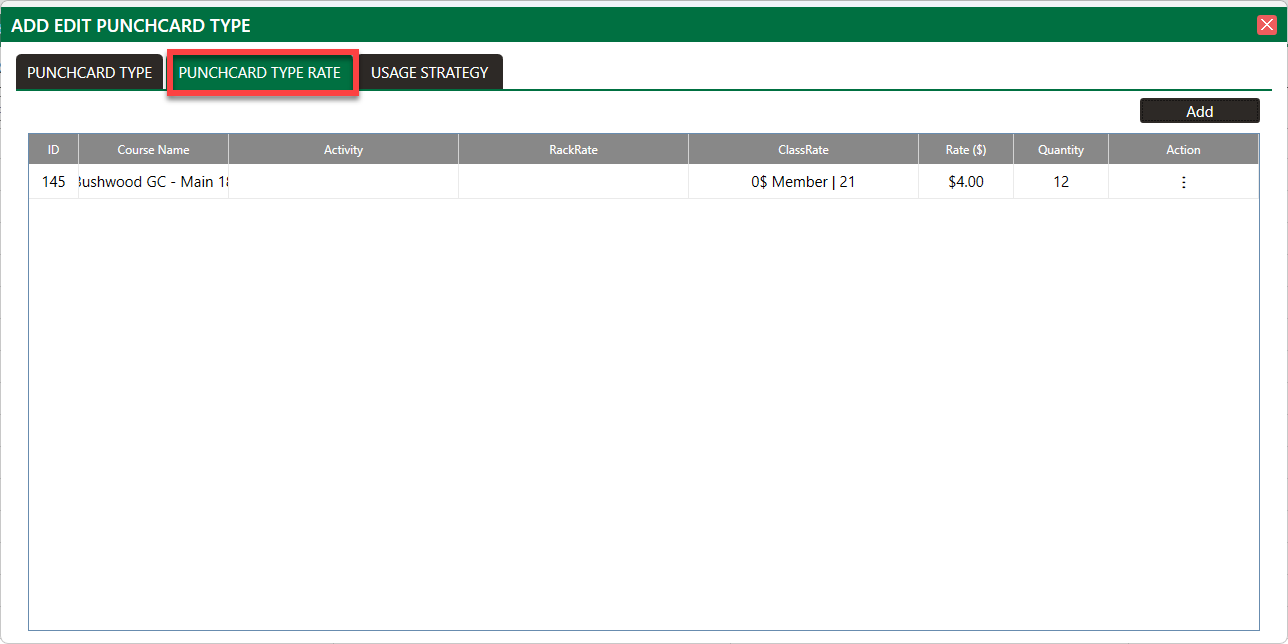
Step 2: Add a new punchcard or edit an existing one. In the pop-up, add a rate and quantity under the tab Punchcard Type Rate.
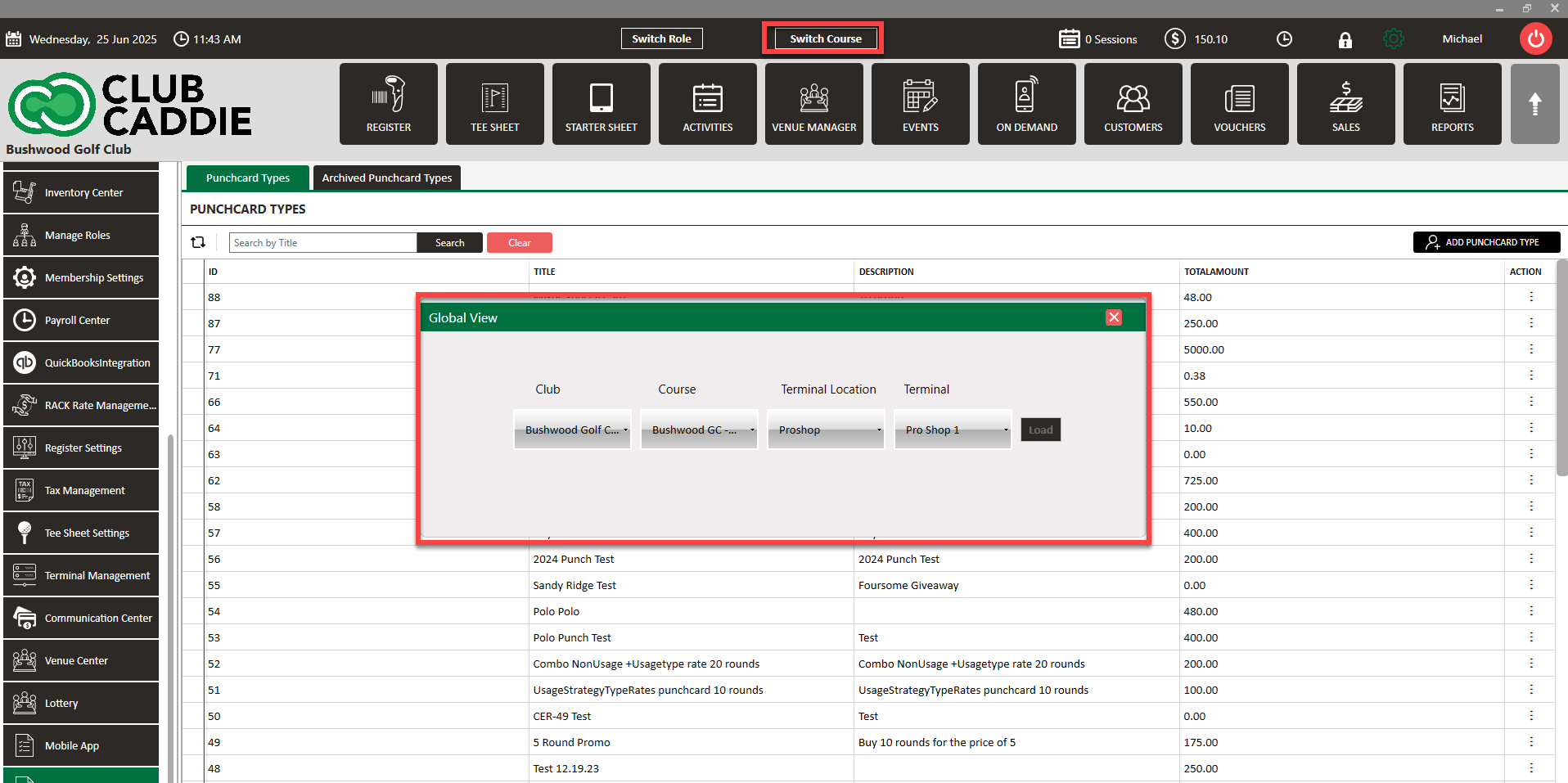
Step 3: Switch to your second course using the course selector. Then navigate to Settings, then Punchcard Type Center.
Step 4: Select the same punchcard and Add to the same card and define specific rates that you want from that course under the Punchcard Type Rate tab.
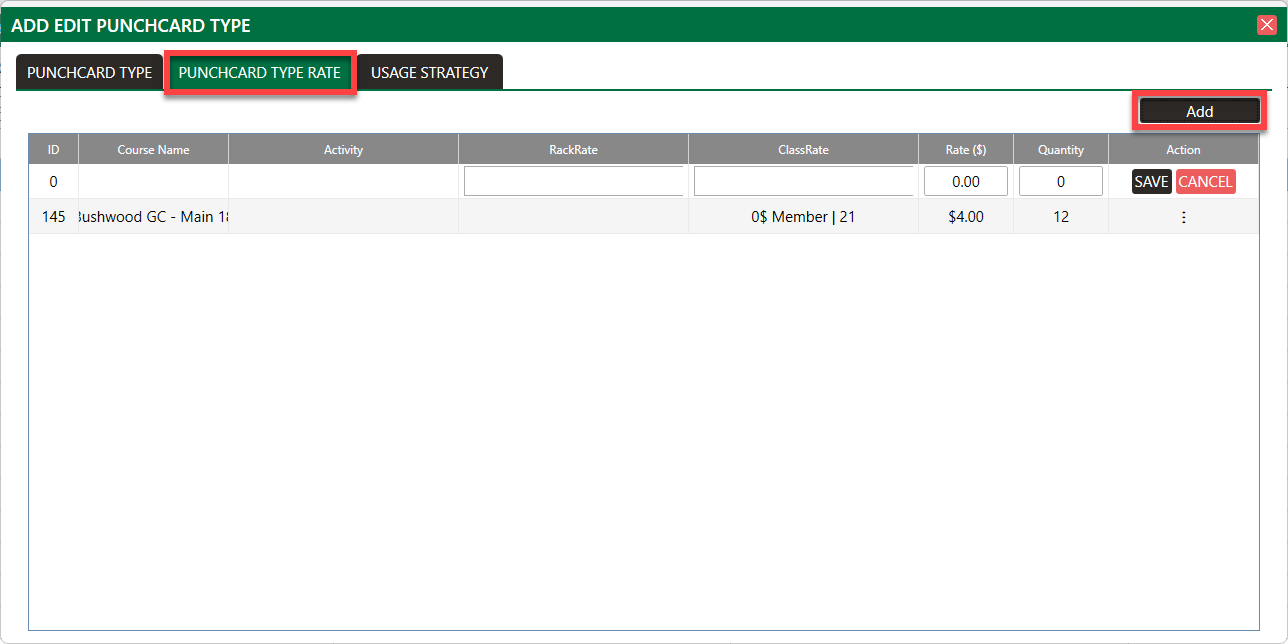
When you sell this punchcard, only the rates configured for each specific course will be available when a booking is made on that course.
You must be on the specific course to add or delete rates from that course's punchcard.