.png?width=200&height=89&name=CC%20%20fiserv.%20(3).png)
Step-by-Step:
Step 1: Select Settings, then Inventory Center.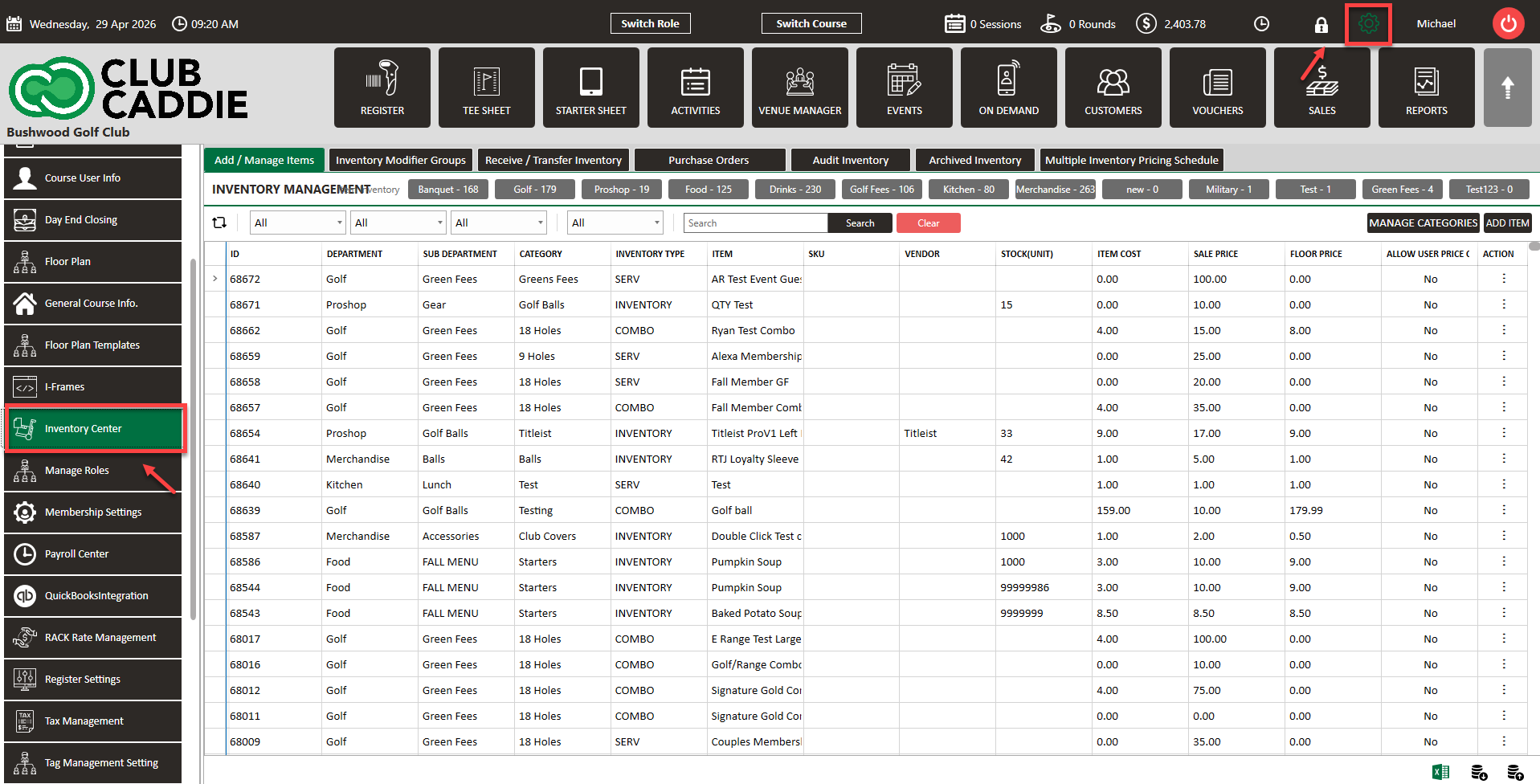
Step 2: Search for the item you want to update, such as a special order item, open food item, rental club item, or apparel. Open the item details and locate the pricing settings.
Step 3: Enable Allow User Price Overrides for the item.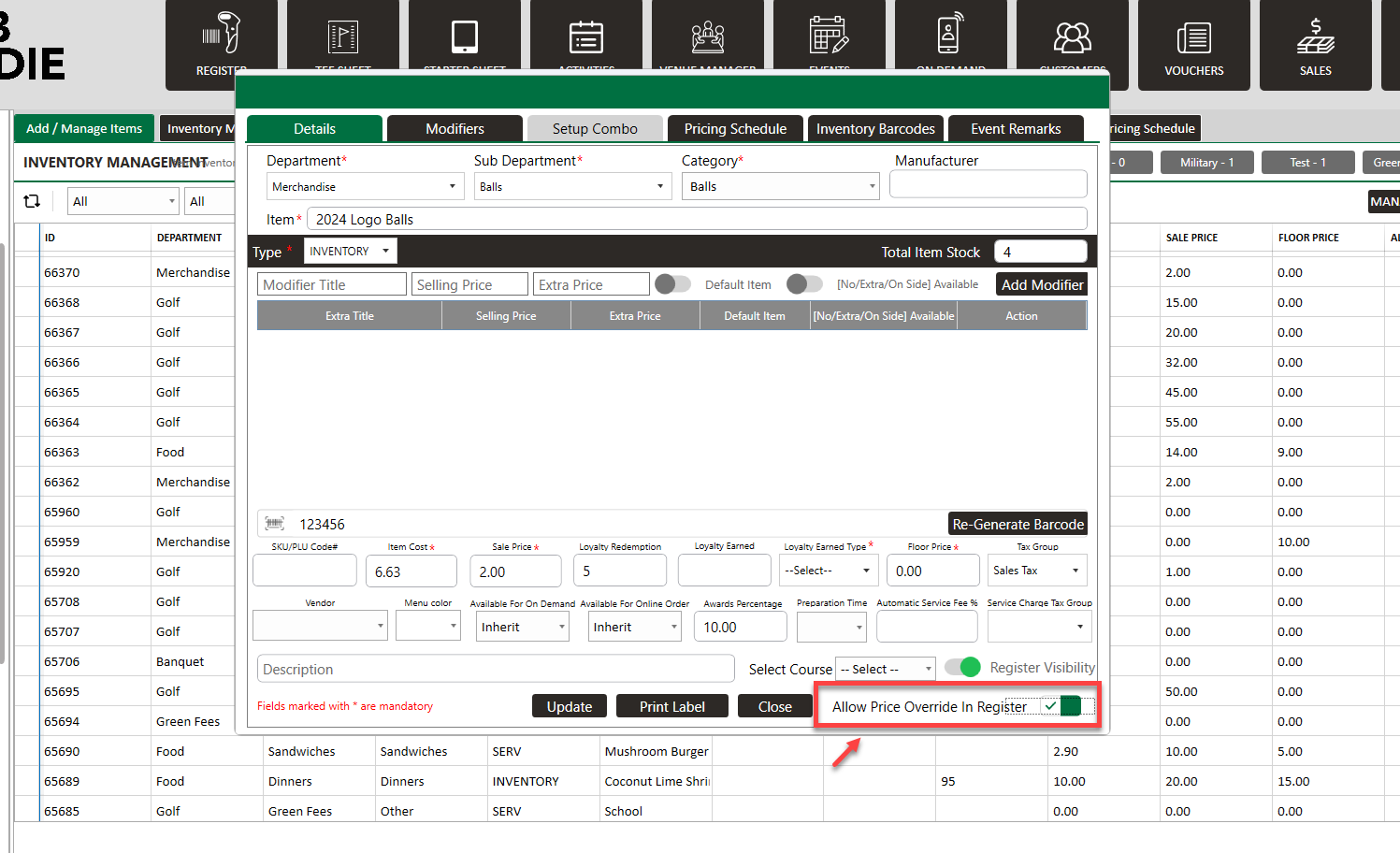
Step 4: Save the item by selecting Update.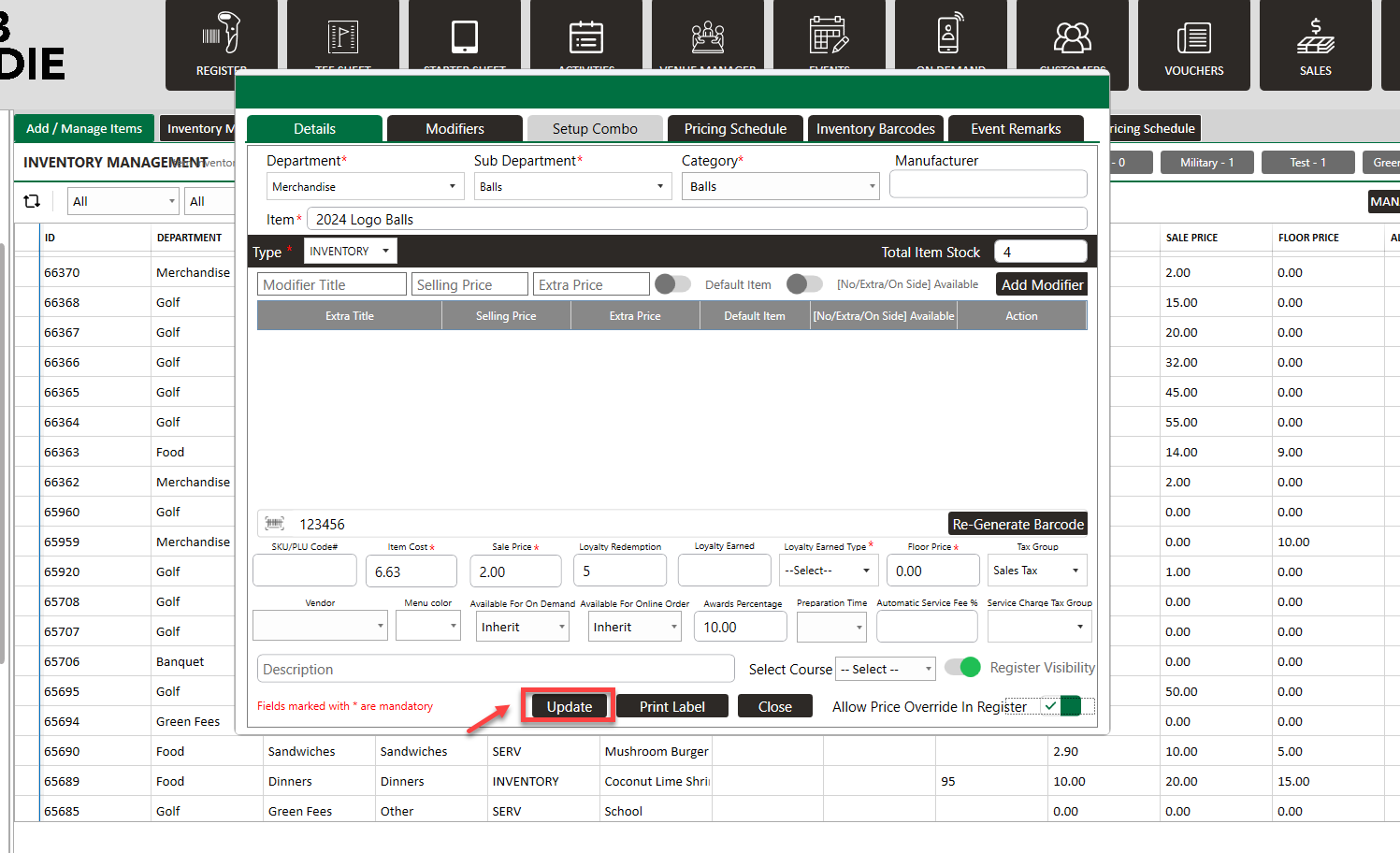
Step 7: You will be able to see in your Inventory Center what items are toggled on to override and which ones are not. Yes - User can override. No - User can not override.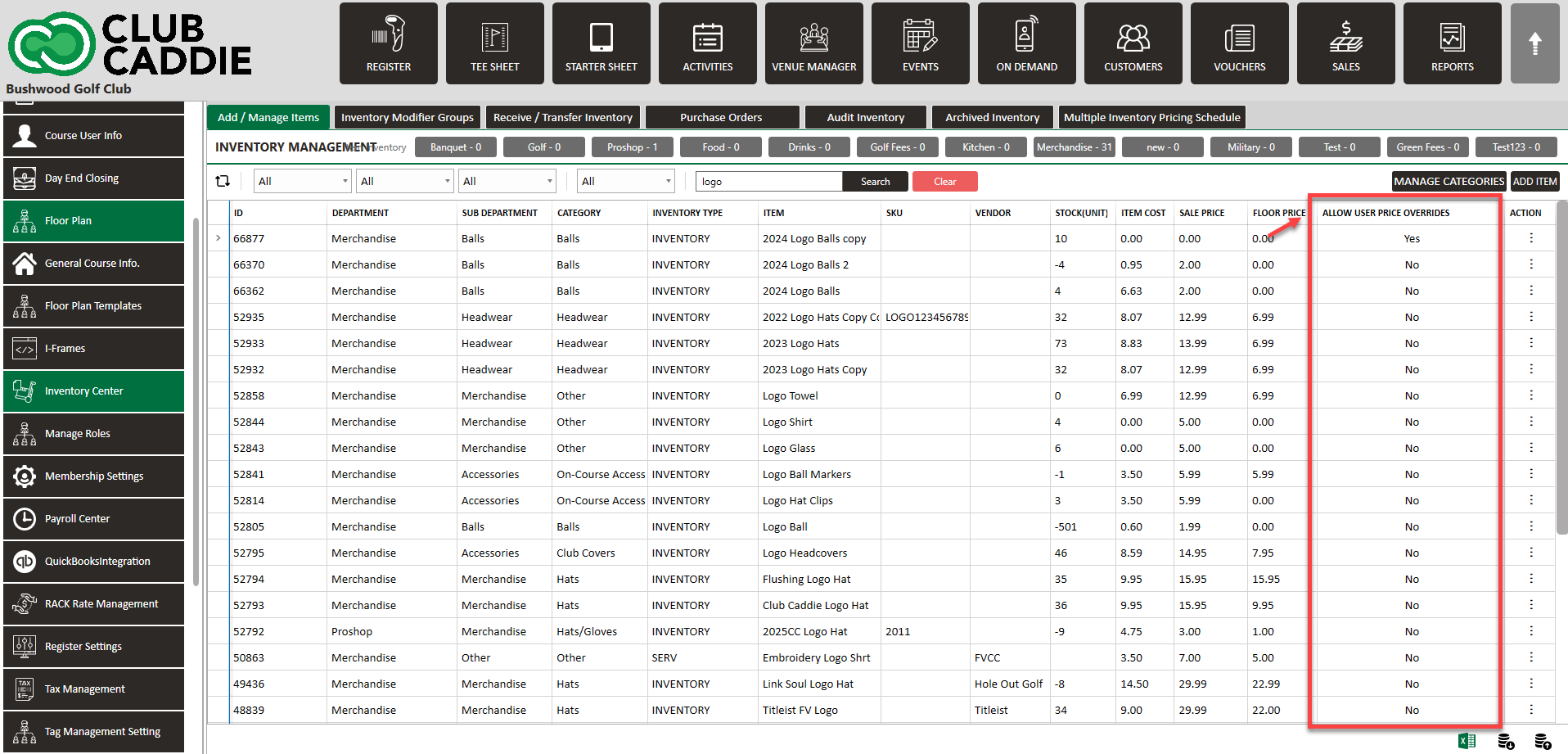
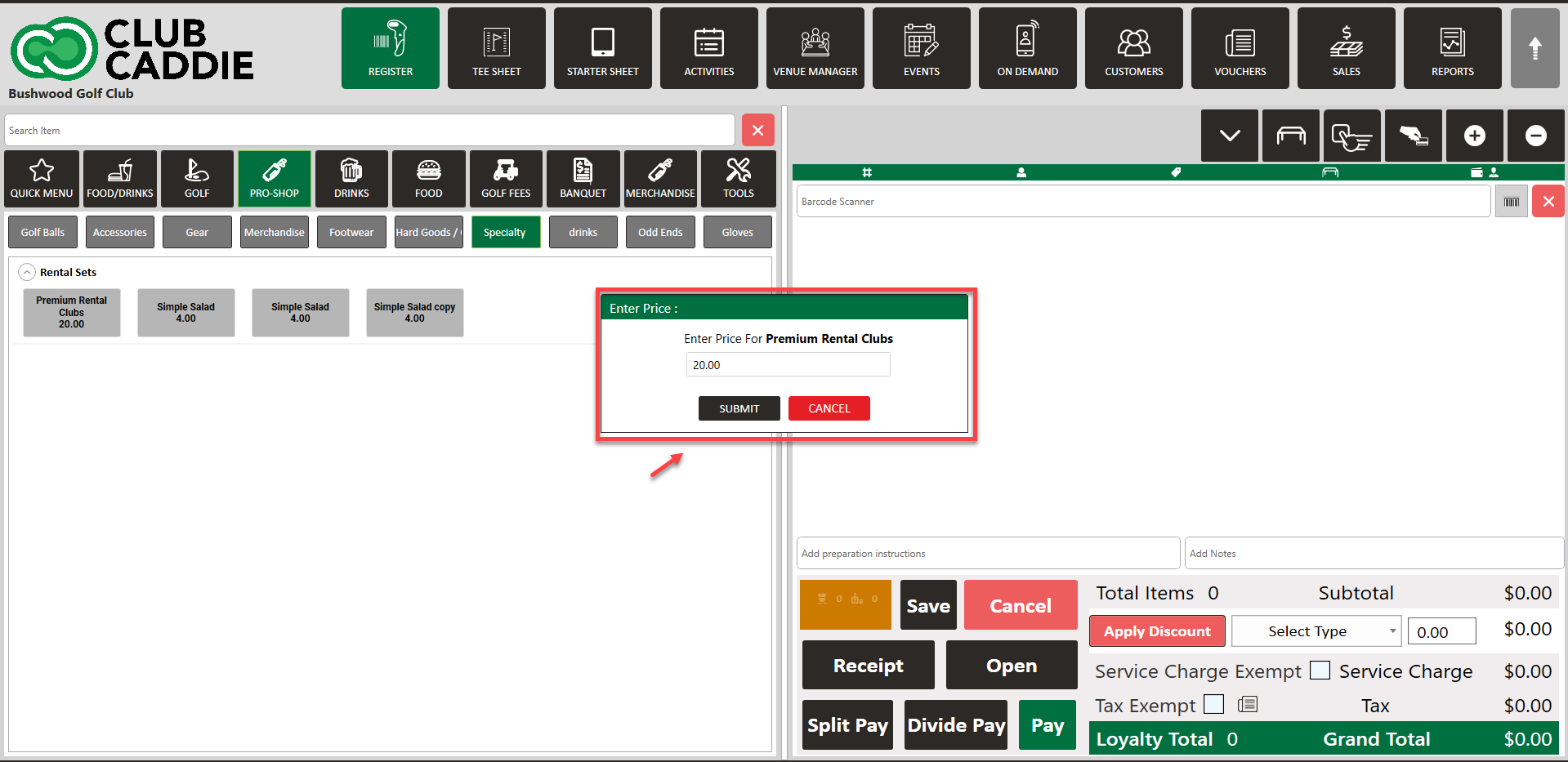
Step 8: In the Register, select the item. When prompted, enter the unit price for the sale. The Register will calculate the order using the entered price and quantity.
Example Scenario:
A golf shop sells rental clubs that may be priced differently depending on condition or rental length. The manager enables Allow User Price Overrides on the rental club item in the Inventory Center. When staff add the item at the Register, they enter the correct unit price before adding it to the tab. The sale posts using the entered price as the item’s unit price, not as a discount.