.png?width=200&height=89&name=CC%20%20fiserv.%20(3).png)
New settings have been added in Terminal Management to allow more control over printing customer and merchant receipt copies separately. This can help save on paper and printing costs.
Terminal Receipt Settings control which receipt copies print automatically when a sale is completed — the merchant copy, the customer copy, or both — and whether each one prints in full or in a shortened form. These settings live in Terminal Management and are set per location, so every terminal sharing a location shares the same receipt defaults.
Step by Step
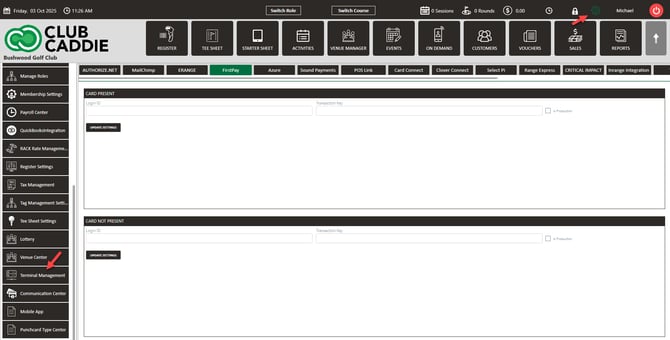
Step 1: Navigate to Settings, then click on Terminal Management from the left-hand side menu.
Step 2: Select Manage Location for the desired terminal. Next, configure the following receipt printing options:
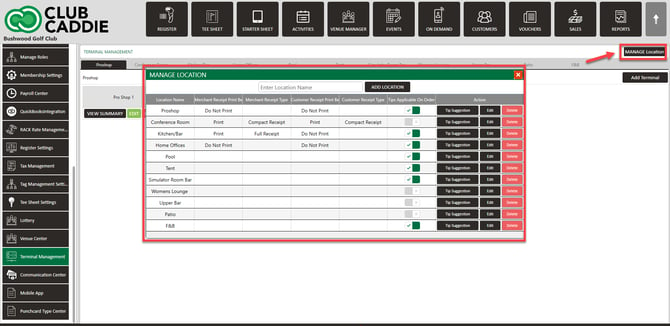
- Merchant Receipt Print Behavior — controls when the merchant copy prints:
- Print — prints on every payment type, including cash.
- Print Only On Tippable Payments — prints on every payment type except cash.
- Do Not Print — no merchant copy prints.
- Merchant Receipt Type — Select Full Receipt or Compact Receipt. The compact receipt only shows the order total.
- Customer Receipt Print Behavior — Choose Print or Do Not Print
- Customer Receipt Type — Select Full Receipt or Compact Receipt. The compact receipt only shows the order total.
Step 3: Click Save.
These settings apply to the terminal's location. If a change has not taken effect at a register, log out on that terminal using the red power icon in the top-right, then log back in.
These configurable receipt printing options allow merchants to only print essential receipt copies on a transaction-by-transaction basis. This results in paper and cost savings.
Tippable does not mean card only. Card payments of every kind count, and so do membership charges, credit vouchers, custom tenders, tee booking payments, event payments, and split payments across multiple tenders. Cash does not count as tippable.
Common Questions
How do we keep the merchant copy off cash sales?
Set Merchant Receipt Print Behavior to Print Only On Tippable Payments. That keeps the merchant copy on card and other tenders and leaves cash sales with the customer copy only. Click Save, then log out and back in on the affected terminals.
Do the merchant options apply to the customer receipt?
No. Customer Receipt Print Behavior offers Print or Do Not Print only.
Can we skip a receipt on a single sale without changing the default?
On the payment screen, uncheck the merchant or customer receipt box before completing the payment. That suppresses printing for that transaction only and leaves the location default alone.
Do these settings apply to one terminal or to the whole location?
Receipt printing is set per location, not per workstation. Every terminal assigned to that location shares the same receipt defaults. To give a terminal different behavior, it has to belong to a different location.
Why do I only see two merchant options?
The Browser version offers Print and Do Not Print. Print Only On Tippable Payments is a Desktop option. If you are on Desktop and see only two, contact support to check your installation.
Does the merchant copy list every payment on the order?
It lists the payments that completed the sale — sale, resale, and charge transactions. Voids and standalone tip adjustments are not included.
A change has not taken effect at the register — what should I check?
Log out on that terminal using the red power icon in the top-right, then log back in.