.png?width=200&height=89&name=CC%20%20fiserv.%20(3).png)
Blocks let you control which tee times are available for booking, and who can book them. Whether you need to close out a morning for a private event, restrict certain holes for course maintenance, or prevent online bookings during a member-only window, blocks are how you do it.
| Block Type | What It Does | Real-World Example | Quick Tip |
|---|---|---|---|
| 9 Holes Only Block | Only 9-hole rounds can be booked; 18-hole reservations are blocked. | Twilight starts at 5 PM — prevent full rounds that would run past daylight. | Ideal for afternoon 9-hole specials and 9-hole leagues. |
| 18 Holes Only Block | Only 18-hole rounds can be booked; 9-hole bookings are blocked. | Saturday mornings — keep prime time for full rounds only. | Common for weekend mornings and tournament days. |
| No Online Bookings | Online bookings are closed; staff can still book at the counter. - The block only restricts starting resources, not turn times. This lets facilities control when full 18-hole online bookings are available while still allowing online 9-hole play during blocked periods. | Hold Saturday afternoon for walk-ins and call-ins only. | Staff access stays open; only the online channel is closed. |
| No Tee Times Block | Closes the slots to everyone — no bookings from any channel. | Shotgun start from 7 AM–1 PM — no individual tee times allowed. | Use for full closures: outings, leagues, maintenance, or full-course events. |
| Turn Times Only Block | Reserves slots for players making the turn; no new tee times can be booked. | Turn window 11:20–12:00 — prevent new groups from jumping ahead. | Keeps your turn flow clean on busy mornings. |
Step by Step:
Step 1: Click on the TEE SHEET module from the navigation menu.
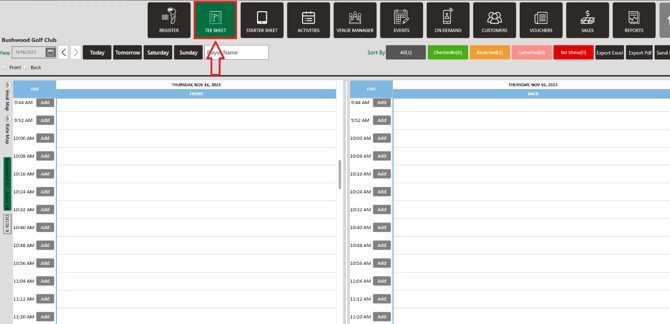
Step 2: There are two ways to block a group of tee times:
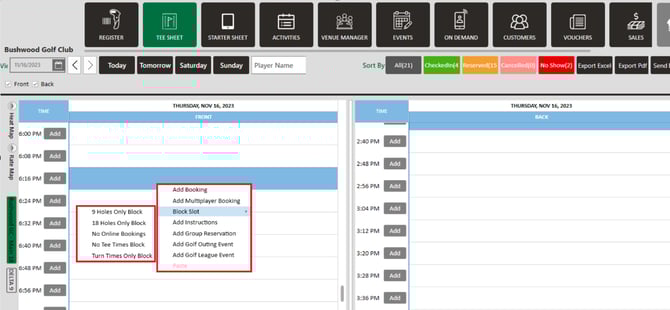
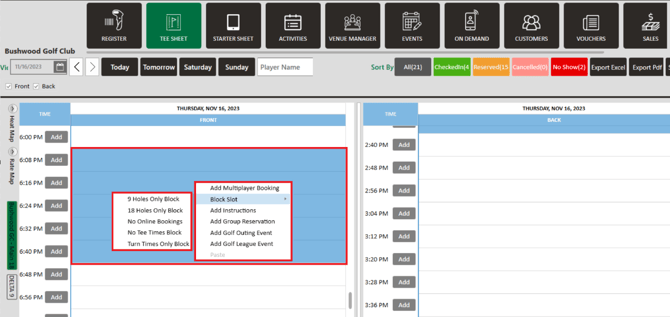
Method 1: Right-click on a time slot and hover over Block Slot and select one of the five options from the drop-down list:
1) 9 Hole Only Block - will only allow you to book for 9 Holes
2) 18 Hole Only Block - will only allow you to book for 18 Holes
3) No Online Bookings - will prevent any new online bookings. However, turn times (back-nine starts) can be booked online even when a No Online Booking block is active. The block only restricts starting resources, not turn times. This lets facilities control when full 18-hole online bookings are available while still allowing online 9-hole play during blocked periods.
4) No Tee Times Block - will prevent tee time bookings from being made online as well as being made through the point of sale by any course users.
5) Turn Time Only - will only allow turn times in the specified time and no new bookings could be created in this block.
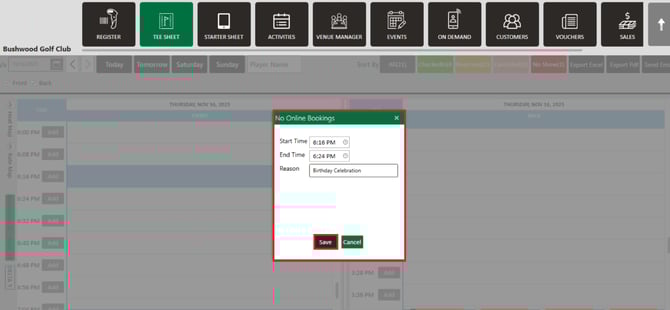
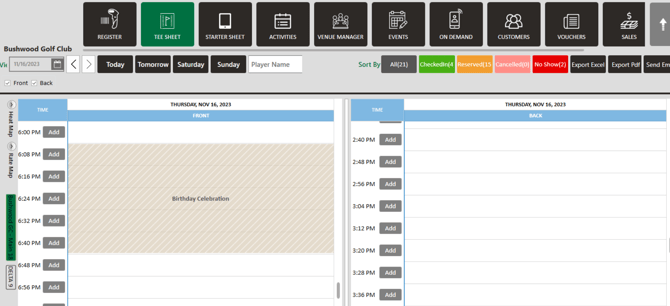
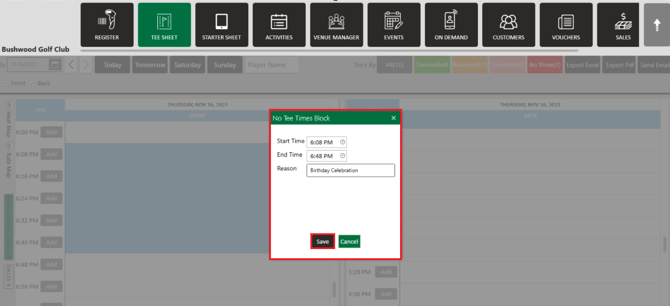
Method 2: You can click on a starting time slot and drag on screen to the ending time slot. Right-click on your pre-selected times, next hover over the "Block Slot" option, and finally select one of the five options discussed above. You will be required to confirm the Start Time, End Time, and fill in a reason for the block, e.g. note "Birthday Celebration".
Not sure which block to use?
- Need to close slots to everyone, including staff? → No Tee Times Block
- Need to close online only, but keep staff access? → No Online Bookings
- Running a tournament or shotgun start? → No Tee Times Block for the full window
- Running an afternoon 9-hole special? → 9 Holes Only Block
- Protecting Saturday morning for full rounds? → 18 Holes Only Block
Step 3: Click Save to block the tee sheet for your specified time.