.png?width=200&height=89&name=CC%20%20fiserv.%20(3).png)
Moving to a Different Time (Same Day)
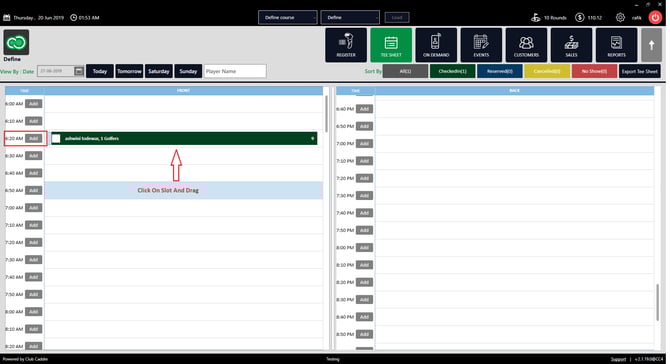
Method 1: Drag and Drop
The fastest option when you just need to shift a tee time a few slots earlier or later on the same day.
- Go to TEE SHEET in the top navigation.
- Locate the tee time you want to move.
- Click and hold the tee time, then drag it to the new time slot.
- Release to drop it. The tee time updates automatically.
Method 2: Edit Window
Use this when you need to change the start time or course location on the same day.
- Go to TEE SHEET in the top navigation.
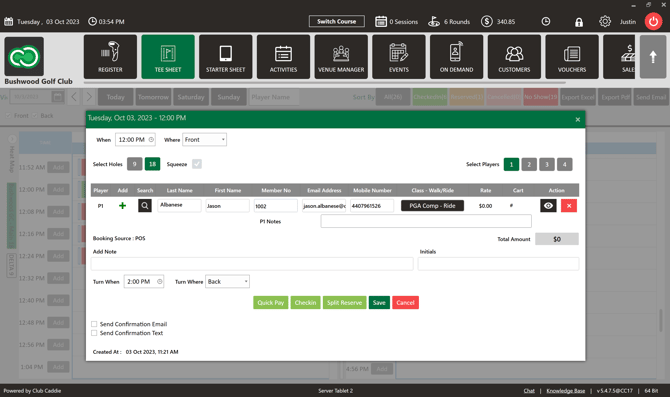
- Double-click the tee time you want to edit. The booking edit window opens.
- Click When to select a new time from the available slots.
- Use the Where dropdown if you also need to change the course location (e.g., Front, Middle, or Back).
- Click Save to apply the changes.
NOTE: The edit window lets you change the time and course location within the same day. To move a booking to a different date, use Cut/Paste or Copy/Paste below.
Moving to a Different Date
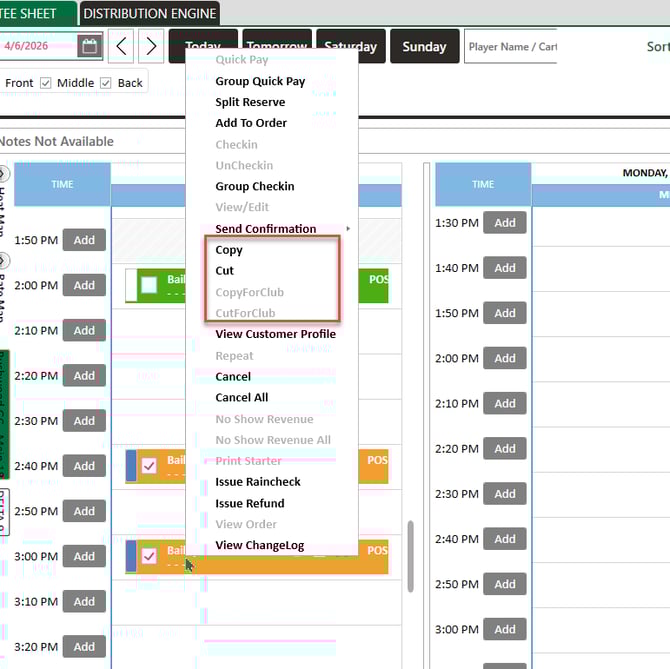
Use the right-click menu to move or duplicate a tee time to a different date. Which option you use depends on what you need to accomplish:
- Cut/Paste — use this to reschedule a tee time. The booking is removed from the original date and moved to the new one.
- Copy/Paste — use this to add the same booking to another date while keeping the original in place. For example, a group that wants the same tee time next week as well.
Cut/Paste — Reschedule to a Different Date
- Go to TEE SHEET and navigate to the date where the booking currently lives.
- Right-click the tee time you want to reschedule.
- Select Cut from the context menu. The booking is removed from the current date and held in the clipboard.
- Navigate to the new date using the Today / Tomorrow buttons or the calendar icon and arrow controls at the top of the Tee Sheet.
- Right-click the desired empty time slot on the new date.
- Select Paste. A booking confirmation popup opens.
- Confirm or adjust the rate, then save. The tee time now lives on the new date only.
Copy/Paste — Duplicate to an Additional Date
- Go to TEE SHEET and navigate to the date where the original booking lives.
- Right-click the tee time you want to duplicate.
- Select Copy from the context menu. The original booking stays in place.
- Navigate to the date where you want to add the booking.
- Right-click the desired empty time slot.
- Select Paste. A booking confirmation popup opens.
- Confirm or adjust the rate, then save. The booking now exists on both dates.
Notes
- Rate confirmation: When you paste, a booking pop-up opens to confirm the rate for the new date and time. Class Rates will appear if available, otherwise Rack Rates are shown.
- MCO clubs: If your organization manages multiple clubs, use CutForClub or CopyForClub to move or duplicate a tee time to a different club's tee sheet. These options are only active in multi-club environments.