.png?width=200&height=89&name=CC%20%20fiserv.%20(3).png)
This article contains step-by-step instructions on how to limit how many tee times a customer can book within a specific time period in Club Caddie.
Example Scenario: An operator notices a few regulars are booking multiple prime-time slots online and squeezing out other golfers. They go to Settings → Tee Sheet Settings and set a limit of 1 tee time per 4-hour window, so a customer who books online can't grab a second slot within four hours of a booking they already hold that day. If the customer still needs an exception (like adding a second group), the operator can book it through the POS since staff bookings aren't restricted. For multi-course operations, the operator also enables the MCO setting so a customer can't book the same 8:00 AM time across multiple courses.
This limit applies to bookings made through your own Club Caddie online booking page. Bookings that arrive through the iPlay channel partner are an exception, covered below.
Step-by-Step
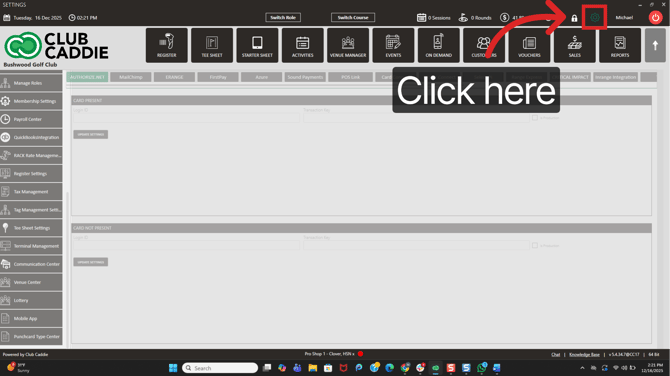
Step 1: Open Settings - In the top right corner of the POS, click Settings.
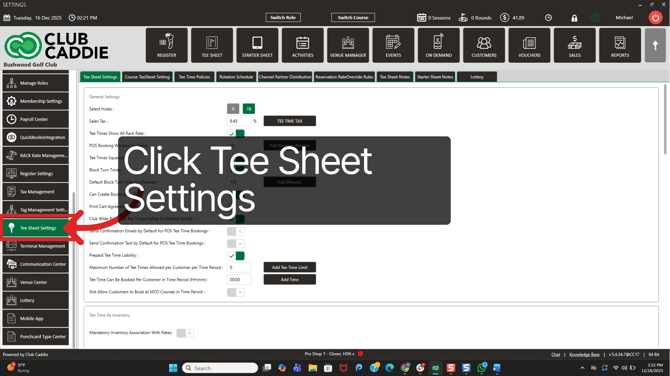
Step 2: Open Tee Sheet Settings - In Settings, click the Tee Sheet Settings tab to view tee time scheduling options.
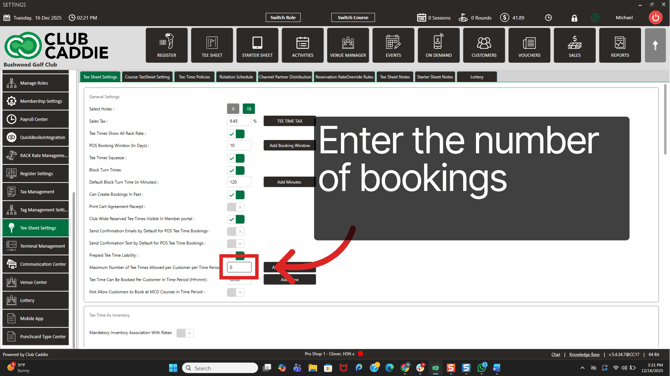
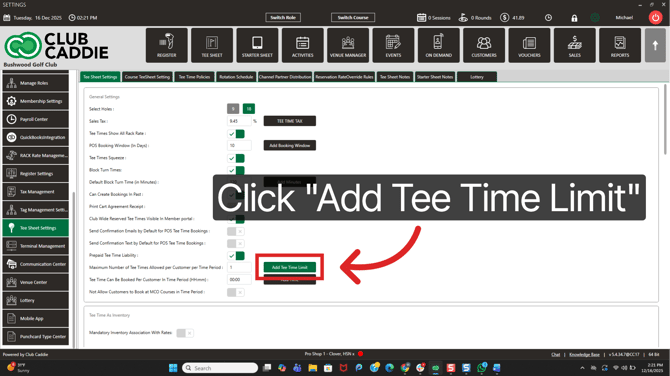
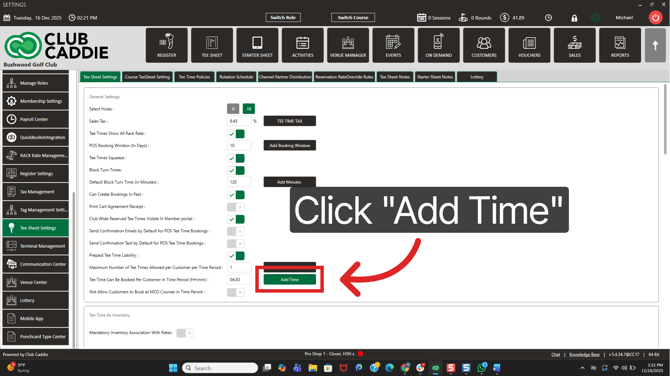
Step 3: Start a new tee time limit - Scroll down until you see "Maximum Number of Tee Times Allowed per Customer Per Time Period". Then enter the number of bookings a customer is allowed to book within the time period. Then click Add Tee Time Limit.
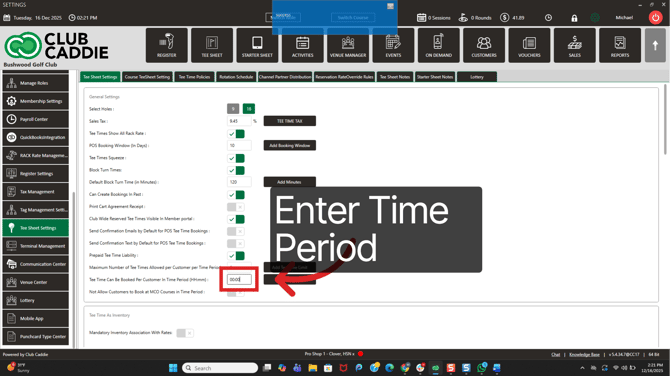
Step 4: Enter the time period - Click in the Time Period box and type the duration (hours: minutes) you want to use for the restriction (example: 04:30).
Step 5: Save the time period - Click Add Time to save the time period you entered.
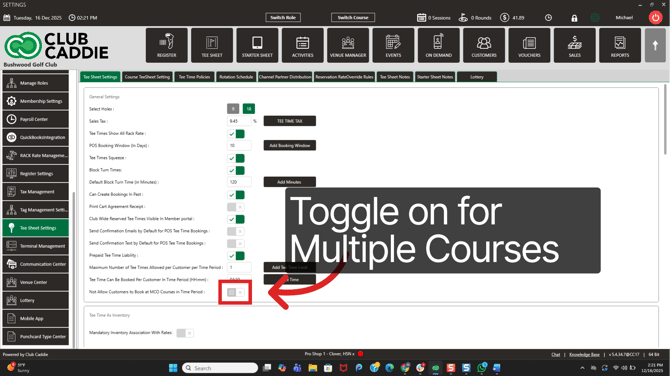
Step 6: Apply the MCO booking limit (optional) - If you run multiple courses under MCO, find Not Allow Customers to book at other MCO Courses in x time period and set the same time period. This prevents a customer from booking overlapping tee times across different courses in your MCO network.
How the limit behaves
- It applies to bookings made through your own Club Caddie online booking page. Staff can still book multiple tee times for a customer internally at the desk.
- By design, bookings that arrive through the iPlay channel partner are not checked against this limit. This changed in the 5.7 release. Bookings made through your own Club Caddie online booking page are still checked. The exemption is automatic.
- For example, with a maximum of 1 tee time and a 4-hour time period, a customer who already holds a 9:00 AM booking cannot make another booking through your Club Caddie online booking page from 5:00 AM through 1:00 PM on the same day.
- When a customer reaches the limit, the booking is prevented and they see a message similar to: "You have already booked the max number of tee times for today. Please edit your existing bookings or change search parameters."
Common Questions
A golfer booked through iPlay and went past the limit. Why?
Reservations that come in through the iPlay channel partner skip this limit by design. The limit governs bookings made through your own Club Caddie online booking page. Factor iPlay reservations in separately when you plan tee sheet availability.
A customer booked past the limit online. What to check.
First, check that both fields have values. The limit applies only when Maximum Number of Tee Times Allowed per Customer Per Time Period and Time Period are both set. If the booking came through a channel partner, two more rules apply. iPlay bookings are not checked against this limit, and the check runs per customer record, so a partner booking is matched to a customer by the email address on it.
Can staff book past the limit for a customer?
Yes. The limit applies to online bookings only. Staff bookings made at the desk are not restricted, which is the recommended way to handle an exception.