.png?width=200&height=89&name=CC%20%20fiserv.%20(3).png)
Example Scenario:
The View ChangeLog feature in Club Caddie allows staff to review a complete, time-stamped history of every change made to a specific booking directly from the Tee Sheet. Use this feature to quickly investigate billing disputes, verify who made a change, and determine whether an edit originated from staff or an online member action.
A golfer calls claiming they booked a twosome at 9:10 AM but were charged for four players and insists the club made the change. Staff can right-click the booking on the Tee Sheet, select View ChangeLog, and immediately see who increased the player count, when it was done, and whether it came from staff or an online edit by the member. By clicking Details, they can review any associated rate or player changes to fully understand the situation. This allows the course to resolve the dispute confidently with a clear, time-stamped audit trail.
Step-by-Step:
Step 1: Navigate to the Tee Sheet module in Club Caddie:
Click the Tee Sheet module to access the schedule of tee times.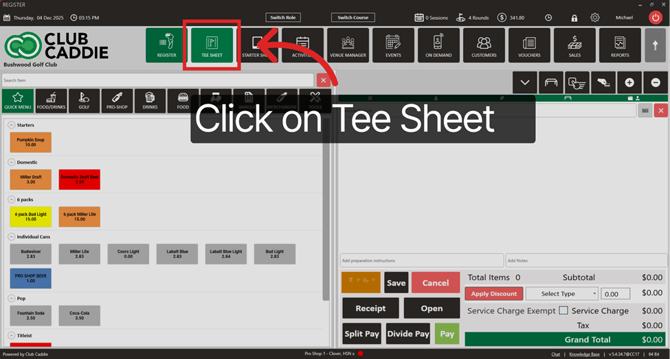
Step 2: Open Golfer Options:
Right-click on the booking to open the context menu.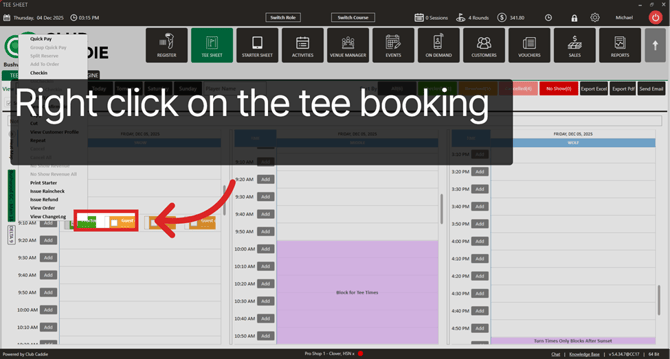
Step 3: Select View ChangeLog:
Click View ChangeLog to open the change history for the selected booking.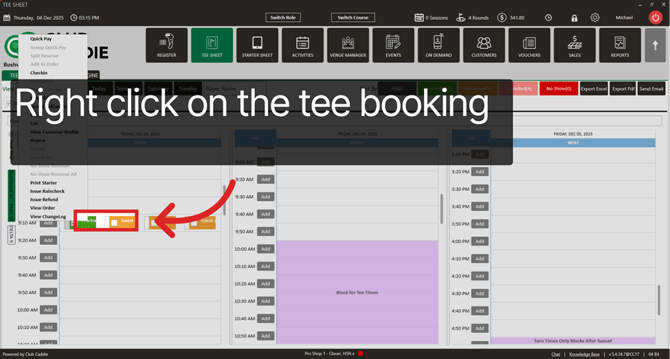
Step 4: Access Change Details:
Click Details to view specific information about the changes made.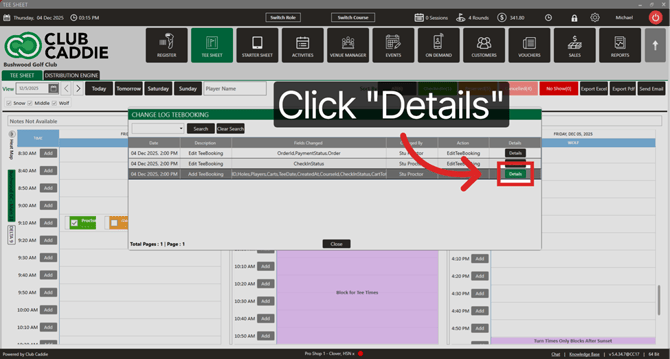
Step 5: View Additional Information:
Use the scroll bar to expand and see more details related to the change log entry.
Step 6: Close Details Window:
Click Close to exit the details.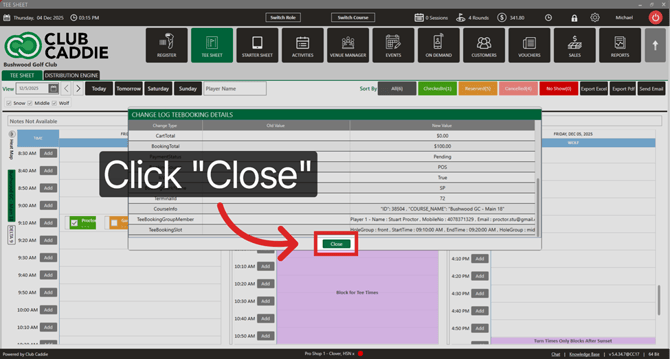
The changelog is tied to a specific booking, not to the tee time itself. For example, if a member books a foursome for a specific date, the changelog will only display changes to that booking—such as rate adjustments, player name edits, or time modifications. It does not track the full history of everything that has ever occurred at that tee time slot. If a booking is made for that time, then canceled, and later a new booking is created again for 3:30 PM, each of those bookings will have its own separate changelog.