
Activity Resources are the physical locations where the activities associated with a specific Activity Resource Type are performed, such as golf simulator bays for a golf simulator Activity Resource Type.
How Do I Create a New Activity Resource?
Step 1: Ensure the associated
Activity Resource Type has already been created. If not, refer to the article on how to create an
Activity Resource Type.
Step 2: Navigate to
Settings >
Activity Center >
Activity Resource in Club Caddie.
Step 3: Click "
ADD" in the top left corner of the
Activity Resource screen.
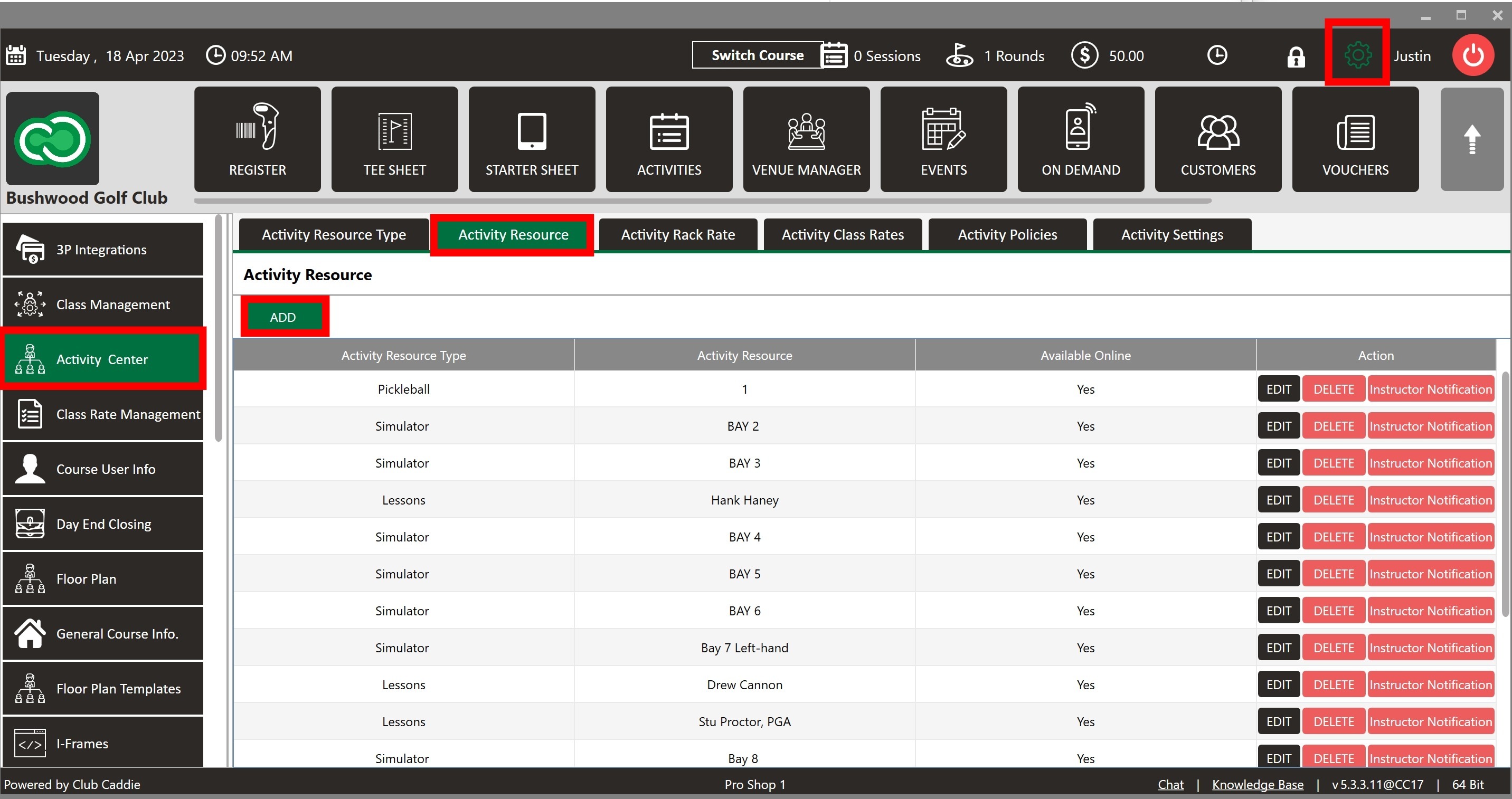
Step 4: Select the
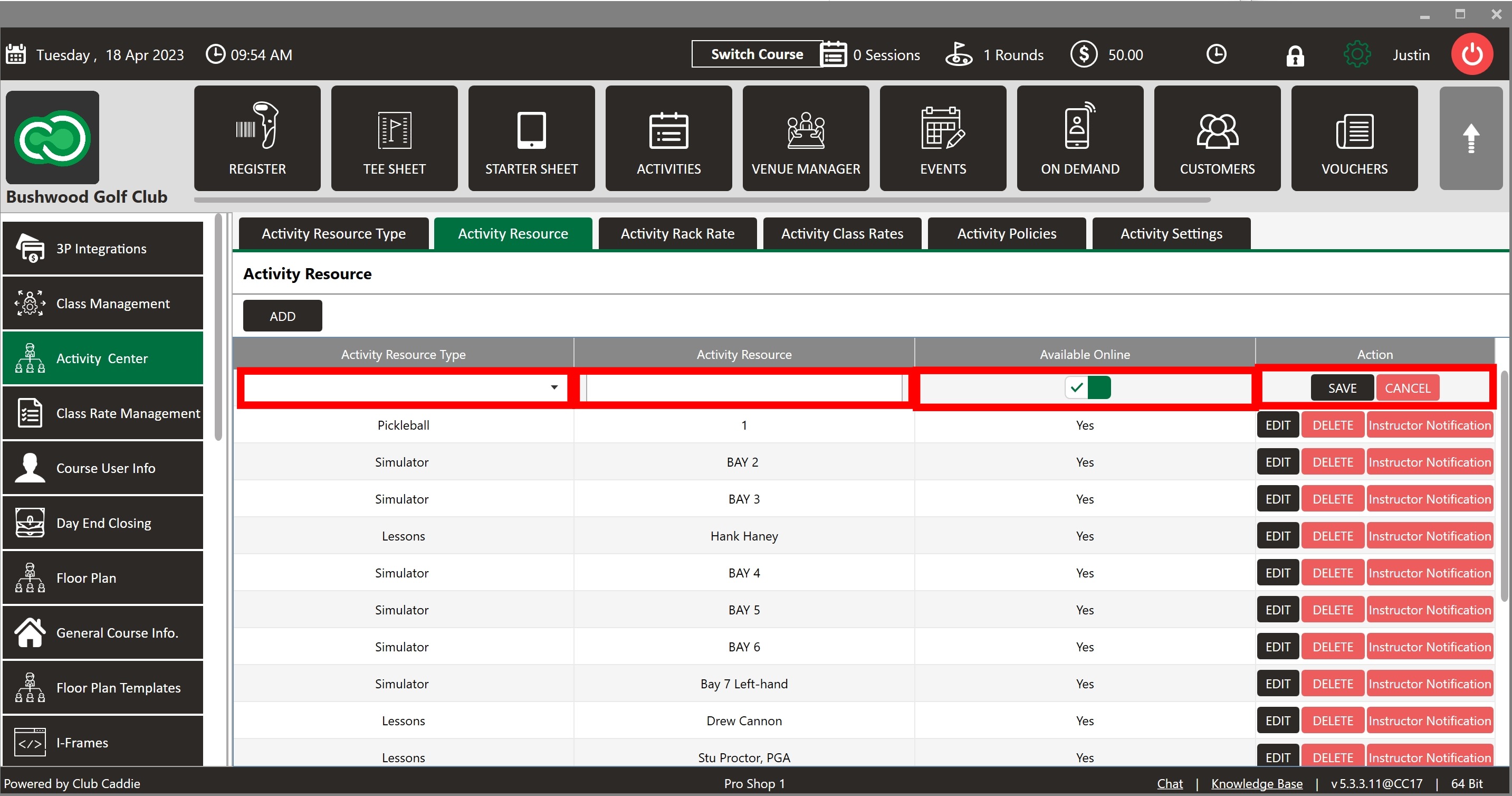
Activity Resource Type from the dropdown menu and name the Activity Resource in the "
Activity Resource" field.
Step 5: Use the "
Activity Online" toggle to enable or disable this
Activity Resource's online booking availability.
Step 6: Click "
SAVE" to save the new Activity Resource, or click
"CANCEL" to discard the changes.
How Do I Edit or Delete an Activity Resource?
Step 7: To modify an Activity Resource, click EDIT on the desired entry. To delete it, click DELETE on the same entry.
Step 8: Click "
Instructor Notification" to customize email notification settings.

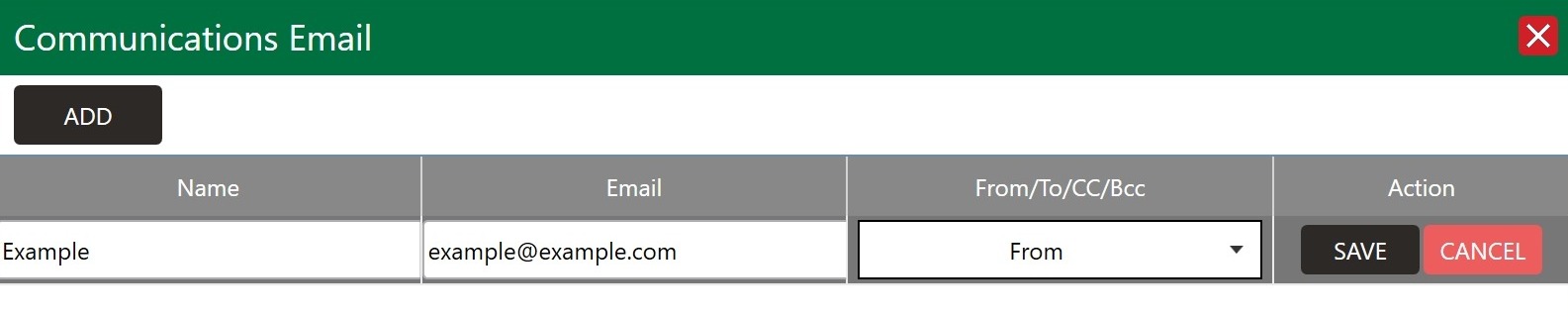
Step 9: Click ADD MAILER to add a new notification recipient. Once a new line item appears, click Email on that line, enter the recipient's address, choose To, Cc or Bcc in the From/To/CC/Bcc column, then click SAVE.
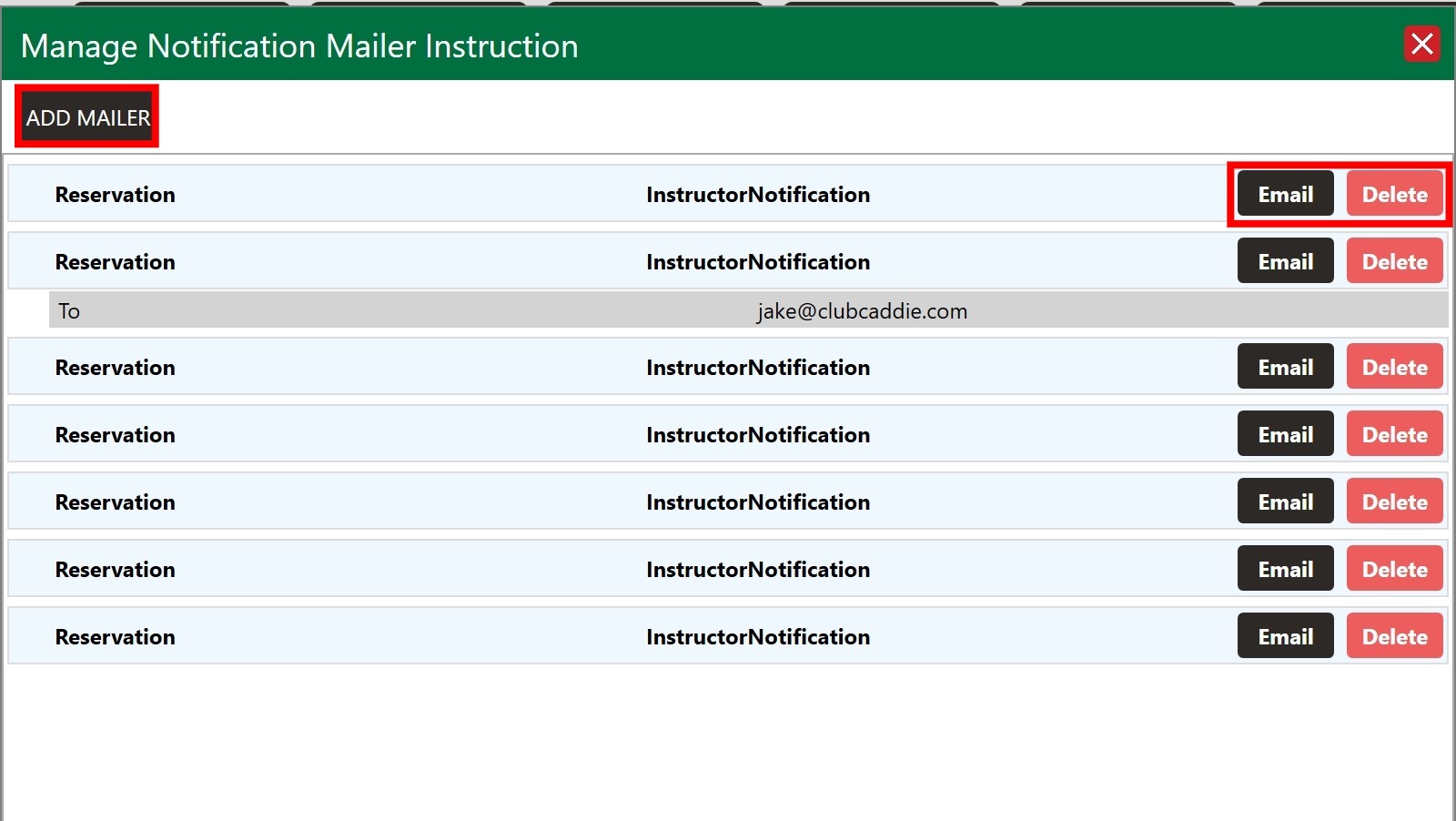
To remove a mailer entry, click the Delete button on that entry. To update an existing entry, click Delete to remove it, then click ADD MAILER to create a replacement.