.png?width=200&height=89&name=CC%20%20fiserv.%20(3).png)
Creating a New Credit Book Holding Account
Steps 1 and 2 will curently have to be done on the POS.
Step 1:
Navigate to the Vouchers module and select Credit Book Vouchers -> Holding Accounts -> Select Add.

Step 2:
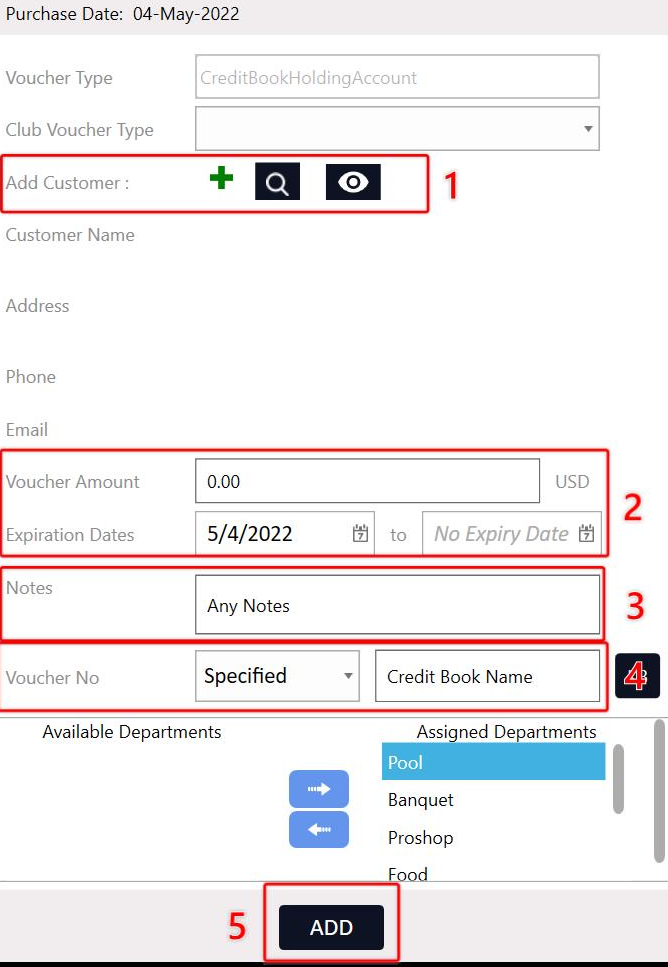
The voucher creation screen will open. In (1) you can input customer details to tie a specific voucher to a customer account, (2) You can input a starting balance and adjust the validity dates if needed, (3) Any required notes to include with the holding account, (4) To specify a custom name for the holding account you'll need to select "Specify" then input the desired holding account name, (5) select add to finalize the creation.
Step 1:
Navigate to the Vouchers module and select Credit Book Vouchers -> Holding Accounts -> Select Add.
Step 2:
The voucher creation screen will open. In (1) you can input customer details to tie a specific voucher to a customer account, (2) You can input a starting balance and adjust the validity dates if needed, (3) Any required notes to include with the holding account, (4) To specify a custom name for the holding account you'll need to select "Specify" then input the desired holding account name, (5) select add to finalize the creation.
Depositing to Credit Book Holding Accounts
Step 1: Navigate to the register module and select the Tools section. Under the section Credit books you'll find the Credit Book Deposit option.
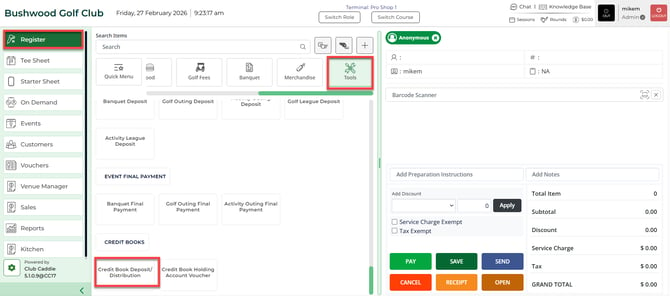
Note that if you do not see this option you will need to contact your course admin to enable the permission for "Voucher Manager" module and the subsequent "Credit Book Vouchers" permission.
Step 2:
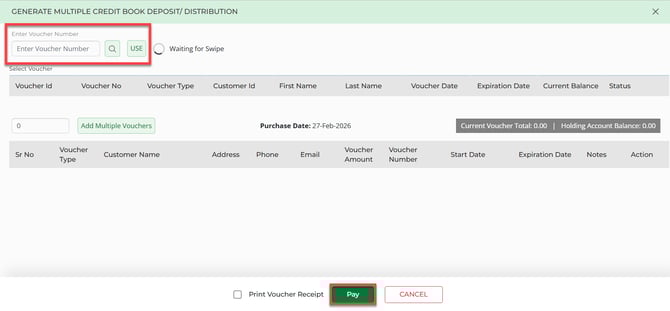
After selecting the credit book deposit the system will require you to select the credit book holding account you'll be depositing to and the deposit amount. Once information is entered, select Pay. The credit will then distributed to your selected accounts.
After selecting the credit book deposit the system will require you to select the credit book holding account you'll be depositing to and the deposit amount. Once information is entered, select Pay. The credit will then distributed to your selected accounts.
Step 3: To check the balance, usage history, or make additional edits to our newly created holding account we can navigate to the Voucher module found in the top navigation bar. Next, select Credit Book Vouchers, then Holding Account.
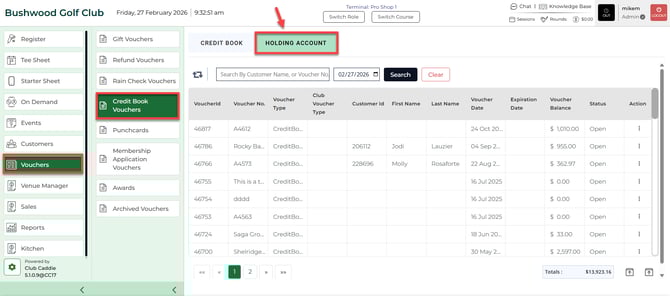
The club's holding account will be displayed here alongside the option to view its usage history and drill into the orders affecting the holding account's ledger by selecting Action.
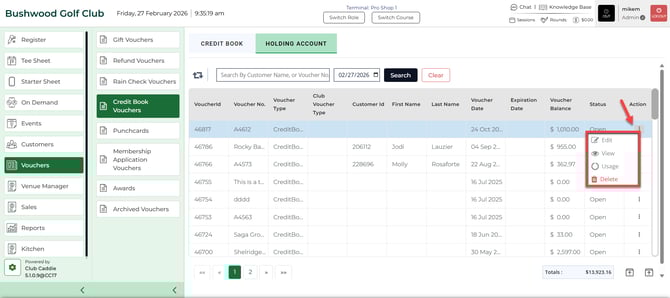
The club's holding account will be displayed here alongside the option to view its usage history and drill into the orders affecting the holding account's ledger by selecting Action.
Distributing from a Credit Book Holding Account
Step 1: In order to pay out the holding account balance into vouchers that can be distributed to customers we can navigate back to the Tools section of the register and choose the Credit Book Distribution.
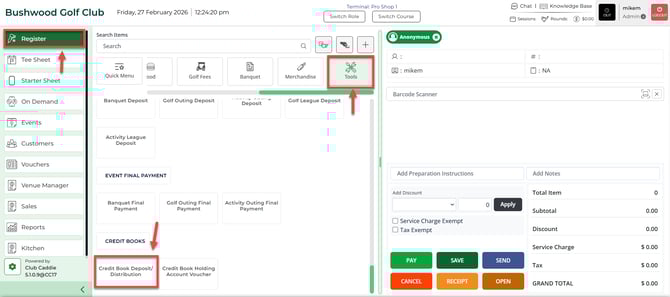
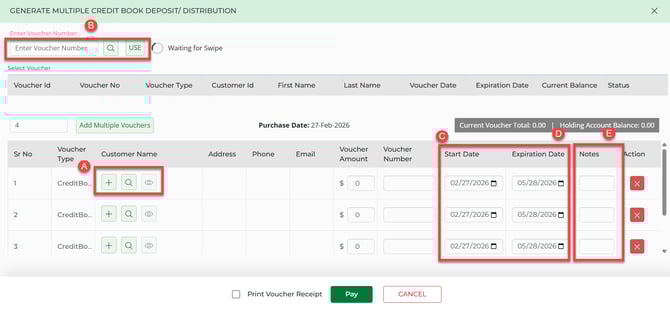
Step 2: This will launch the Credit Book Distribution manager. On the left-hand side you can specify the number of new vouchers we will be creating.
A) If desired the user can use the "+" icon to create a new customer profile or search for the customer using the magnifying glass icon.
B) Under the voucher number column you can specify a custom voucher number or alternatively swipe a hard gift card number.
C) The start date is automatically set to today, you can adjust this date if you wish for this voucher to be available at a later time.
D) If desired you are able to specify a voucher expiration date in the "Expiration Date" column.
E) If desired you can leave a note record against each of the created vouchers.
Step 3: After selecting Pay, you are able to find the newly created vouchers under the Vouchers module, then select Credit Book Vouchers and then Credit Books.
Additionally, we have the options to edit/view and print voucher information as well as delete or view the details voucher usage.
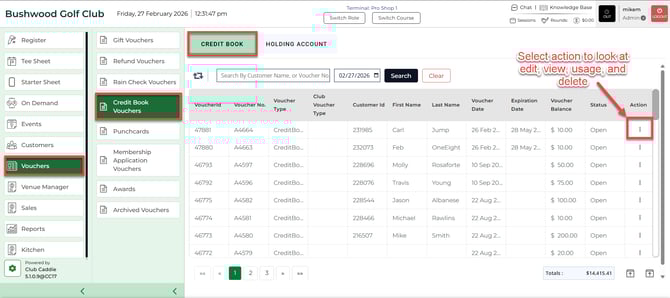
Additionally, we have the options to edit/view and print voucher information as well as delete or view the details voucher usage.