.png?width=200&height=89&name=CC%20%20fiserv.%20(3).png)

Note that if you do not see this option you will need to contact your course admin to enable the permission for "Voucher Manager" module and the subsequent "Credit Book Vouchers" permission.
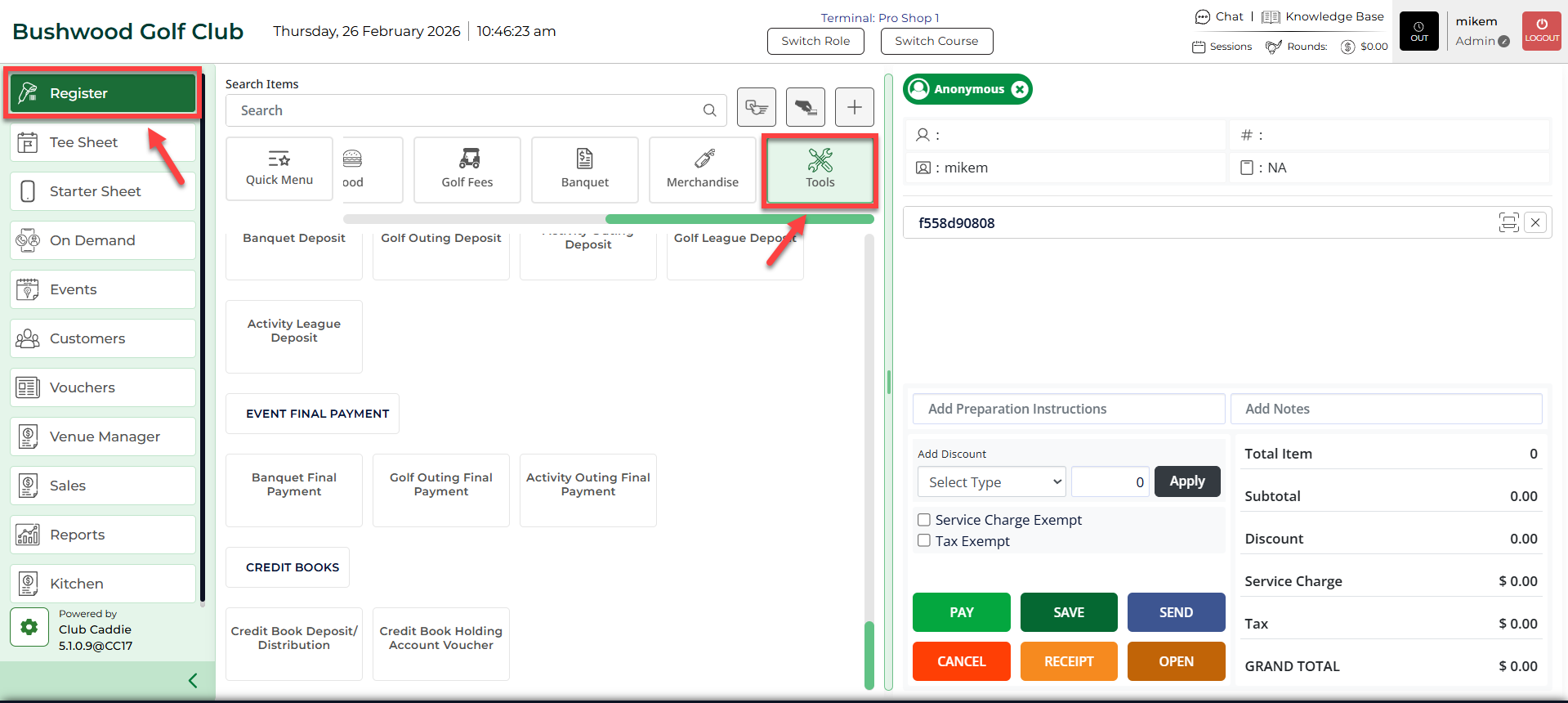
Step 2: In the register, you'll find the Credit Book Deposit option.
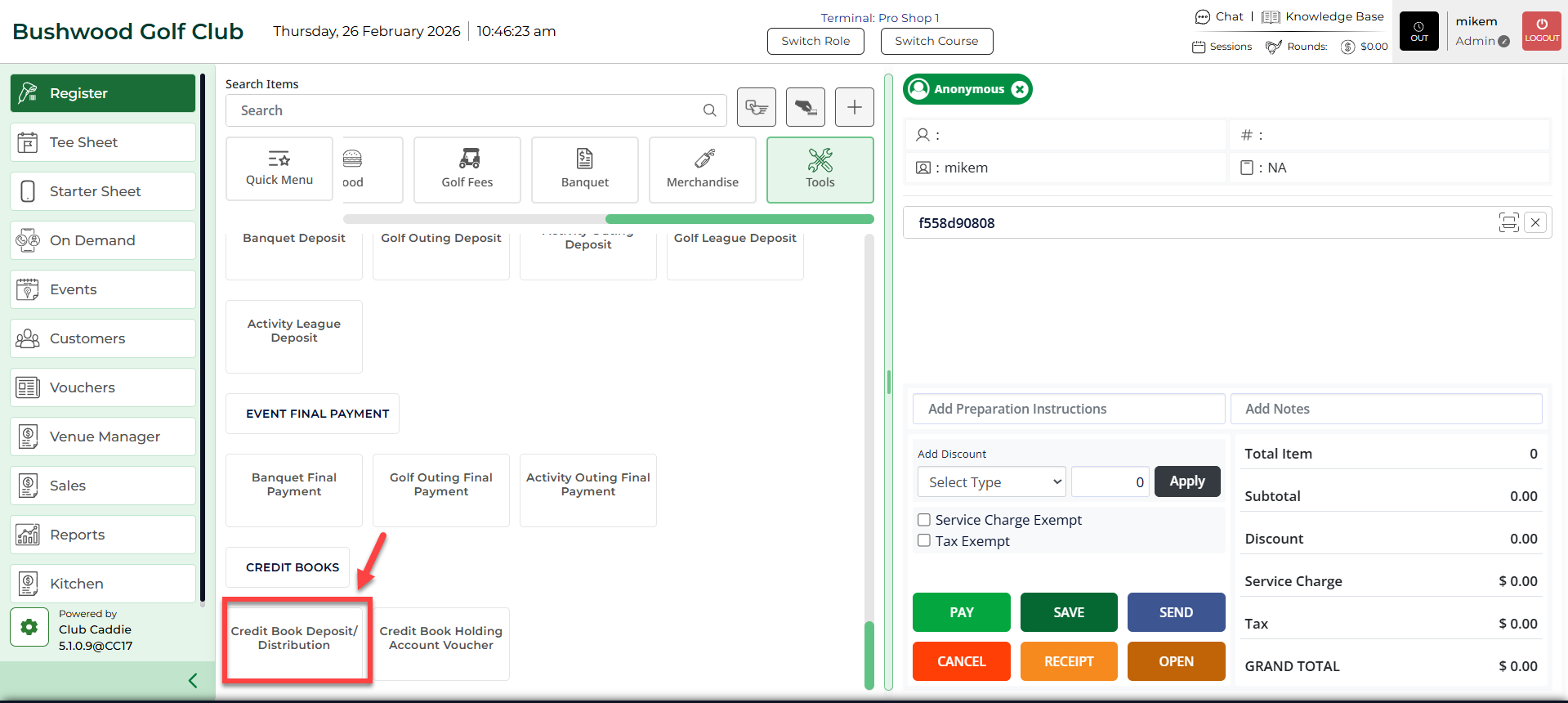
Note that if you do not see this option you will need to contact your course admin to enable the permission for "Voucher Manager" module and the subsequent "Credit Book Vouchers" permission.
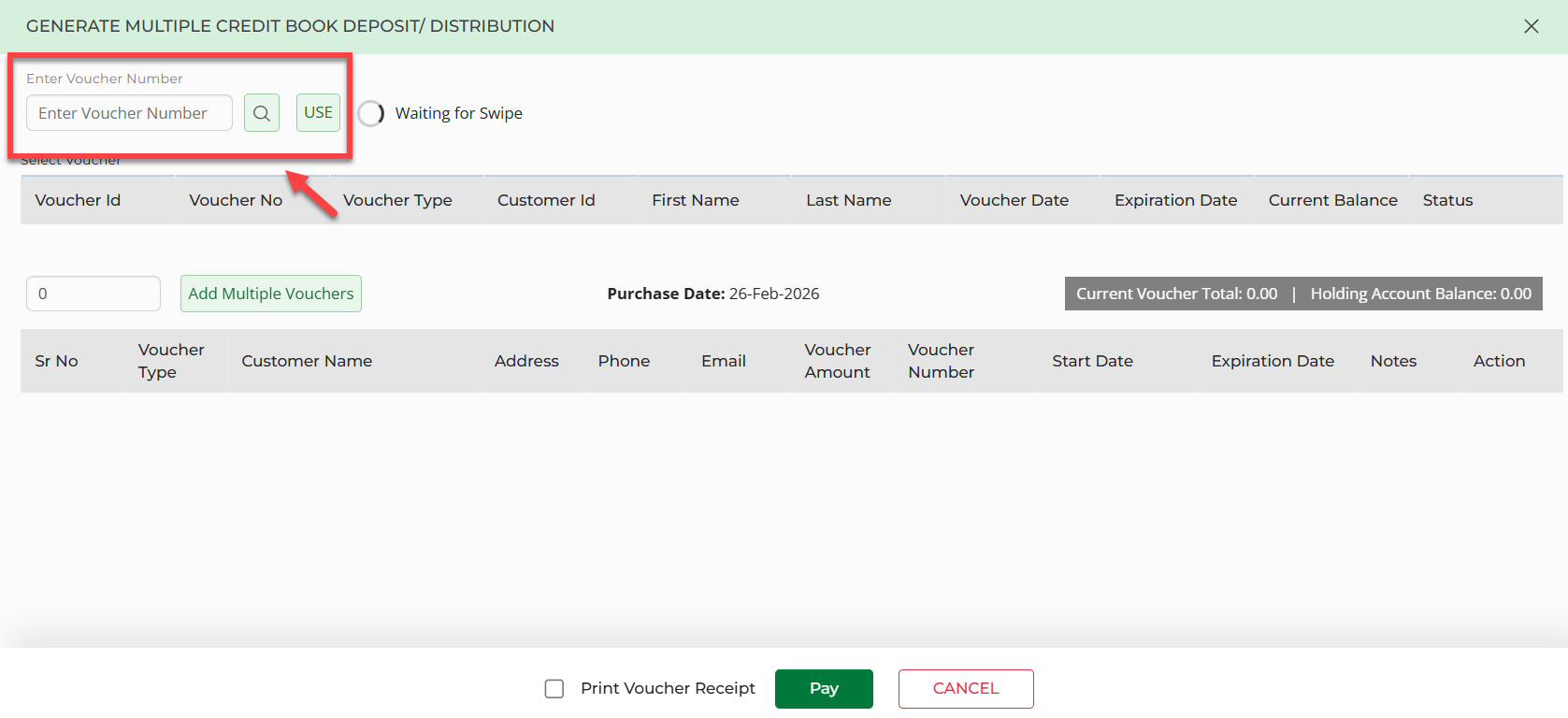
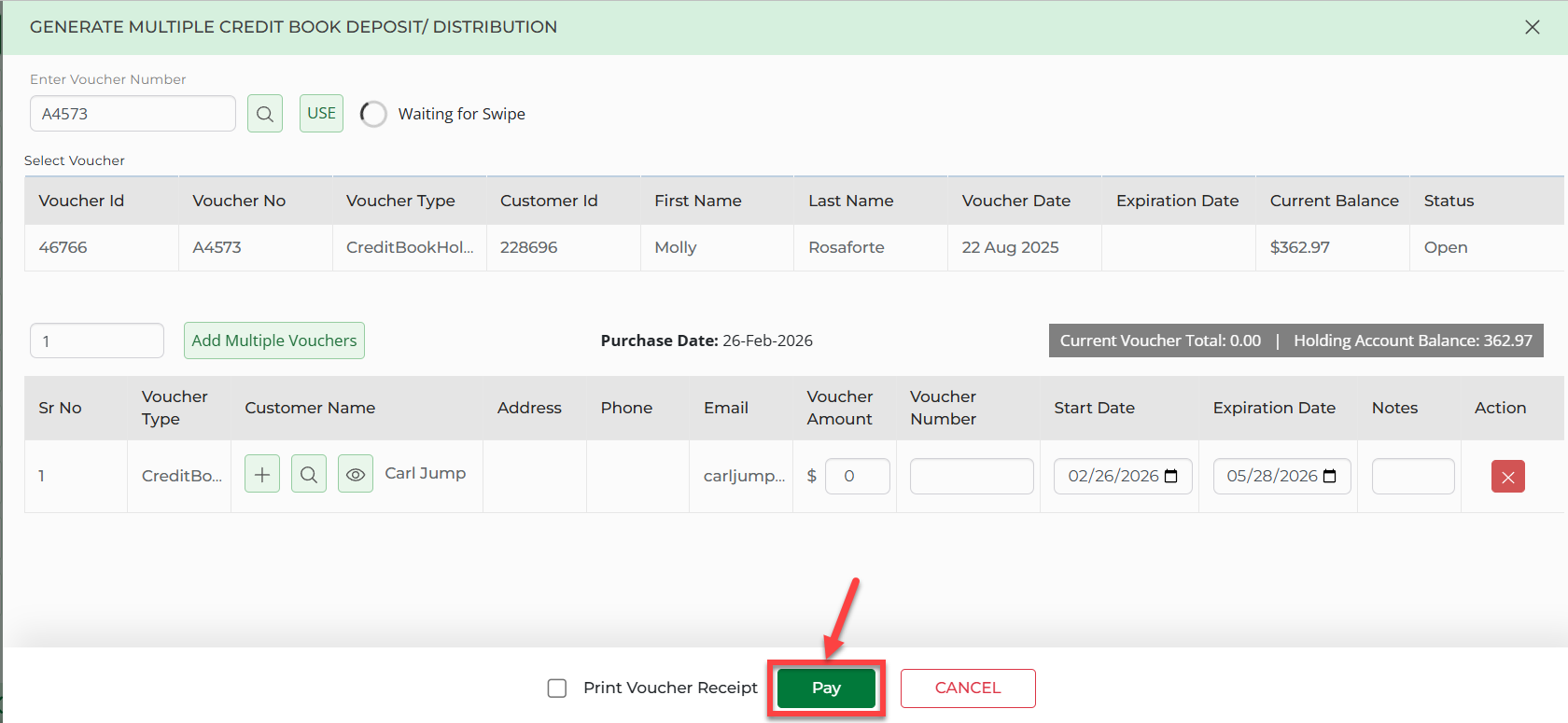
The club's holding account will be displayed here alongside the option to view its usage history and drill into the orders affecting the holding account's ledger.
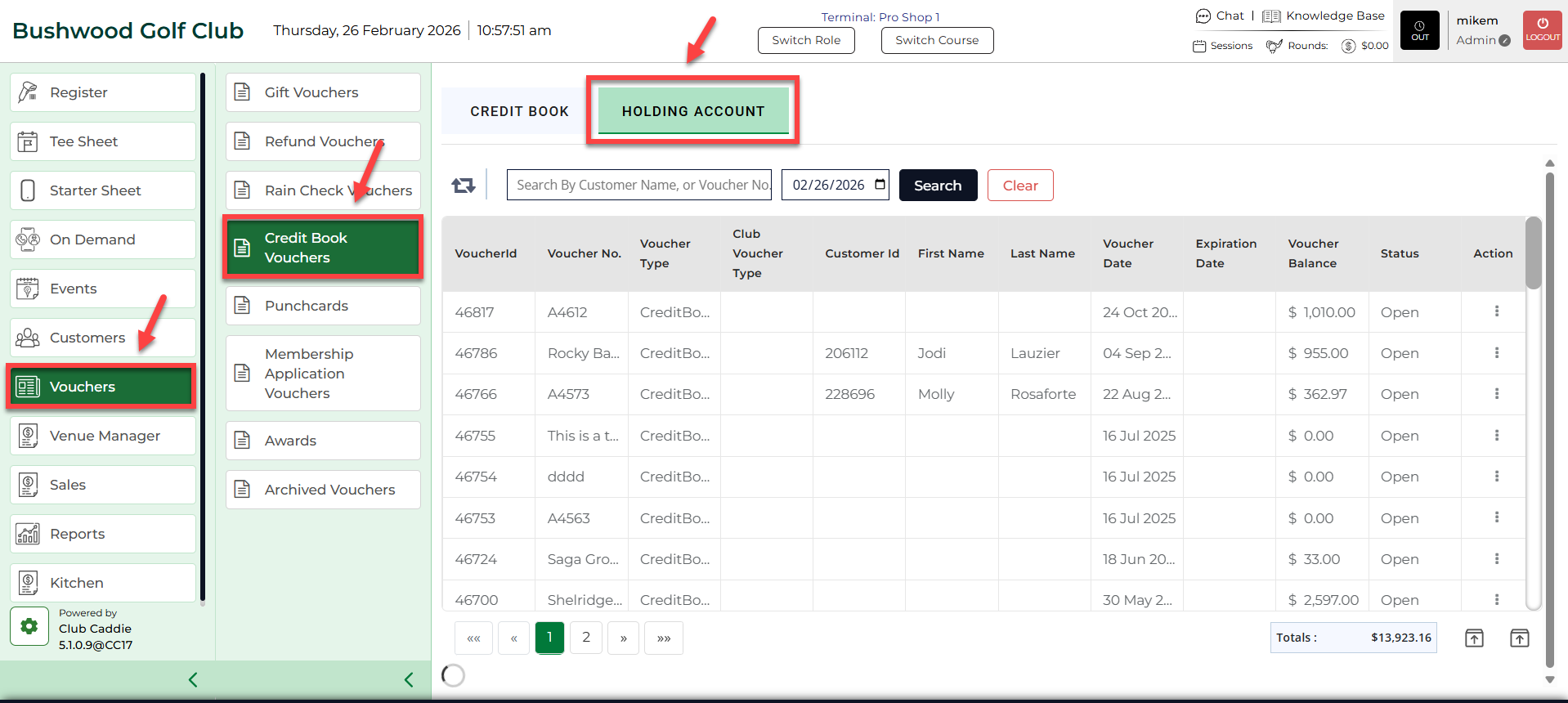
Example Scenario:
A member calls and wants to add $200 to their club holding account to use throughout the season. The staff member opens Register > Tools, selects Credit Book Deposit, chooses the correct holding account, and enters $200. After adding the line item, they ring it in like a normal transaction to complete the deposit. Later, the manager checks Voucher Manager > Credit Book Vouchers > Holding Account to confirm the updated balance and review the ledger entries tied to the deposit.