.png?width=200&height=89&name=CC%20%20fiserv.%20(3).png)
Overview
A guest walks up to the bar and orders a drink. A Quick Tab opens a tab for them in one tap, with no customer search first. Open the tab, add the drinks and food, and close it out with cash when the guest is ready to pay.
Each Quick Tab is named Quick 1, Quick 2 and so on, so you can tell open tabs apart at a glance.
Open a Quick Tab
- Open the Register on your terminal.
- Next to Search Items, click the first icon, the pointing finger. This is the Quick Tab button.

- If Enter Pin Code opens, enter your PIN. Your terminal's settings decide whether this appears.
- A new tab opens on the right, named Quick plus the next number (for example Quick 1), ready for the order.
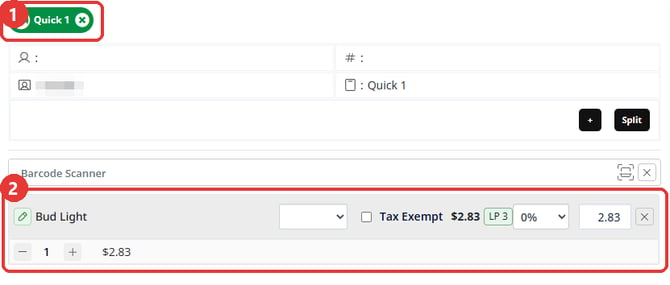
Ring in the order
- Tap a drink to add it to the tab. If an EDIT ORDER MENU ITEM box opens, tap Close to keep the drink as it is.
- Tap Food, then the food category, then the item. If the item asks you to confirm its price, tap SUBMIT.
For quantities, prices and discounts, see Browser - Register: Starting a New Transaction and Browser - Register: Managing Items in a Tab.
Close it out with cash
- With the tab selected, tap PAY.
- In Payment Mode, choose Cash, then tap Ok.

- In Cash Payment, tap the bills the guest handed you (for example $20), or type the amount in Amount Paid. Each tap adds to the amount, so a $20 and a $5 are two taps. Return Cash shows the change to give back.
- Tap Pay. The tab closes and leaves the Register.
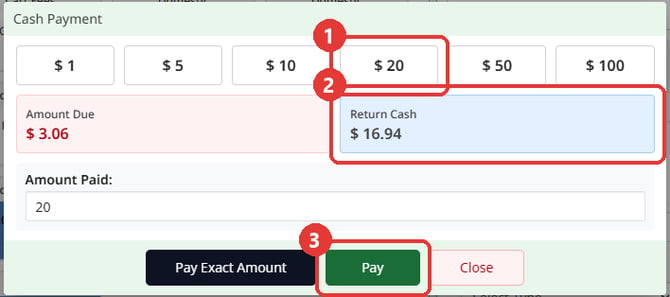
Pay stays greyed out until the cash covers the total. For other tenders, see Browser - Register: Checkout and Payment Processing.
Common Questions
Can I put the guest's name on a Quick Tab?
Yes. Right-click the tab and choose Rename to type a name, or Customer to attach a customer record.
Why did the Register ask for my PIN?
The Register asks for a PIN when Requires Pin On Quick Tab in Register is on and Pin Lock in Register is off in Terminal Management. When Pin Lock in Register is on, the tab opens without a PIN and is assigned to the employee using the Register.
The guest is not ready to pay. What do I do with the tab?
Leave it open and keep adding to it. To take it off the screen, click the x on the tab and choose Move to Pull Tabs. You can reopen it from Pull Tabs; see Browser - Register : All Tabs / Pull Tabs.
How do I remove a Quick Tab I no longer need?
Click the x on the tab. Choose Move to Pull Tabs to keep it for later, or Permanently Delete to remove it from the Register. If the tab has items and your role does not have Manager Override, a manager enters their PIN to approve it.
The guest wants to pay by card instead. Where is that?
Tap PAY the same way and choose the card tender. See Browser - Register: Processing a Credit Card Payment.