
Overview
Block Turn Times is a setting in Tee Sheet Settings that gives an 18-hole booking a turn time, which is its back-nine start booked for the same group. When it is on, the booking window shows Turn Where and Turn Time for 18-hole bookings. Default Block Turn Time(in Minutes) sets how many minutes after the first start the turn time begins. The toggle saves when you click it, and the minutes save when you click Add Minutes. The default is the starting suggestion; staff can change the turn time on a booking.
To change the turn time on one booking, see the articles linked in Common Questions.
Turn on Block Turn Times
- Click the Settings gear and choose Tee Sheet Settings.
- Stay on the Tee Sheet Settings tab, which is the first tab.
- In General Settings, find Block Turn Times : and click the check mark. A confirmation appears. If the check mark is already green, the setting is on; leave it.
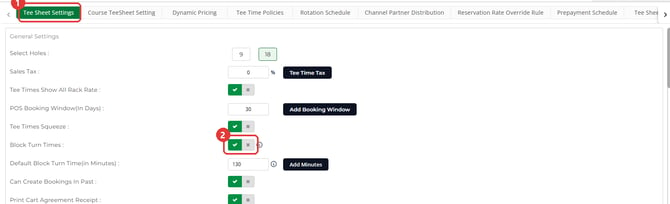
Set the default turn time
- On the same tab, find Default Block Turn Time(in Minutes) : just below Block Turn Times :. The box and the Add Minutes button are available while Block Turn Times is on.
- Type the number of minutes, up to three digits, and click Add Minutes. The minutes save when you click it, and a confirmation appears.

If you click Add Minutes with the box empty, Club Caddie saves 120 minutes.
See turn times in the booking window
- On the Tee Sheet, open a tee time to start a new booking.
- Choose 18 holes. Turn Where and Turn Time appear in the booking window.
- With 9 holes selected, or with Block Turn Times off, those two fields do not appear.
Turn off Block Turn Times
- Click the Settings gear, choose Tee Sheet Settings, and stay on the Tee Sheet Settings tab.
- In General Settings, click the x beside Block Turn Times : so the check mark is no longer green. A confirmation appears.
- If turn times already exist on the tee sheet and you want them gone, log out of Club Caddie and log back in.
- Open each tee time that has a turn time and click Save. The tee time updates without its turn time, and the original booking stays.
Common Questions
Can I cancel a turn time to remove it?
A turn time and its booking are paired, so cancelling the turn time cancels the booking too. To remove turn times and keep the bookings, use the steps in Turn off Block Turn Times.
How do I change the turn time on one booking?
Open the booking and change Turn Where or Turn Time. Steps are in Browser - Tee Sheet : Editing Turn Time Resource.
How is this different from a Turn Time Only Block?
Block Turn Times is a course setting that adds turn times to 18-hole bookings. A Turn Time Only Block is a block you place on the tee sheet. See Browser - Tee Sheet : Turn Time Only Block.