.png?width=200&height=89&name=CC%20%20fiserv.%20(3).png)
Overview
Club Caddie keeps each sales tax rate as a tax type in Tax Management. When your local rate changes, add a new tax type with the new percentage, then point your items at it. The number that matters is Tax %, entered as a plain number such as 8.75.
Adding a new tax type leaves your existing tax types as they are. This article covers adding the tax type and the step that gets the rate onto your items.
Before you start
Have the new percentage ready, along with the Charts Of Account entry you use for tax collected.
Open Tax Management
- Go to Settings and click Tax Management in the left menu. The Tax List shows each tax type with its Charts Of Account, its percentage, and Edit and CoA buttons.
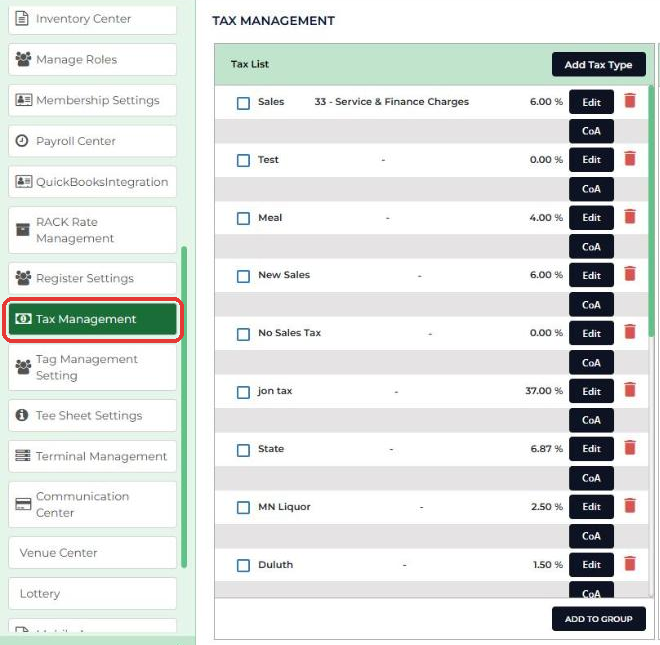
Add a tax type with the new rate
- Click Add Tax Type at the top of the Tax List. A panel opens with Type Of Tax, Charts Of Account and Tax %.
- In Type Of Tax, enter a name that includes the rate, such as Sales Tax 8.75%, so it is easy to spot later. Use a name you have not used before.
- In Charts Of Account, choose your tax account. In Tax %, enter the percentage as a number, with no % symbol.
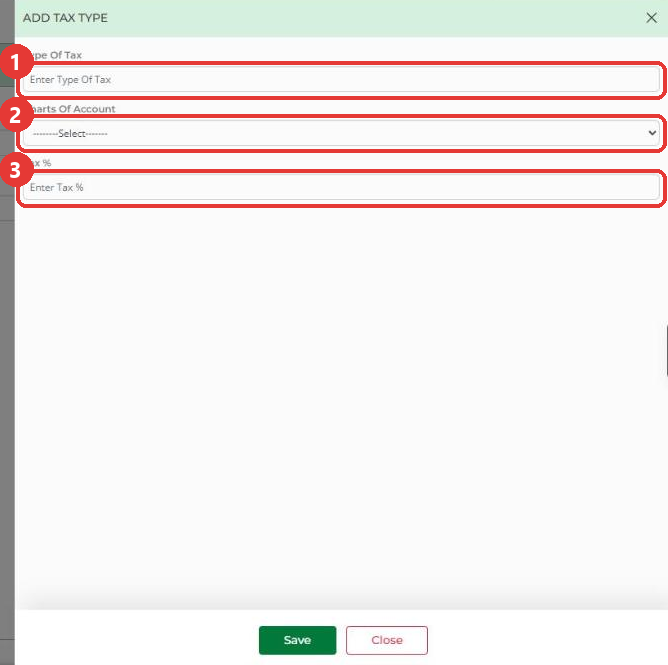
- Click Save. The new tax type appears in the Tax List, and a tax group with the same name appears under Taxes Group.
- Move your items to the new rate. Go to Settings > Inventory Center > Add / Manage Items. On an item's row, click the three dots in the Action column, then View/Edit. Choose the new rate in Tax Group, then click Update. Repeat for each item that needs it.
Common Questions
Can I edit an existing tax type instead?
Each row in the Tax List has an Edit button. It opens the same panel with the saved Type Of Tax, Charts Of Account and Tax % filled in. The steps in this article add a new tax type, which leaves your current rate unchanged.
Do I need to change anything besides my items?
Other places can name a tax group too. In Tee Sheet Settings, Default Green Fee Tax Type / Group : is the starting tax group for a green fee item the rate builder creates. In Register Settings, Inventory Service Charge Tax Group : and Event Service Fee Tax Group : name tax groups used for service charges, and an item can have its own Service Charge Tax Group. If any of them still names your old tax group, change it to the new one.
My items use a combined tax group, such as two taxes together. What do I do?
Add the new tax type first. Then, in the Tax List, tick the box next to each tax type the group should include and click ADD TO GROUP. Under Create Tax Group, enter a Group Title and click CREATE GROUP. The new group appears under Taxes Group. Then choose it in Tax Group on each item that used the old combined group.
Should I delete the old tax type?
Leave it in the Tax List. Deleting it is not part of the update.
Where is the Desktop version of this?
The Desktop steps are in Settings : How to Update Sales Tax Percentages. To price items so the customer pays an even total after tax, see Browser - Settings : How Sales Tax Is Calculated and How to Price for an Even Total.