.png?width=200&height=89&name=CC%20%20fiserv.%20(3).png)
NOTE: Club Caddie does not allow editing existing tax types. You must create a new one with the updated rate. Old tax types are kept so your historical reports stay accurate — do not delete them.
If you’re a California course looking for a rate-change guide specific to your state, including how to look up your current CDTFA rate, see:
Step by Step:
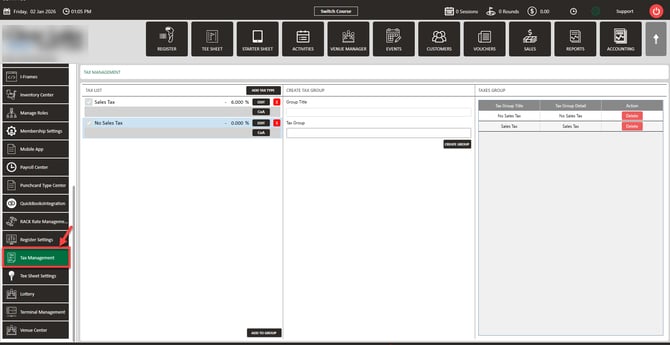
Step 1: Navigate to Settings (gear icon, top right), then click Tax Management from the left menu.
Step 2: In the Tax List column, click Add Tax Type.
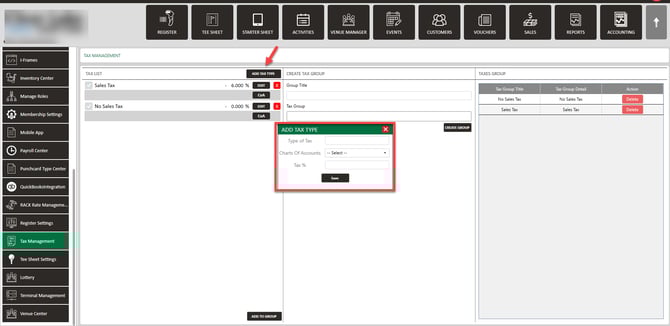
Step 3: In the pop-up, fill in the following:
- Name: Give it a clear name that includes the rate and date, so it’s easy to identify later. Example: Sales Tax 8.75% — Apr 2026
- Chart of Accounts: Select your tax account.
- Rate: Enter the percentage as a number only — no % symbol. Example: 75
Step 4: Click Save. The new tax type will appear in your Tax List.
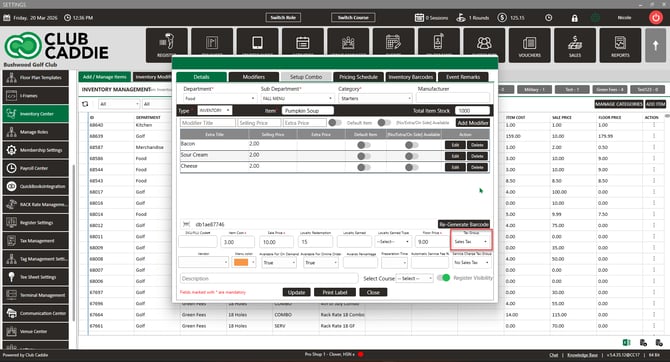
Step 5: Now assign the new rate to your inventory items. Go to Settings > Inventory Center. Double-click an item, select the new rate from the Tax Group dropdown, and click Update. Repeat for each item that needs the updated rate.
TIP: Work through your inventory by category to stay organized — green fees first, then merchandise, then food and beverage. It’s easy to miss an item if you’re jumping around.
NOTE: If your facility uses Tax Groups (multiple taxes combined), you’ll also need to create a new Tax Group that includes the updated tax type. See the Tax Management Overview article for instructions.