.png?width=200&height=89&name=CC%20%20fiserv.%20(3).png)
Step-by-Step:
Step 1: Open the tab, then look for the Seats area on the bottom right of the screen. Tap the + button (Add Seat) to create Seat 1, then tap + again to add Seat 2, Seat 3, and so on (one per guest who needs a separate check).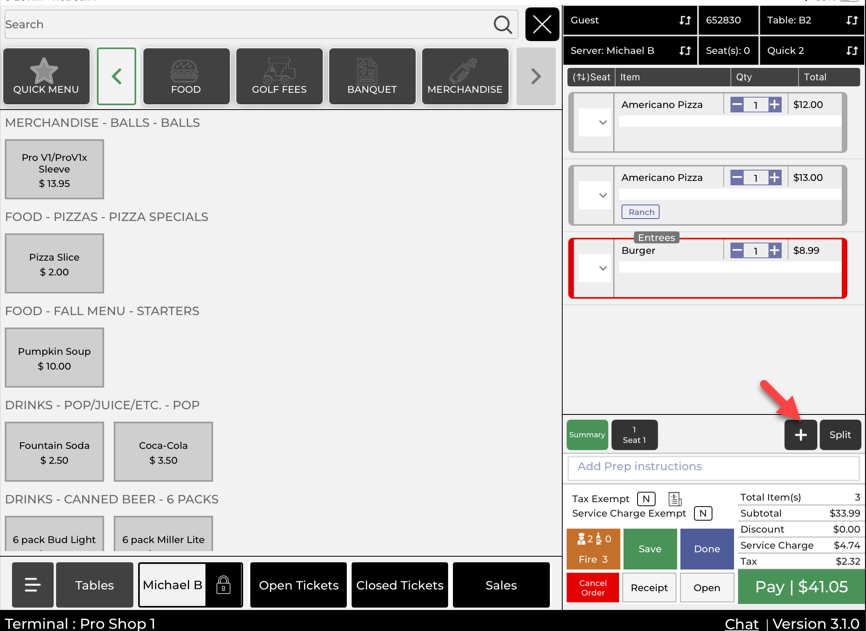
Step 2: Tap a seat (for example, Seat 1) to make it active, then add items using the menu as normal. Items you add while a seat is selected automatically assign to that seat.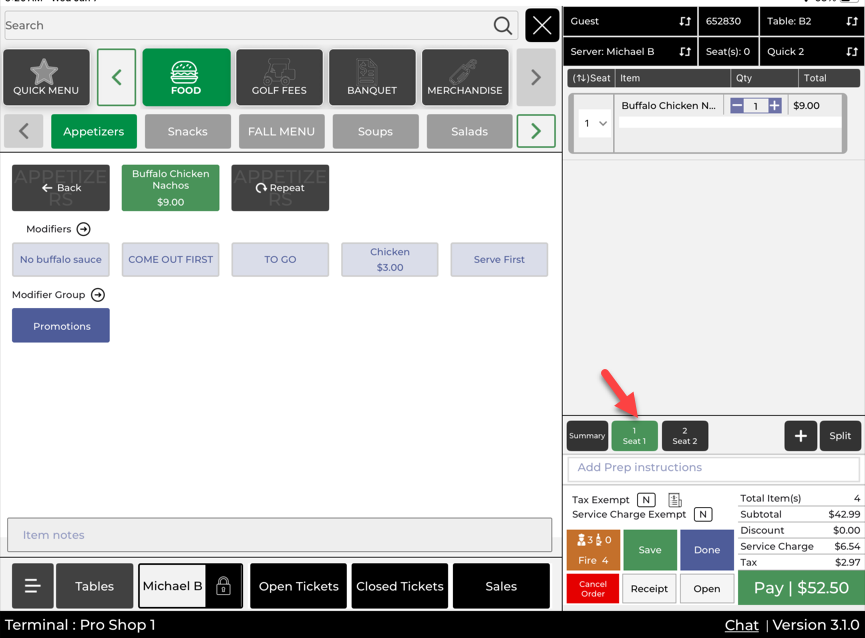
Step 3: Repeat for each guest by selecting the next seat (Seat 2, Seat 3, etc.) and adding that guest’s items.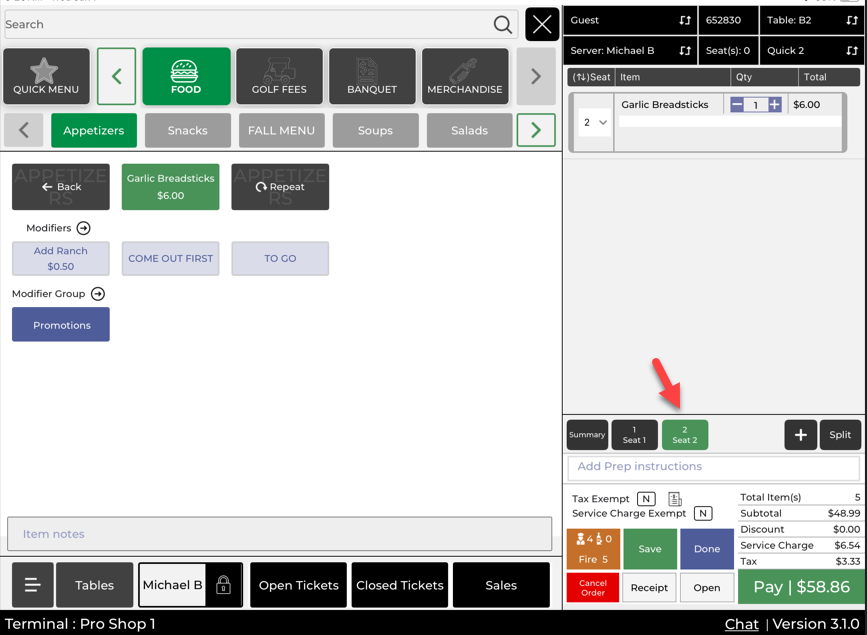
Step 4: If you added items to the wrong seat, tap the Summary view (or the list that shows all items), tap the item you need to fix, then choose the option to move/assign it to the correct seat (for example, “Move to Seat” or “Assign Seat”) and select the right seat.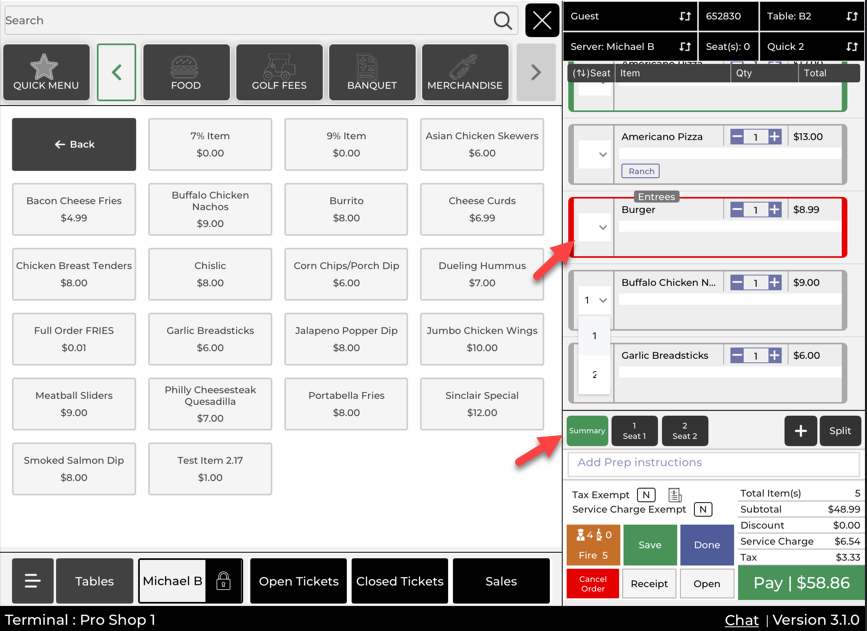
Step 5: When guests are ready to pay separately, open the tab and quickly review each seat to confirm items are in the correct place.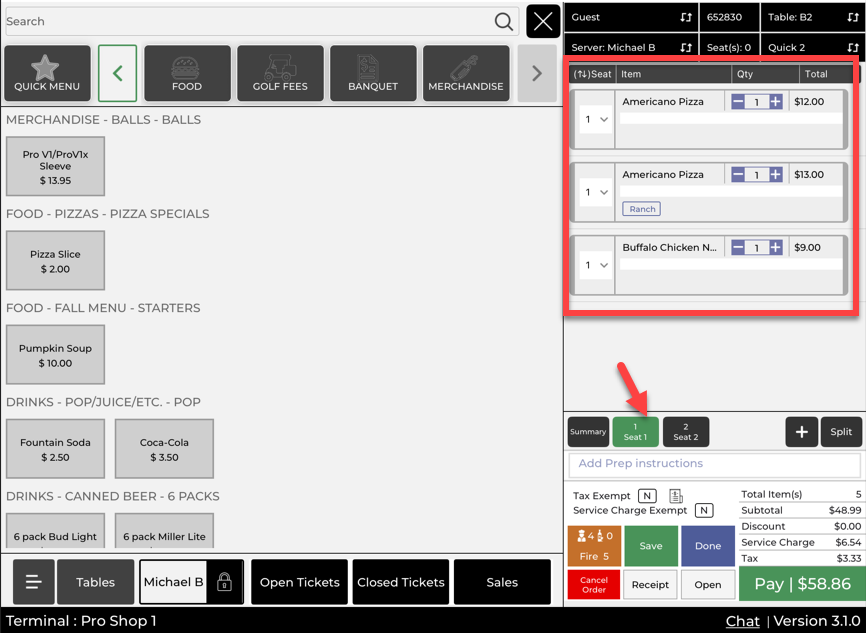
Step 6: Tap Split (often located near the bottom right). In the split window, choose whether to keep seats separate or combine specific seats, then confirm. Each seat becomes its own check ready for payment.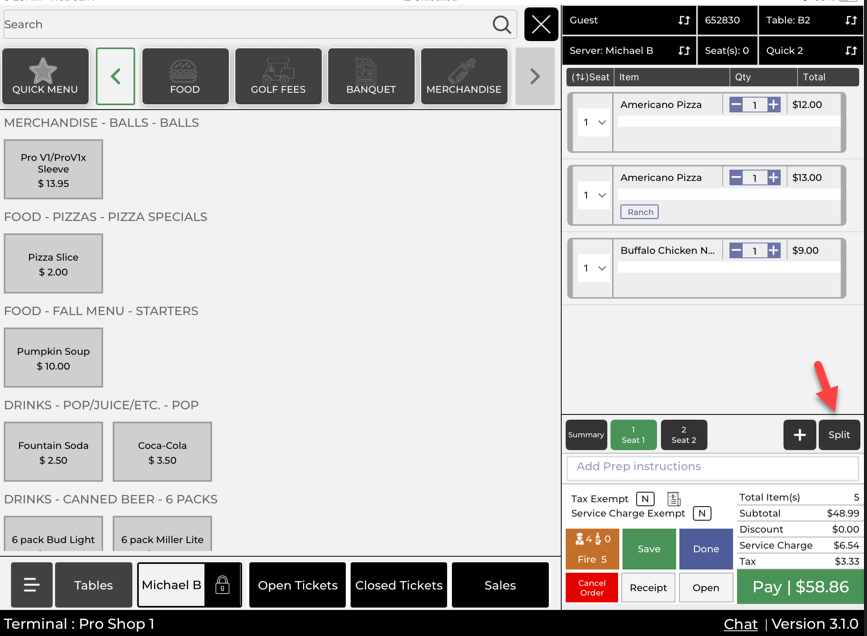
Step 7: Tap Open Tickets and open each split check, then process payment for each guest individually.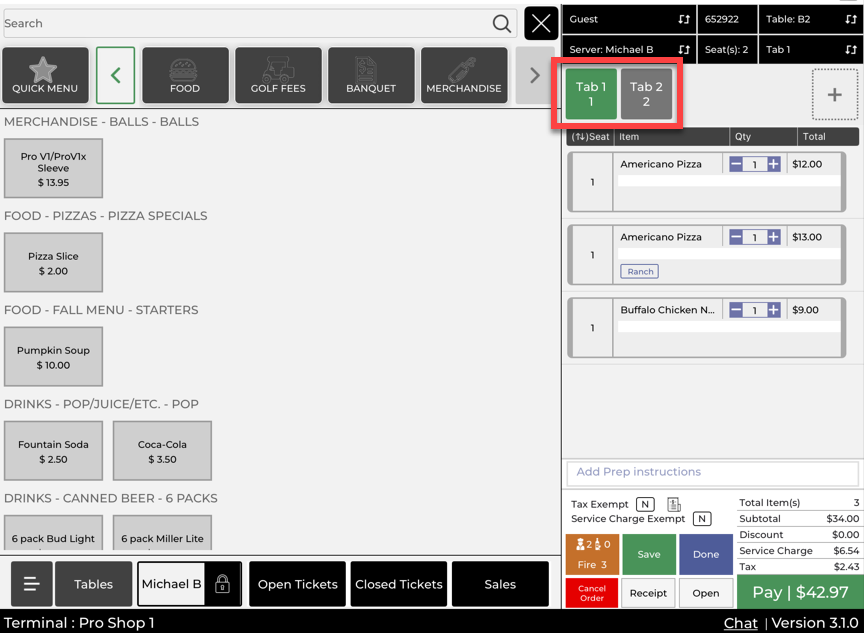
Example Scenario:
A foursome finishes lunch and asks to pay separately. You open their tab, tap the + in the Seats area to create Seat 1–Seat 4, then select each seat before entering that guest’s items. One soda was added to the wrong seat, so you tap the item in the Summary list and move it to the correct seat. When they’re ready, you tap Split to separate the checks and then open each ticket to collect payment one guest at a time.