.png?width=200&height=89&name=CC%20%20fiserv.%20(3).png)
Tickets move to Closed Tickets after payment is completed. If your facility uses tip-on-receipt, some tickets may show as Tip Incomplete until tips are entered.
Step-by-Step:
Step 1: In the bottom navigation, tap Closed Tickets (near Tables, Open Tickets, and Sales).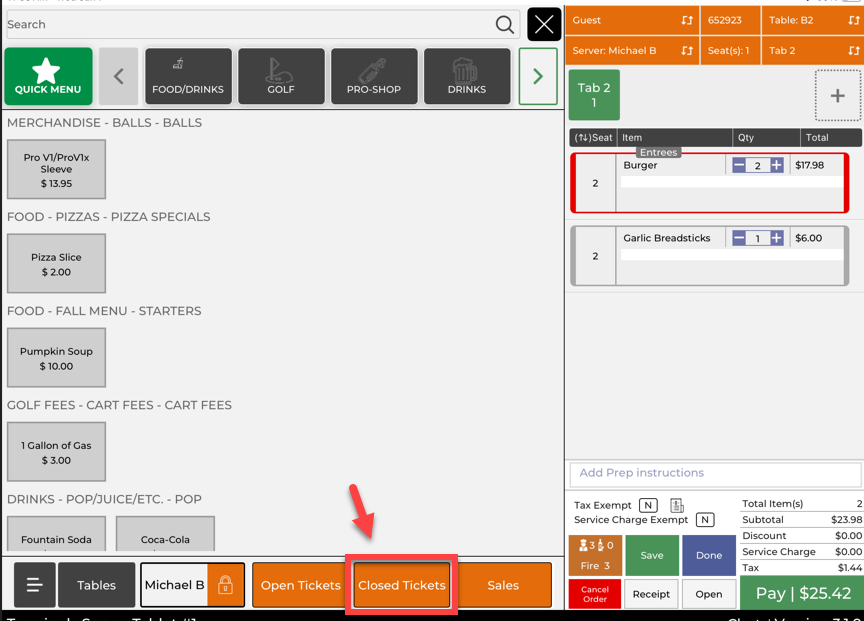
Step 2: Review the list of closed tickets from your shift. These include cash payments, credit card payments, member charges, and any transactions with tips.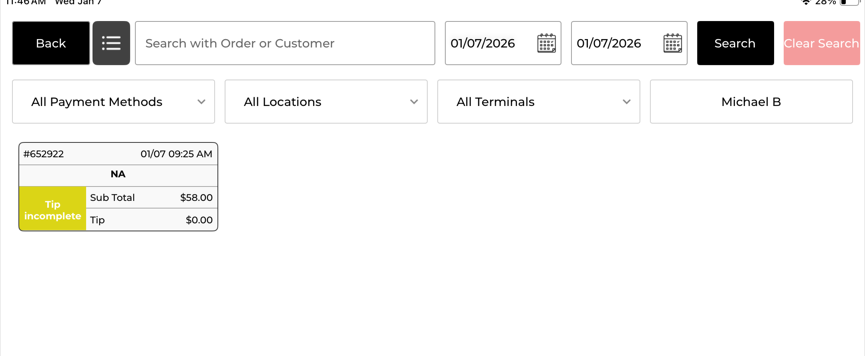
Step 3: Tap a ticket to open it and review the completed transaction details (items ordered, totals, and payment information).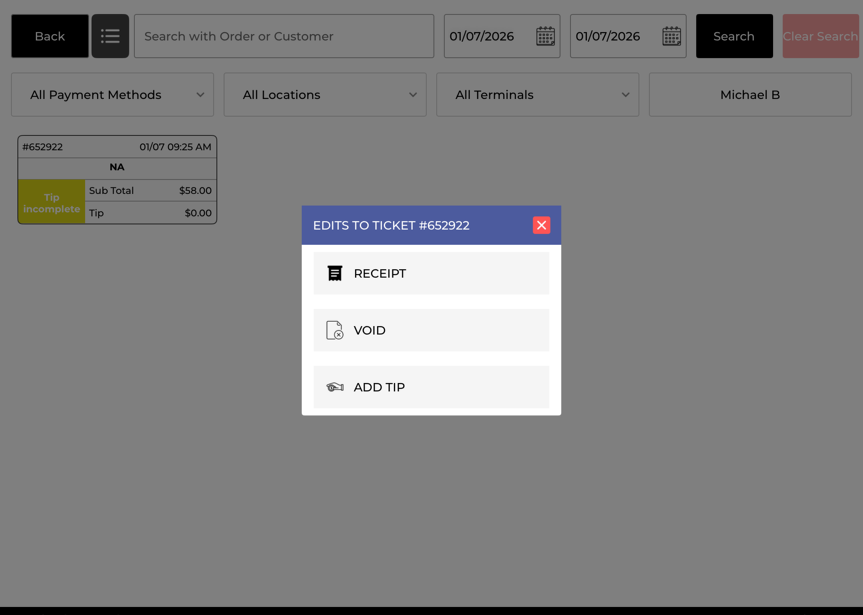
Step 4: If a ticket shows Tip Incomplete, open the ticket and enter the tip amount (based on the signed receipt), then save/confirm so the tip is applied.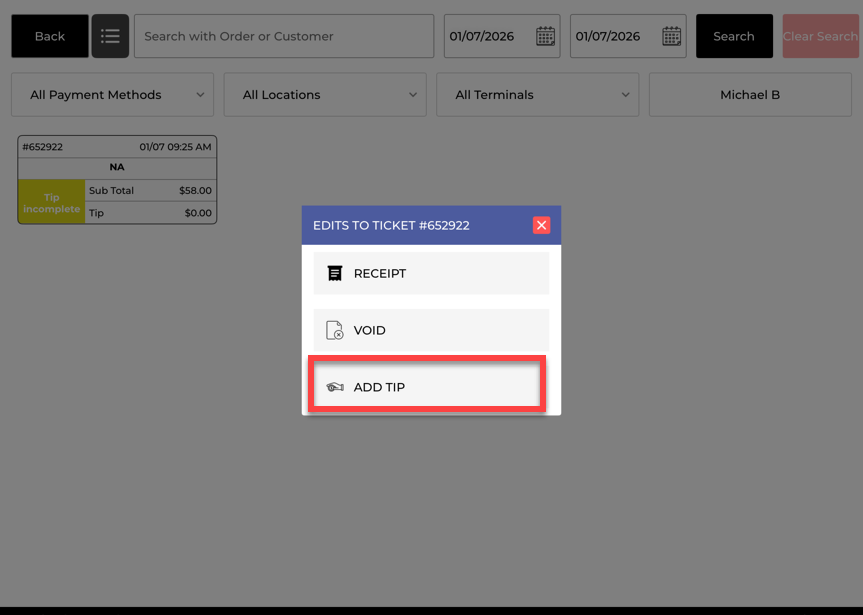
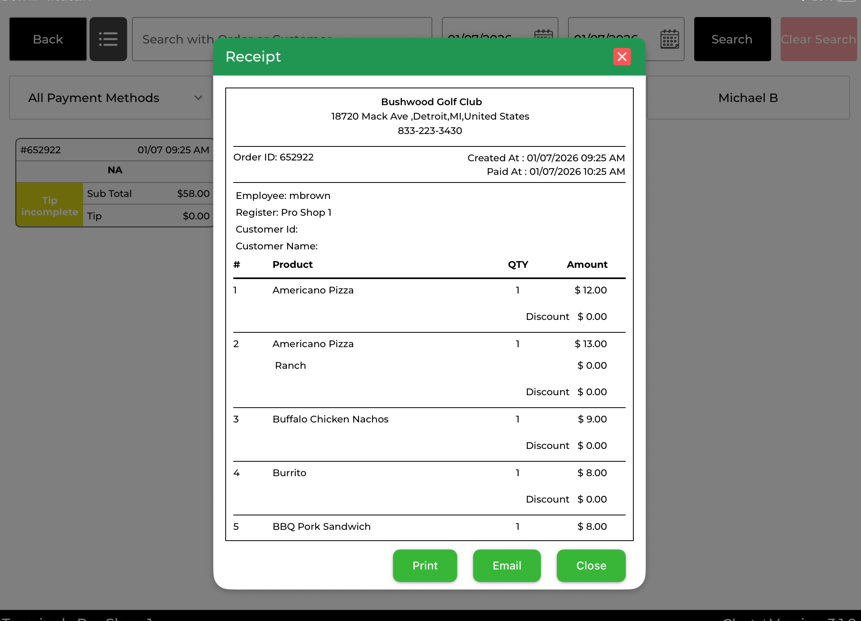
Step 5: To reprint a receipt, open the ticket from Closed Tickets and select the receipt/print option to print the receipt again.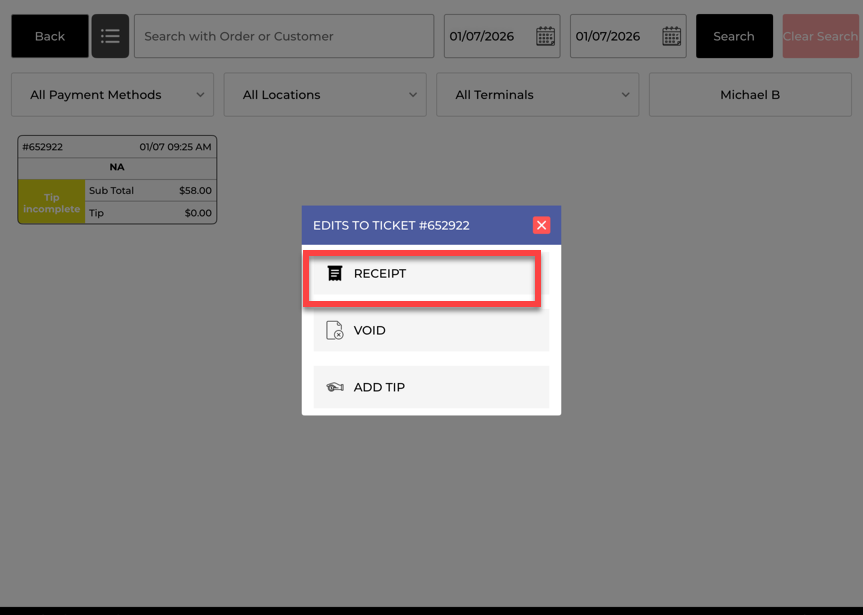
Example Scenario:
A guest calls saying they need a copy of their receipt from earlier in the day. You tap Closed Tickets, find their transaction, open it, and reprint the receipt. Later, you notice a ticket marked Tip Incomplete, so you open it and enter the tip from the signed slip before finishing your shift.