.png?width=200&height=89&name=CC%20%20fiserv.%20(3).png)
Step-by-Step:
Step 1: Open the F&B App and sign in with the employee’s login you want to review.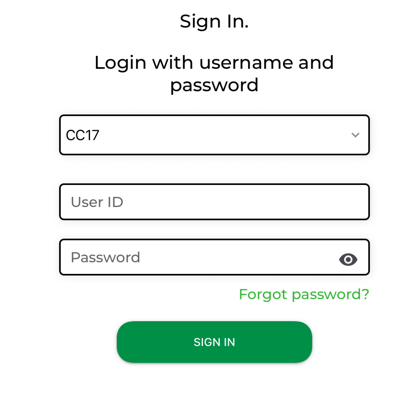
Step 2: From the main menu/navigation in the F&B App, select the Reports icon.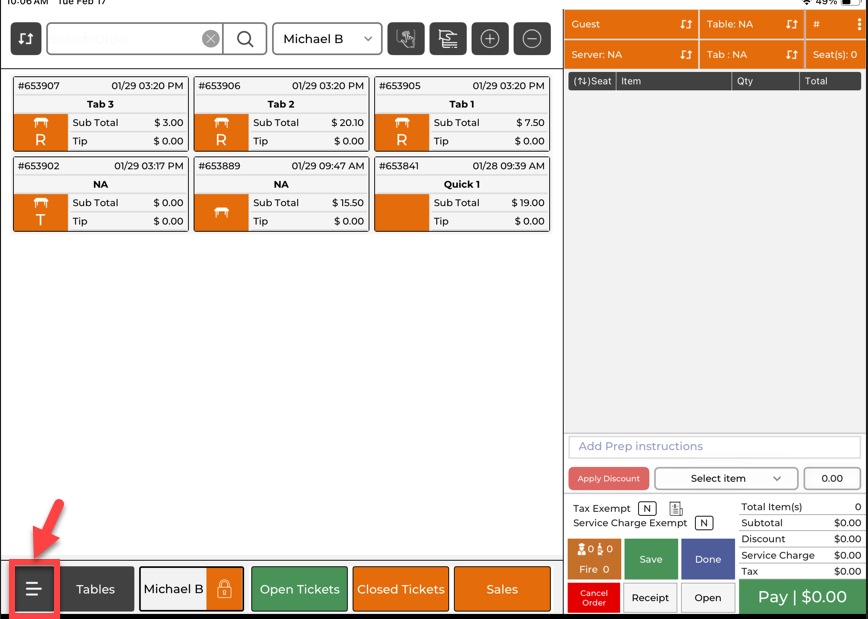
Step 3: Select Sales by Department.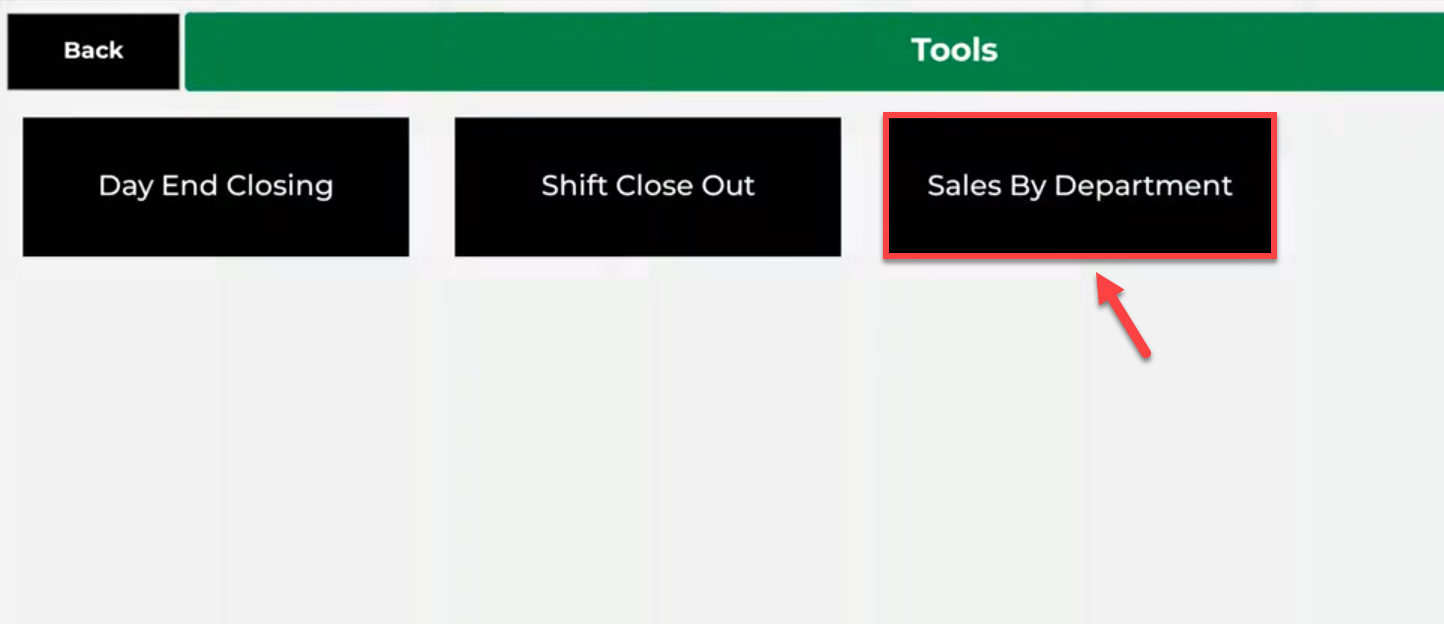
Step 4: Review the report results, which automatically display sales for the currently logged-in employee, grouped by department.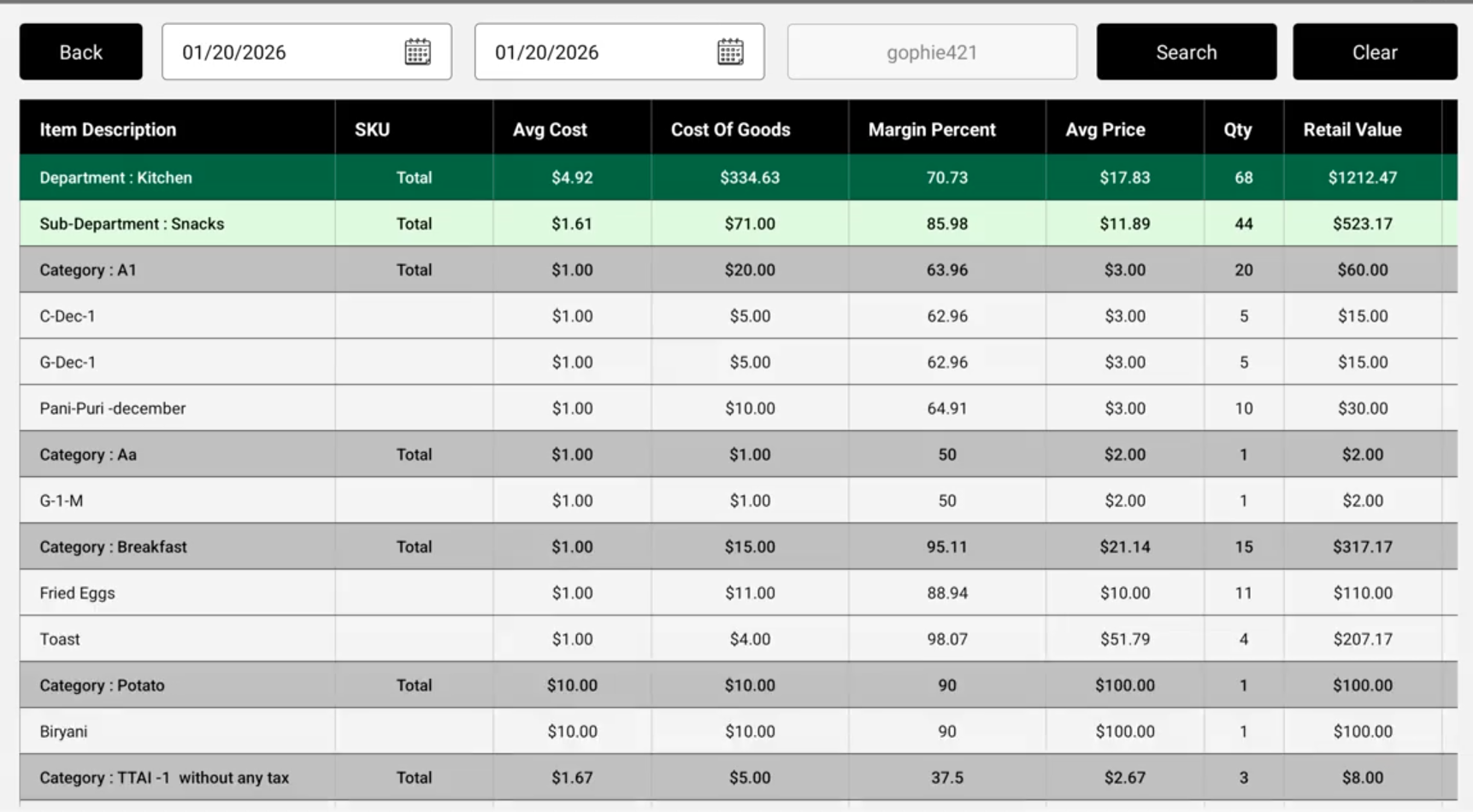
Use the department totals to confirm what was sold during the employee’s shift (for example, Beer, Liquor, Snacks, NA Beverages—based on your department setup).
When restocking a beverage cart or reconciling product usage, compare the report totals against the products being re-ordered to help spot discrepancies (giveaways, missed charges, or other loss).
Example Scenario:
A beverage cart returns after a busy afternoon and the operator requests a restock of beer, water, and snacks. The F&B manager opens the F&B App on a Clover Flex, signs in as the operator (or has the operator sign in), and runs the Sales by Employee report. The manager reviews the gross sales by department and compares those totals to what’s being re-ordered. If the restock request seems high compared to recorded sales, the manager can quickly investigate before inventory is adjusted.