.png?width=200&height=89&name=CC%20%20fiserv.%20(3).png)
Open QuickBooks Desktop and Club Caddie:
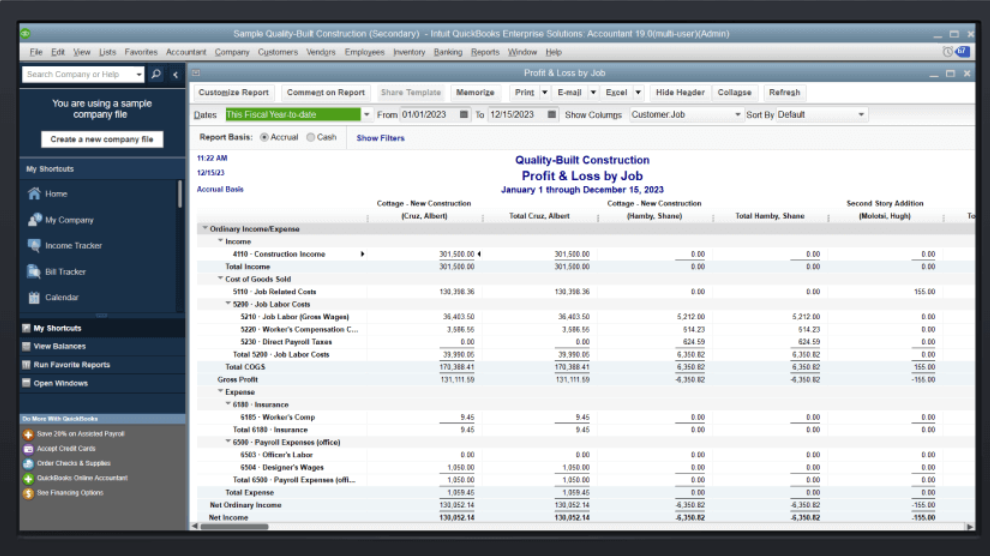
On your computer, open QuickBooks Desktop and load the correct company file. Then open Club Caddie so that both programs are running and accessible at the same time.

Step 1: Navigate to QuickBooks Integration and connect:
In Club Caddie, click the gear wheel (Settings) in the upper-right corner. Click QuickBooks Integration, then click QuickBooks Desktop. Look at your Windows taskbar for the flashing QuickBooks icon and click it. When QuickBooks prompts you, confirm that Club Caddie is allowed to communicate with QuickBooks.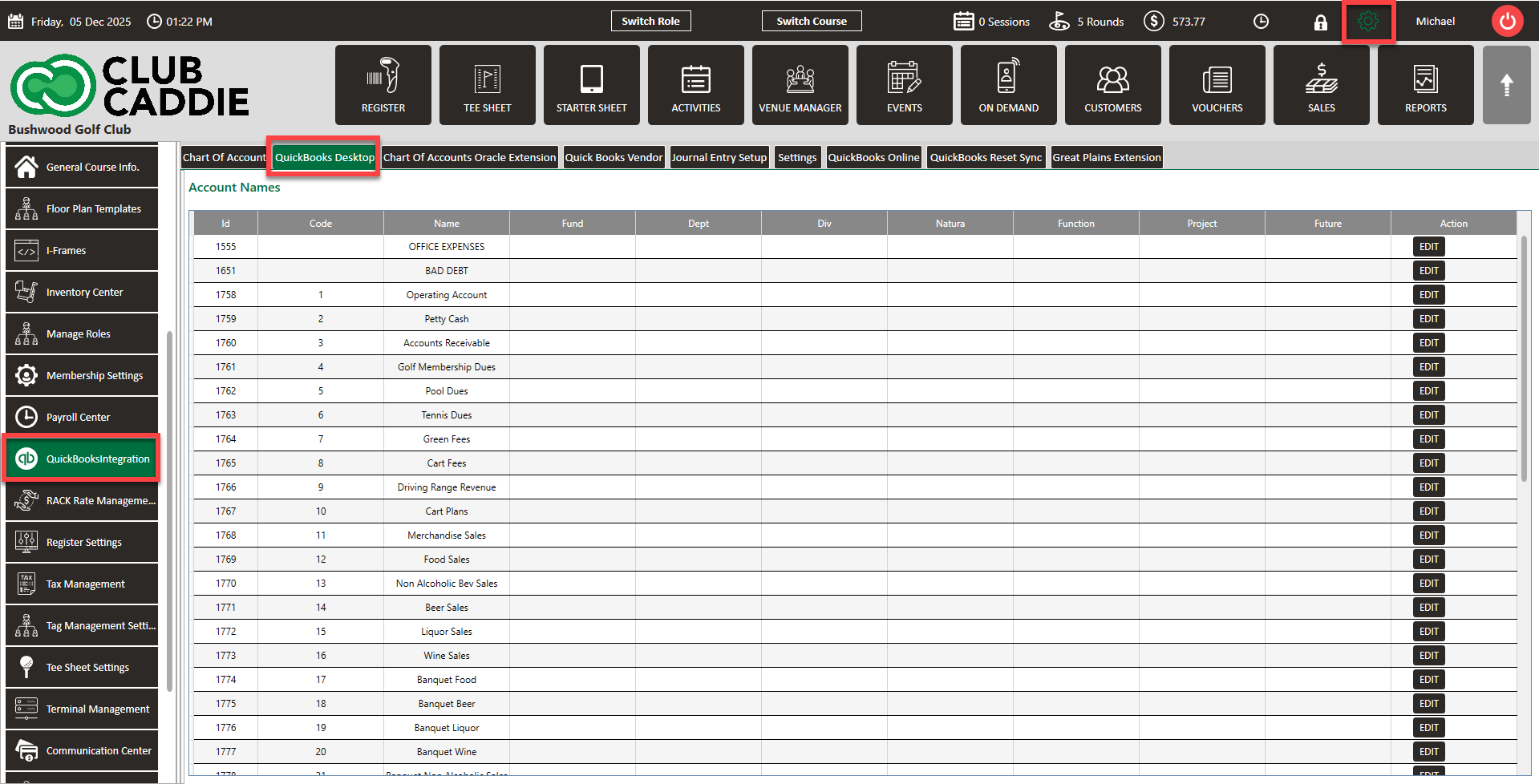
Step 2: Import your Chart of Accounts:
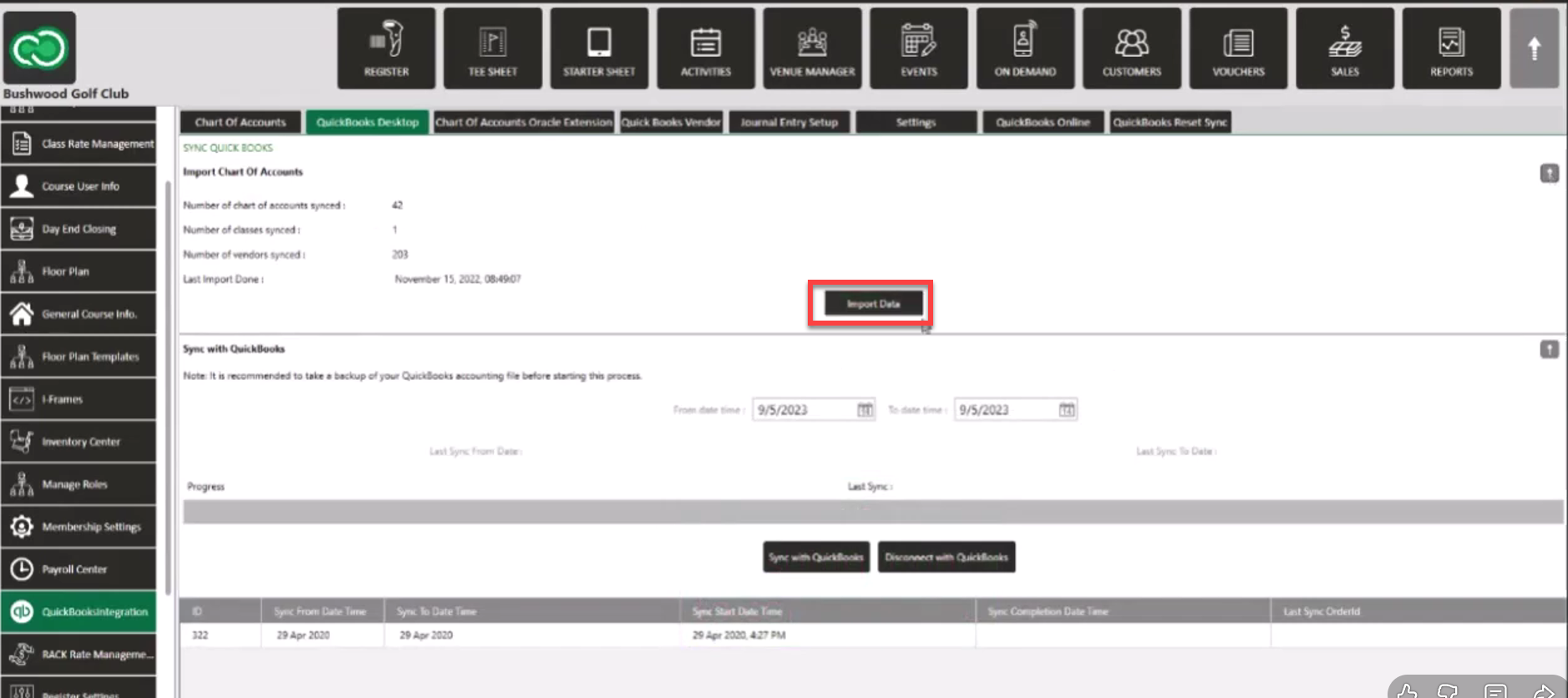
In Club Caddie, return to the QuickBooks Integration screen and click Import Data. Wait for the import to complete. Confirm that your Accounts, Classes, and Vendors have been imported (for example, “15 accounts, 4 classes, 10 vendors imported”).
Step 3: Configure Transaction Types (Journal Entry Setup):
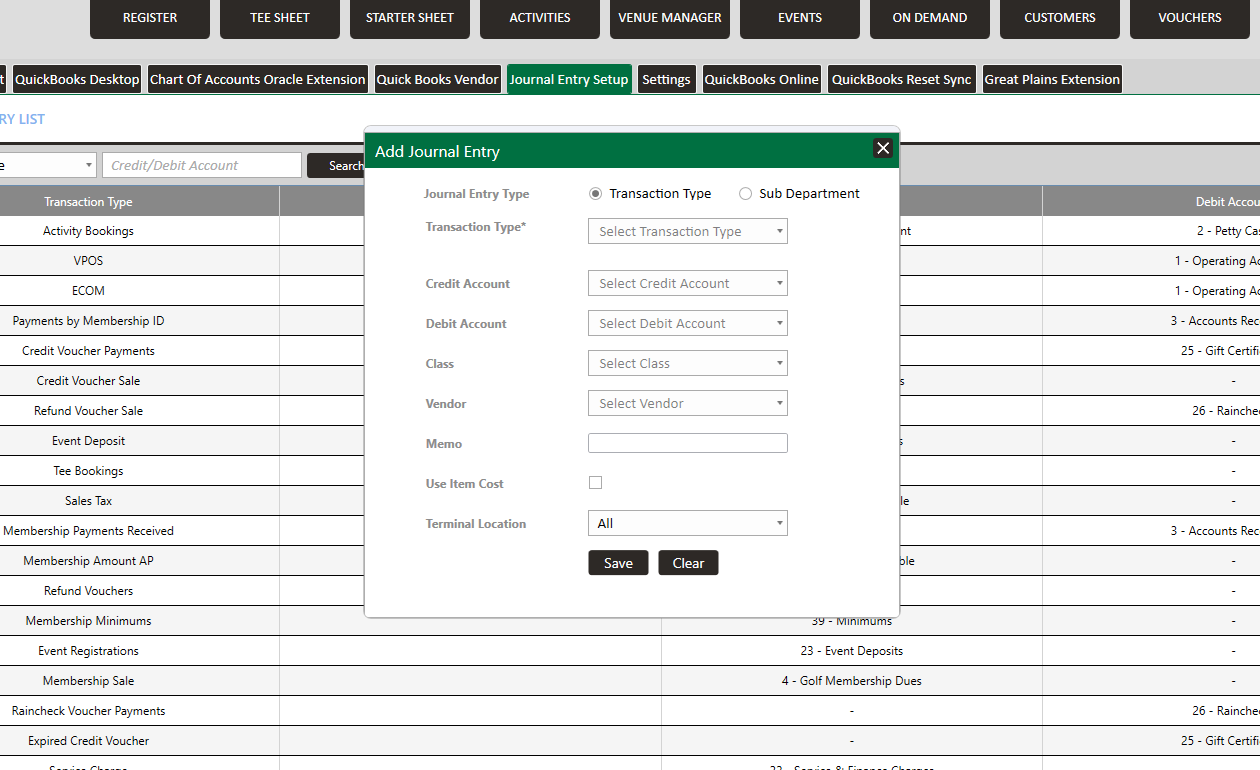
In Club Caddie, navigate to Journal Entry Setup tab and make sure the tab is set to Transaction Types. Click Add Journal Entry in the upper-right corner. Choose a Transaction Type (for example, Cash Payments). Select the appropriate Debit Account (for example, Operating Account). Enter a clear Memo (for example, Total cash collected). Click Save, then repeat this process for all needed transaction types.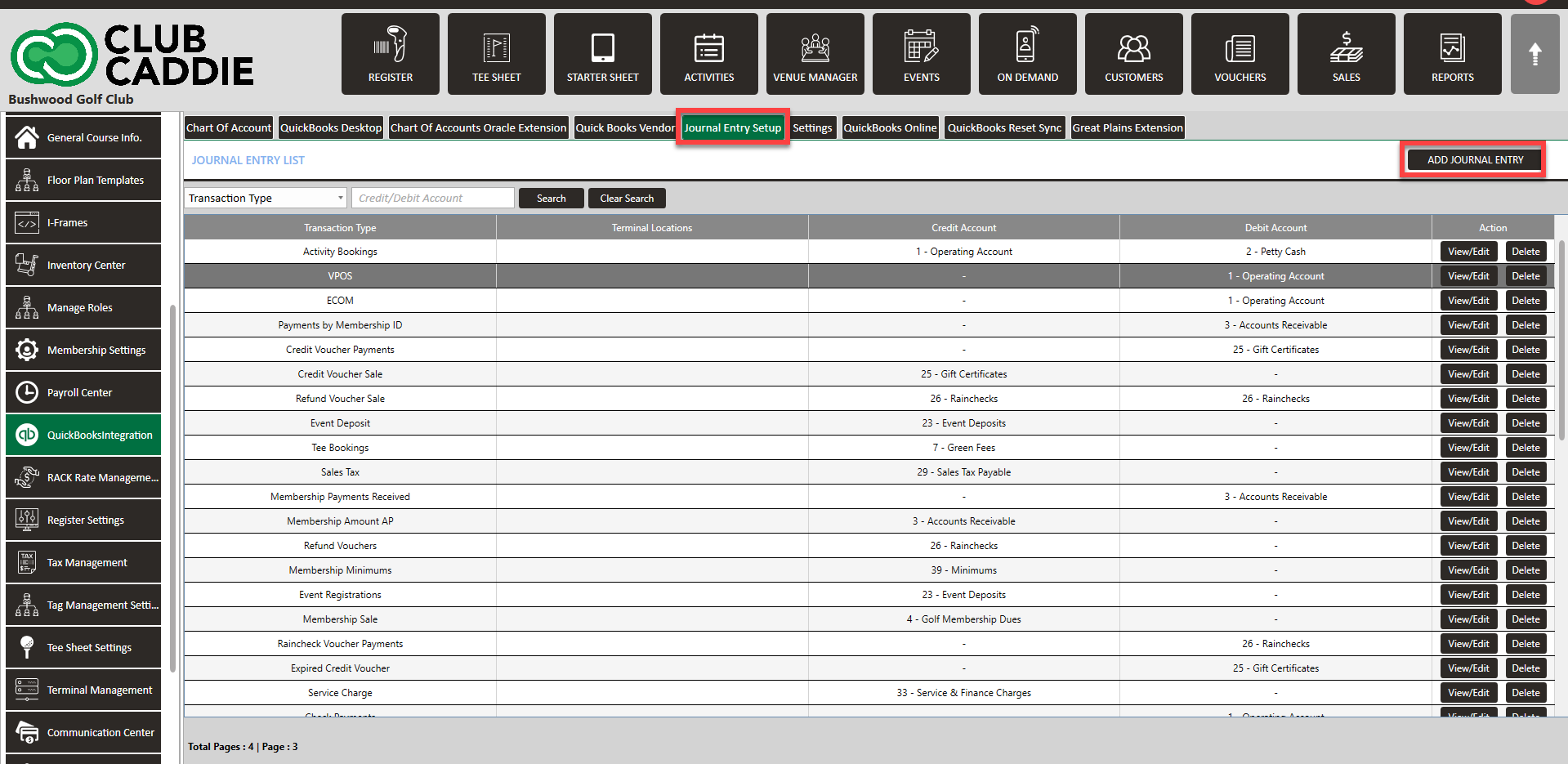
Step 4: Configure Sub-Departments:
Still in Journal Entry Setup, switch to the Sub Departments tab. Click Add Journal Entry (the same button, now used for sub-departments). Select the Sub Department (for example, Green Fees). Choose the appropriate Credit Account to map revenue correctly. Click Save, then repeat this process for each sub-department you need to map.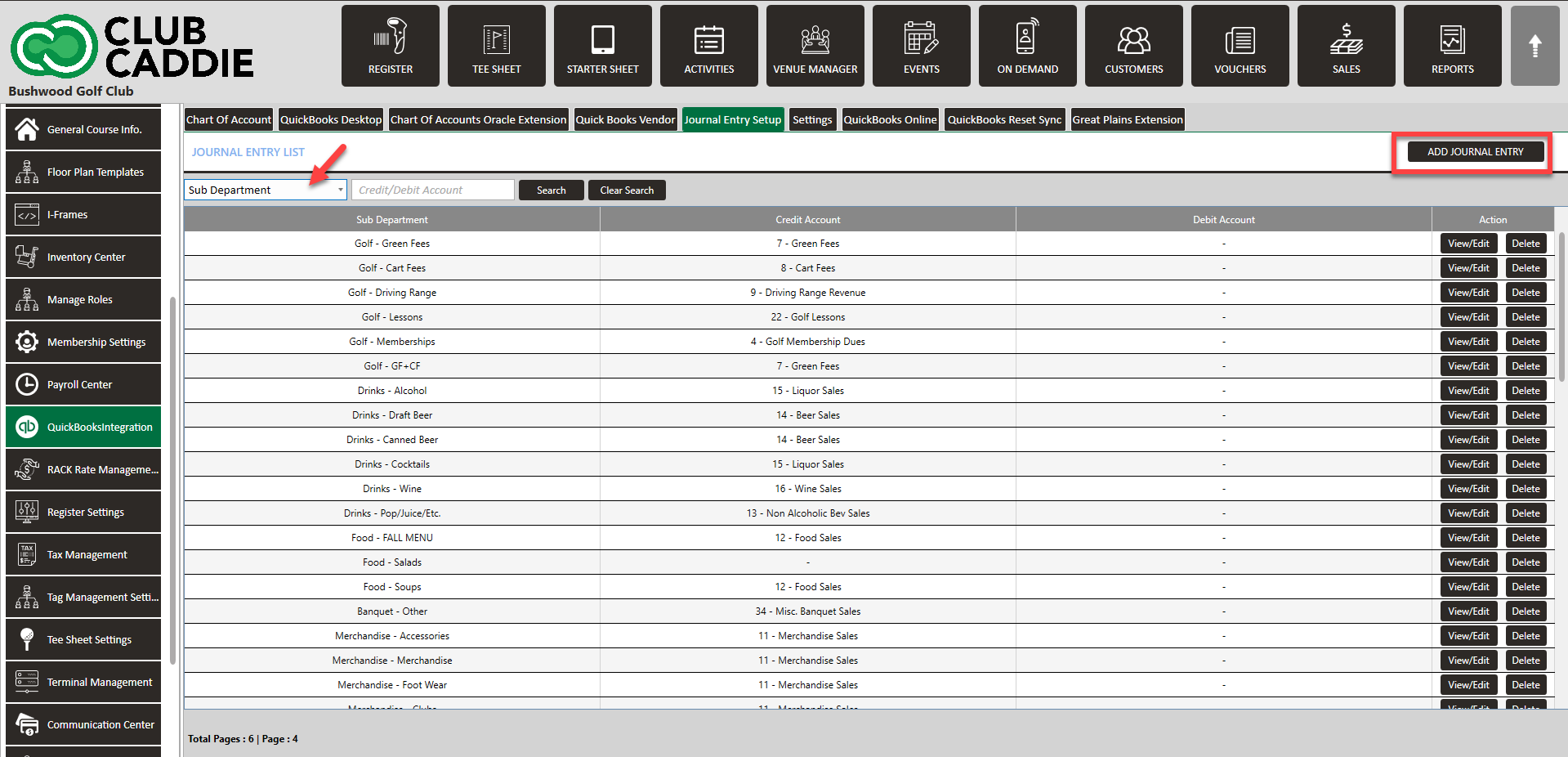
Step 5: Verify Register Settings, vouchers, and custom payment methods:
In Club Caddie, go to Settings (gear wheel), then Register Settings. Under Club Voucher Type, make sure any special vouchers are mapped to the correct GL account. Then review Custom Payment Methods and confirm that each custom payment method has an appropriate GL account assigned.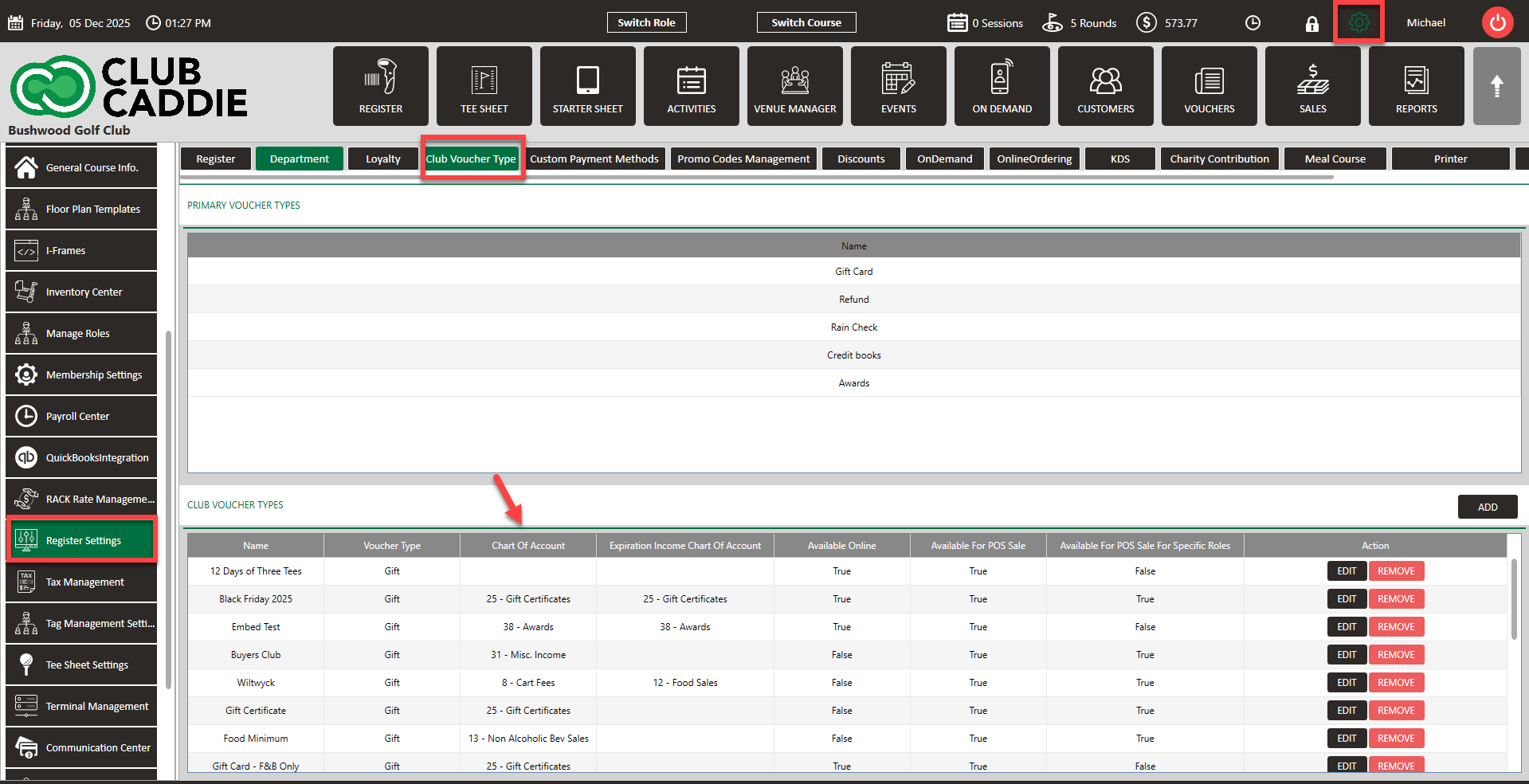
Step 6: Run the QuickBooks sync and troubleshoot if needed:
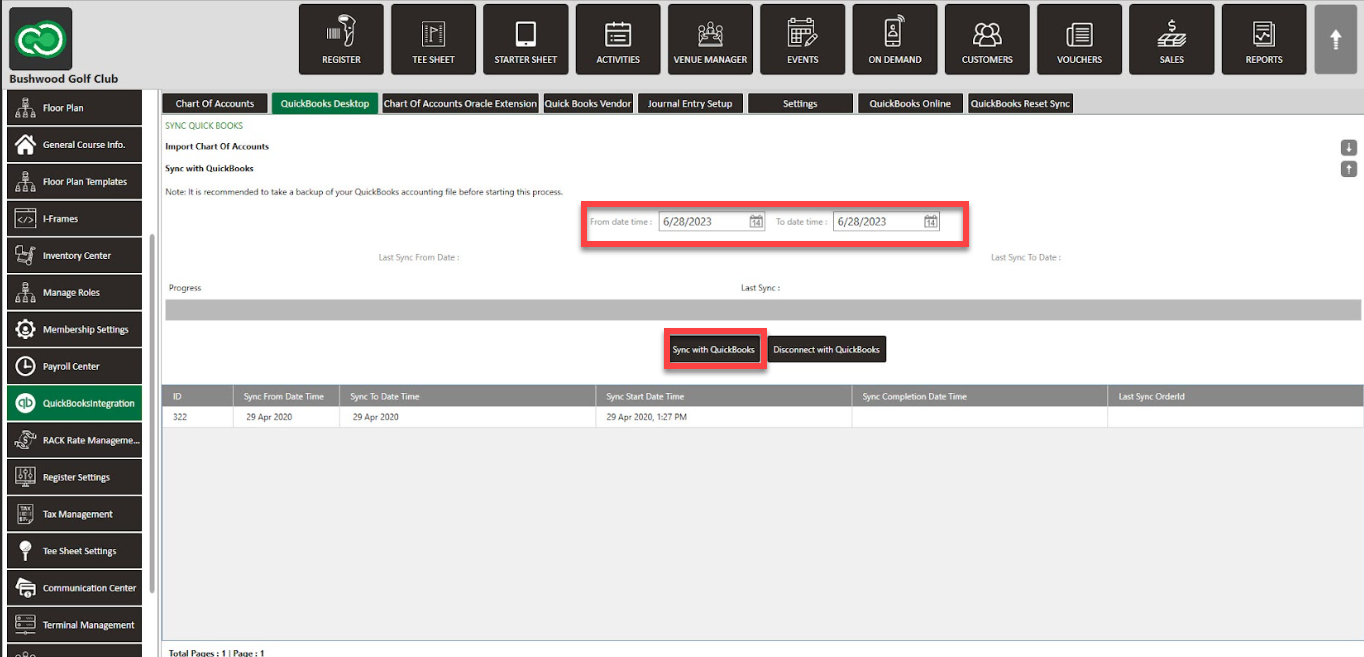
In Club Caddie, return to QuickBooks Integration. Set the Date Range for the data you want to sync, then click the Sync button. Watch the progress bar; when it reaches 100%, you should see “Sync successful.” If the sync fails, review your mappings to ensure every Transaction Type has a valid GL account and every Sub Department, voucher, and custom payment method is mapped correctly. Correct any issues you find, then run the sync again.