
How to Add Shipping Cost When Receiving Inventory
Step 1: Navigate to Settings and then select Inventory Center from the left-hand menu.
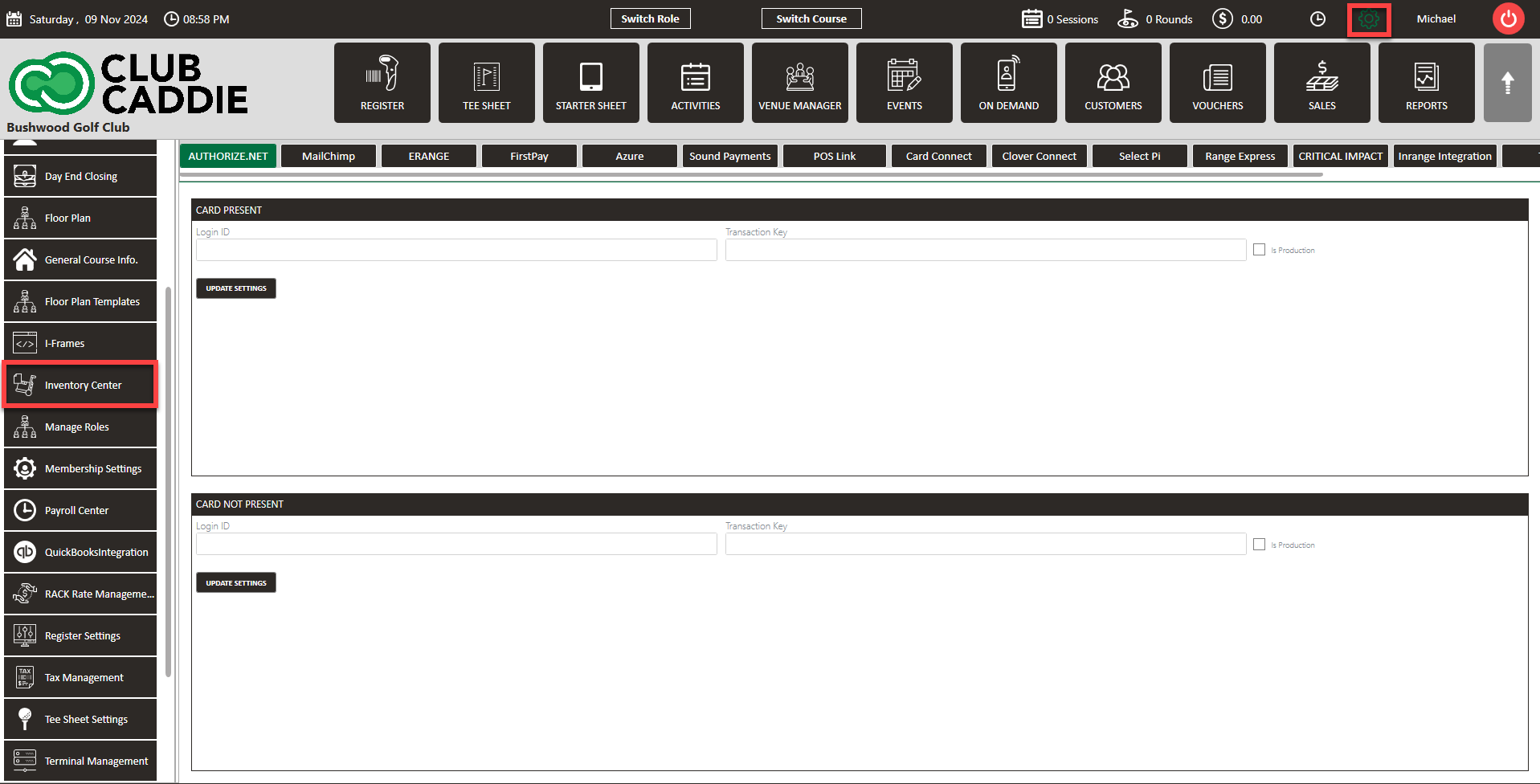
Step 1: Navigate to Settings and then select Inventory Center from the left-hand menu.
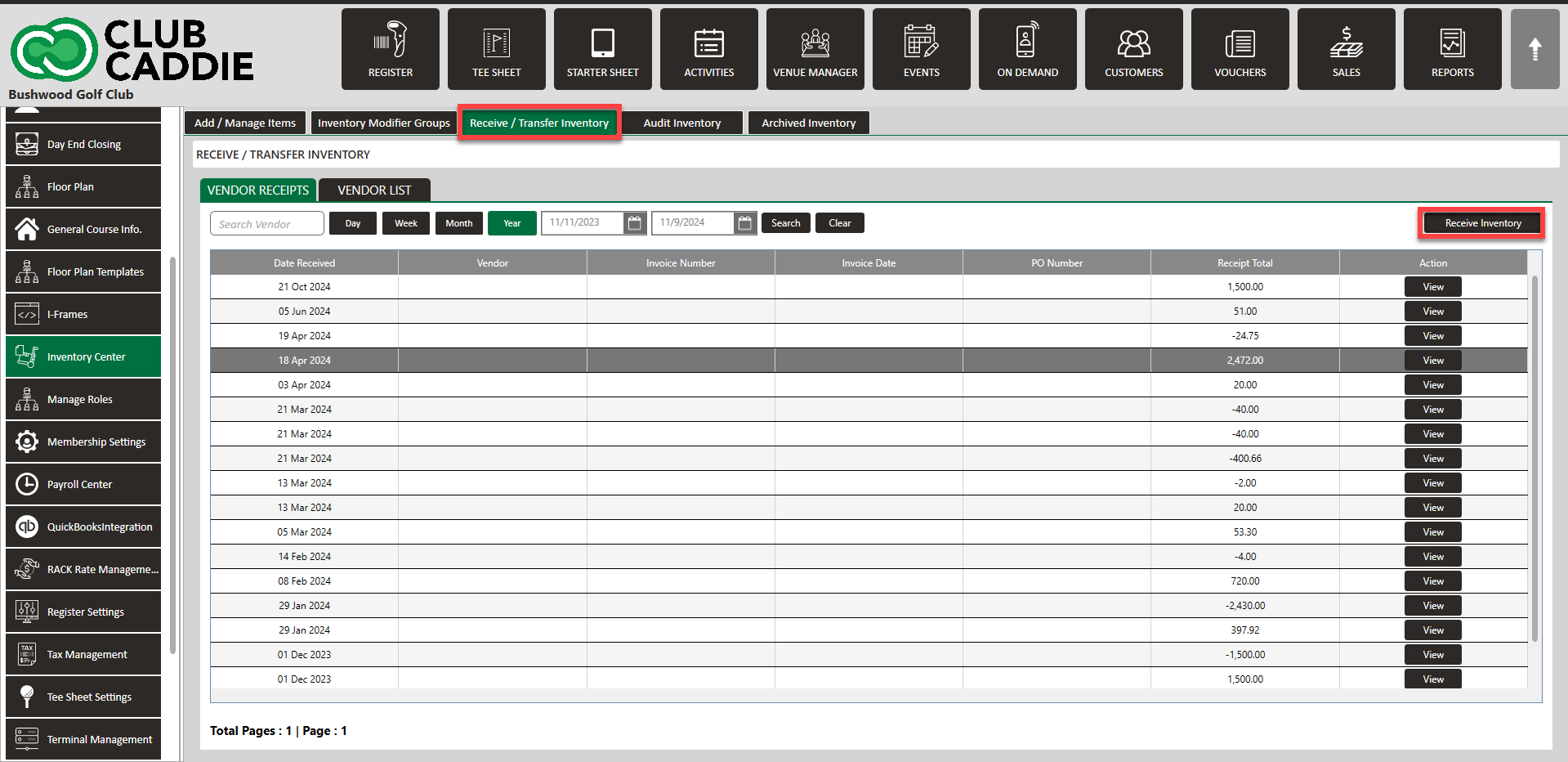
Step 2: Click on the
Receive/Transfer Inventory tab. Then, select
Receive Inventory on the left side.
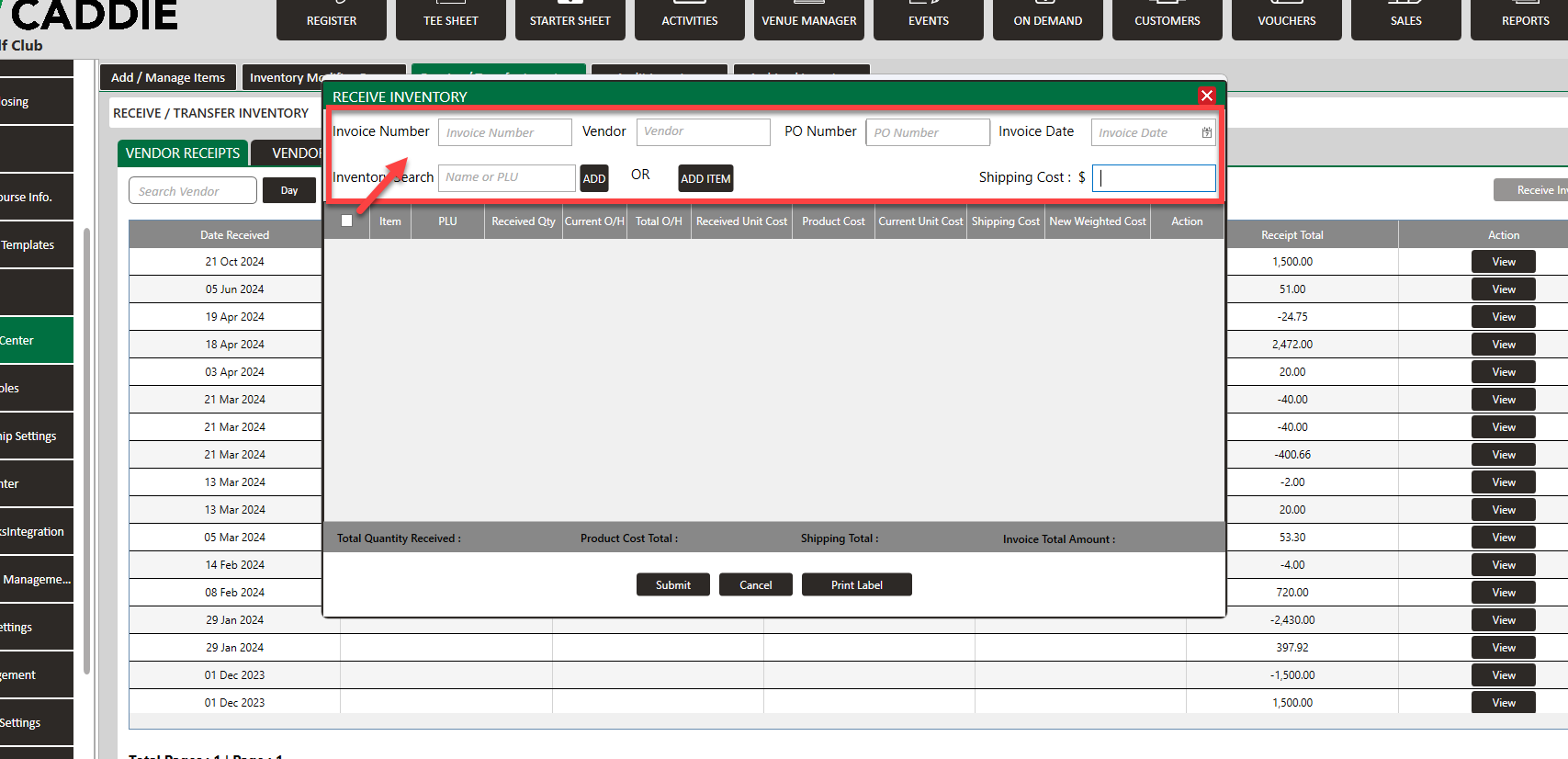
Step 3: In the Receive Inventory window, enter the
Invoice Number, Vendor, PO Number, Invoice Date, then search for an item or
Add New Item, and then enter
Shipping Cost.
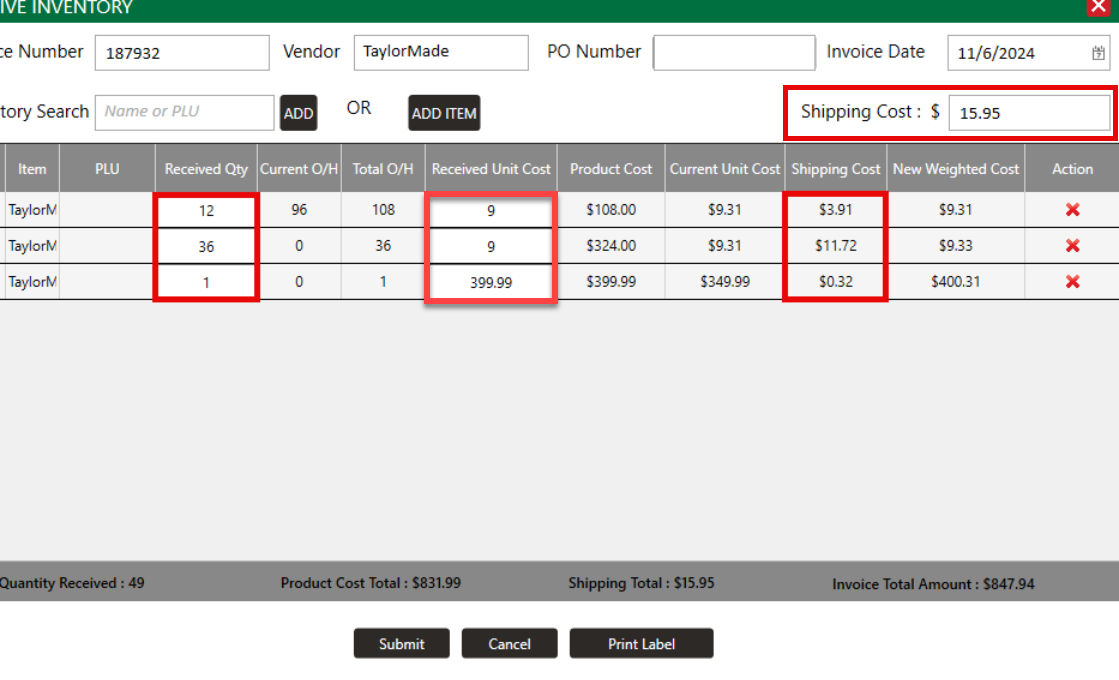
Step 4: Enter
Received Qty and
Received Unit Cost. Then click
Submit.
Note: Shipping cost is automatically prorated across each line item.