.png?width=200&height=89&name=CC%20%20fiserv.%20(3).png)
Step by Step:
Step 1: Select Settings, and then Class Management from the menu.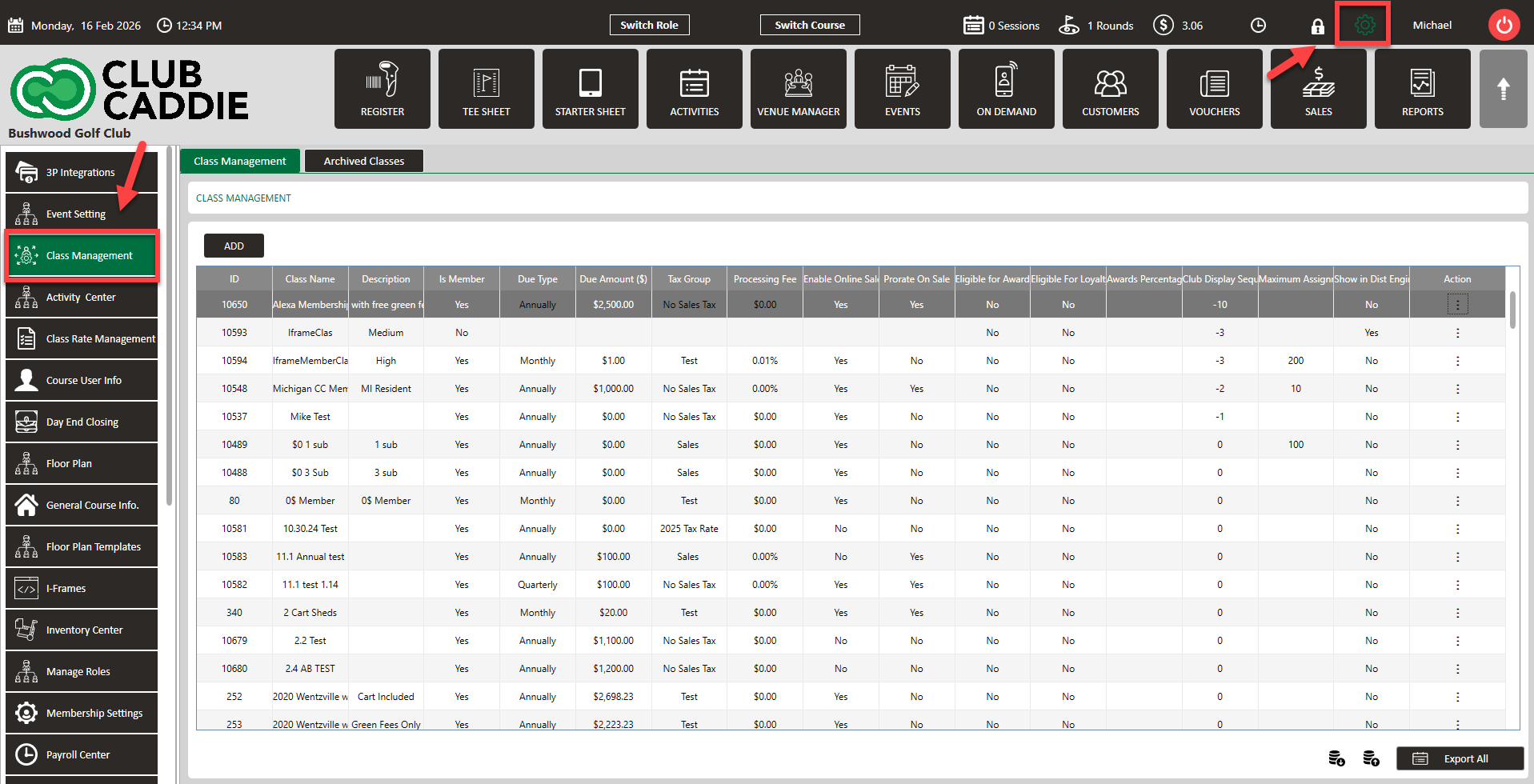
Step 2: Select the action for the class you want to edit, then select Additional Settings.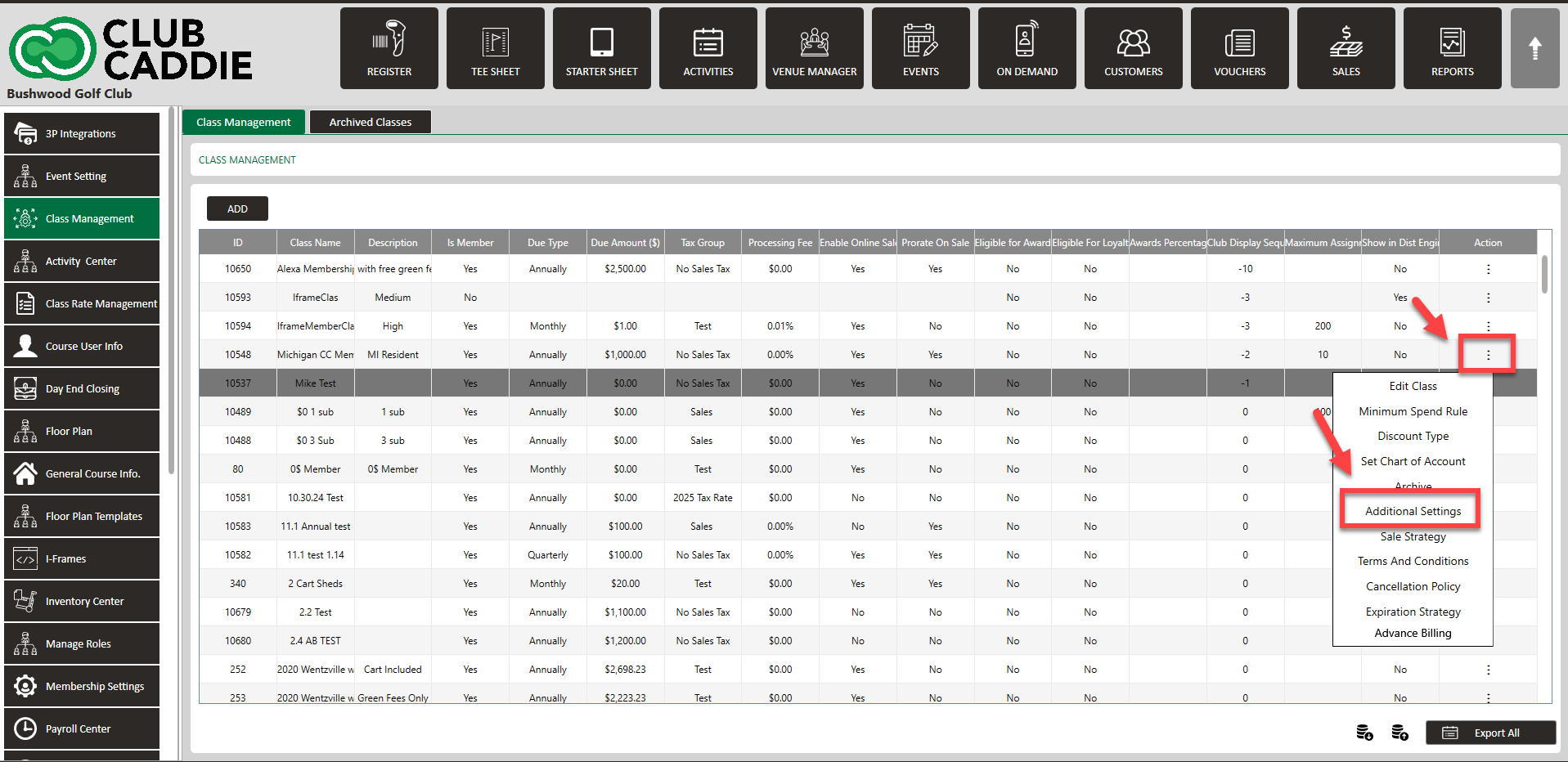
Step 3: Under Eligible Zip Code, enter all approved ZIP codes with a comma-separated (e.g., 36532,36542,36561,36575).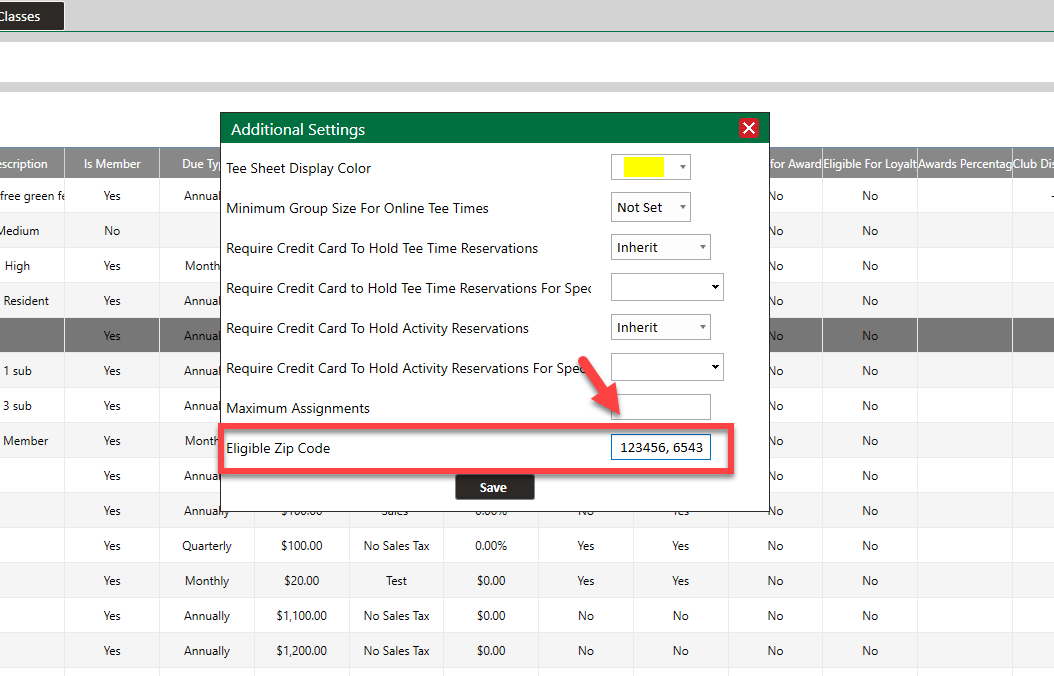
- ZIP codes must be entered manually — there is no auto-radius or geographic lookup. You'll need to determine which ZIP codes fall within your desired range and enter them individually.
- The field accepts entries with or without spaces after commas (both 36532,36542 and 36532, 36542 work).
- This validation applies to online sales only. Staff selling memberships through the Register or back office are not restricted by this list.
- The entry field is compact, so facilities with a large number of qualifying ZIP codes should prepare their list in advance and paste it in.
- [Note: Currently this feature only supports an "include" list. If your use case is better served by excluding specific ZIP codes (e.g., for non-resident memberships), that functionality is not yet available but has been noted as a future enhancement.]