.png?width=200&height=89&name=CC%20%20fiserv.%20(3).png)
Related Articles
Settings: Rack Rate Management — How to create and manage rack rates (public rates)
Settings: Class Rate Management — How to create and manage class rates (member rates)
How Rates and the Scheduler Work Together
Before diving into the steps, it helps to understand how the pieces connect. There are two layers to how rates show up on your tee sheet:
Layer 1 — The Initial Rate: When you create a rack rate (or class rate), you set a price, date range, time range, and days of the week. This is the Initial Rate — the primary rate that’s established before any schedules are built. It’s always available within its defined start and end times unless specifically restricted by the Rate Scheduler.
Layer 2 — The Rack Rate Scheduler: The scheduler lets you add additional pricing rules on top of an existing rate. For example, you can take your “18-Hole Rack Rate” and schedule a different price for winter months, peak season, or specific holiday dates. When a schedule exists for a given date, it takes priority over the Initial Rate’s price for that period.
Think of it this way: the Initial Rate is your foundation, and the scheduler lets you layer seasonal or special-date pricing on top of it.
Understanding Initial Rate Availability
-
Your Initial Rate is available during the date range and times you set when you created it — no extra setup needed.
-
The Rack Rate Scheduler is only needed when you want to change the price for specific seasons, days, or time windows.
-
If you don't add any schedules, Club Caddie uses the Initial Rate as-is.
-
Keep your date range intentional. If it's a Summer Rate, set the dates to your summer months — not the full calendar year.
Understanding “Override All RackRates”
The Override All RackRates checkbox makes a rate the first option during its booking window — it takes priority over other rack rates. This is useful for things like holiday rates.
Here's what to know:
When Override is checked, the rate shows up every day within its date range — not just the dates in the scheduler.
Any date inside the range that doesn't have a schedule entry will still display at the Initial Rate price.
To avoid the rate appearing on unintended dates, set a narrow date range that only covers the period you actually need.
The scheduler then controls any date-specific pricing within that range.
Not Using the Override Checkbox?
Then this doesn't apply to you. Your schedules will simply follow the date ranges you define in the scheduler.
Step-by-Step:
Step 1: Click Settings to open the main settings menu.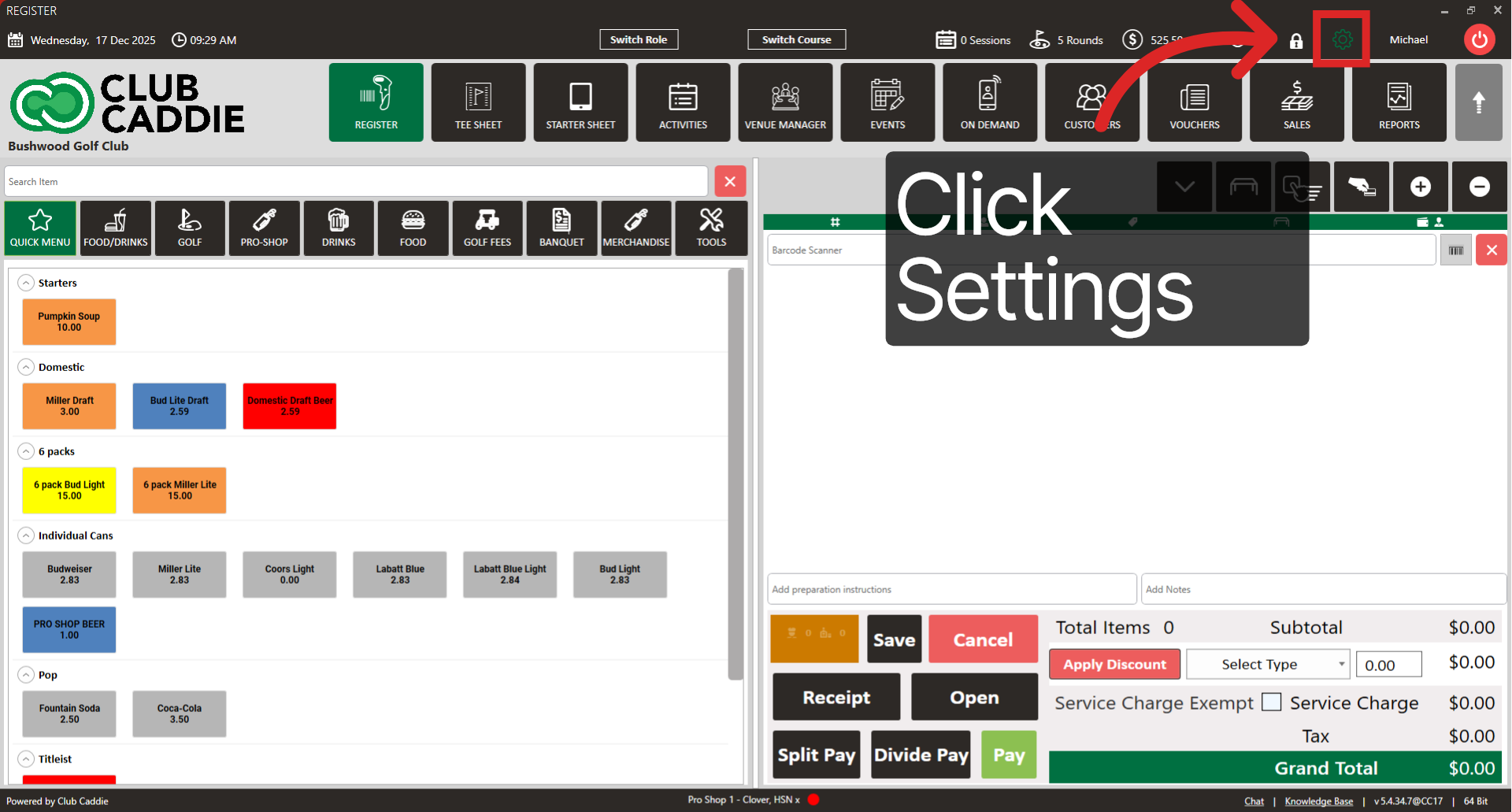
Step 2: Click Rack Rate Management to access your rates.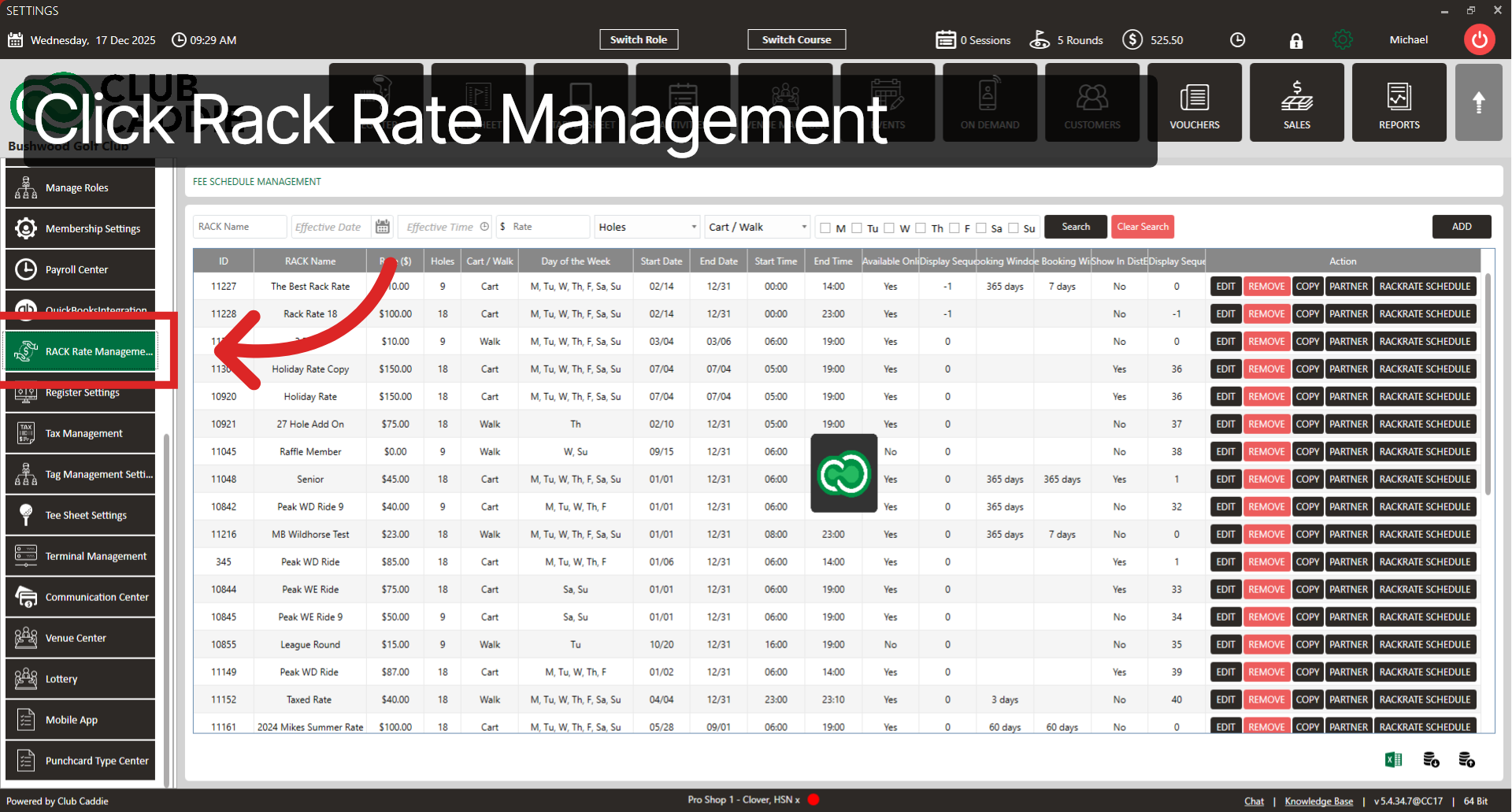
Step 3: Select the rate you want to schedule, then click RACKRATE SCHEDULE. Remove any existing schedules as needed before adding new ones.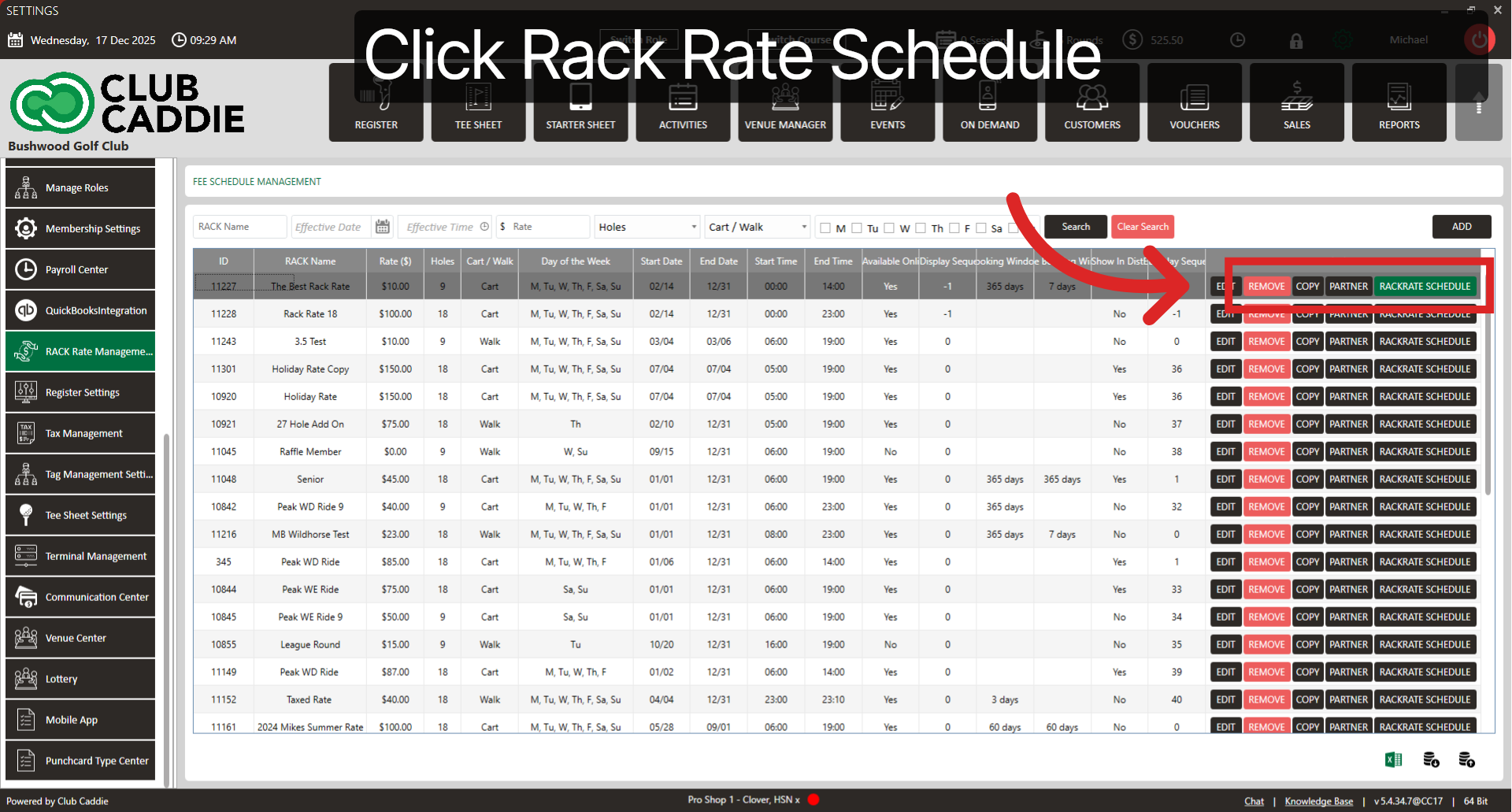
Step 4: Click ADD SCHEDULE to begin creating a new rack rate schedule.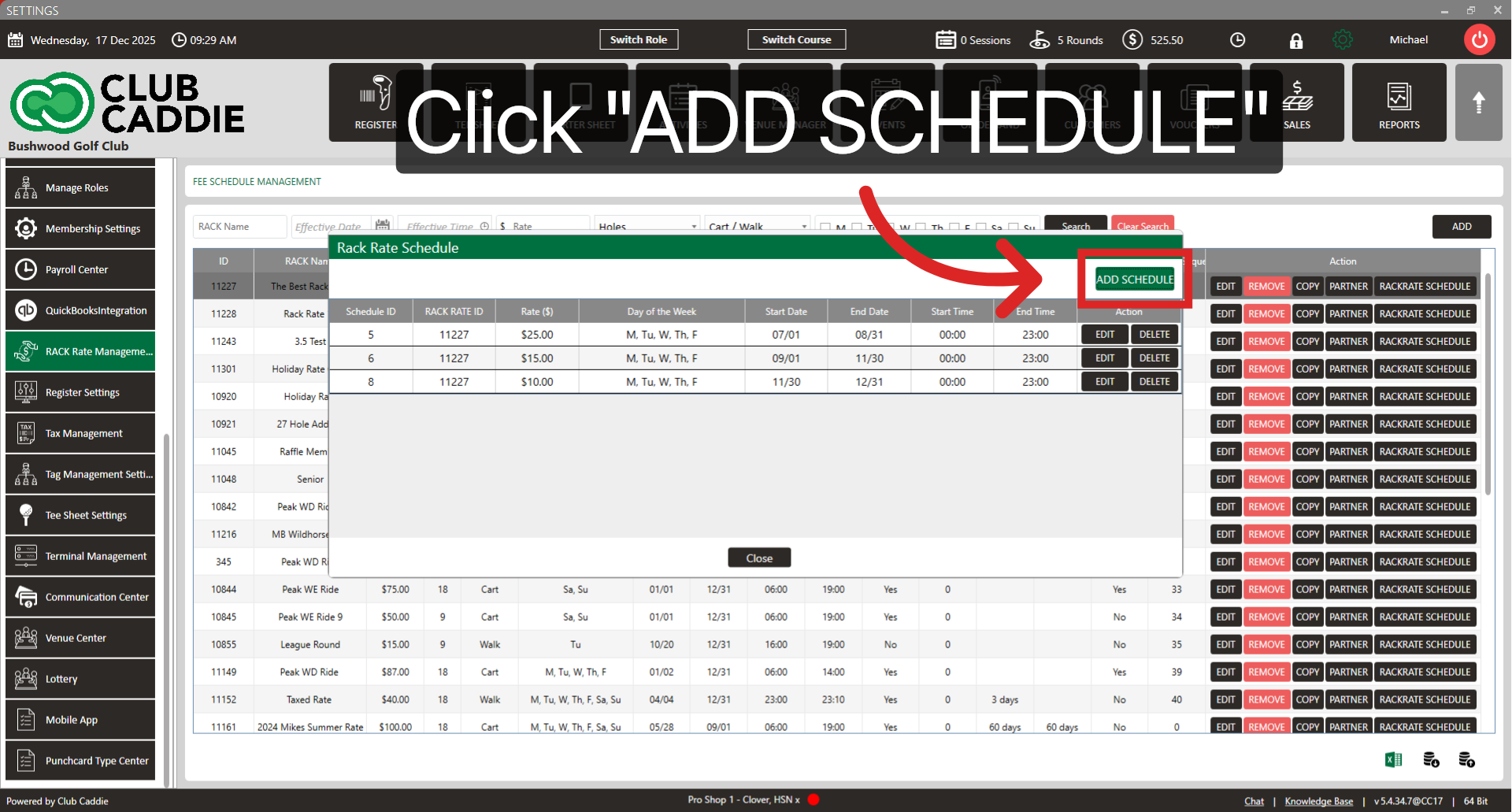
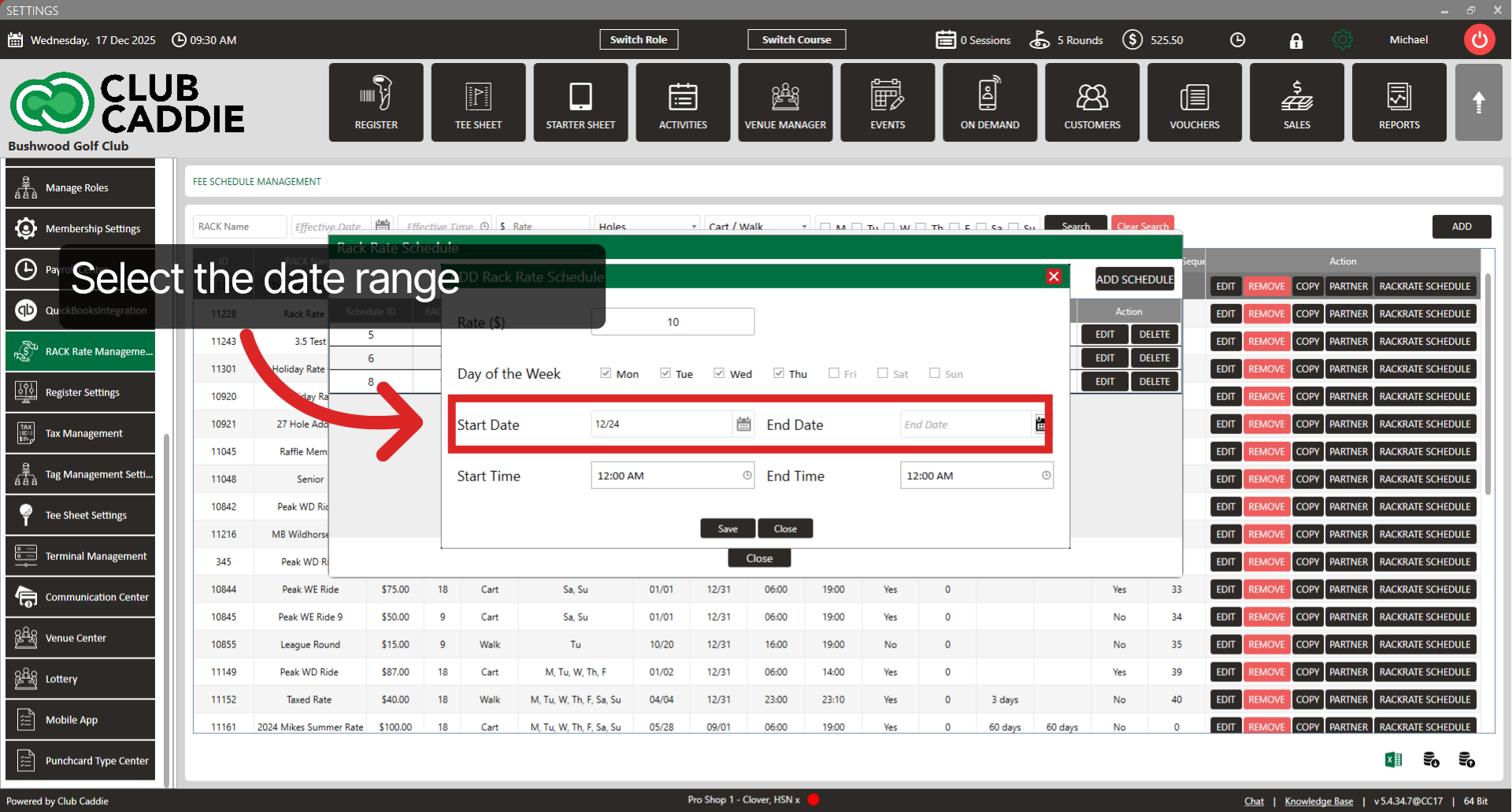
Step 5: Fill in the schedule details: enter the price for this time period, select which days of the week the schedule should apply to, set the date range using the date picker, and enter the start and end times. Once everything looks right, click Save.
Repeat as Needed
You can add multiple schedule entries to the same rate. For example, you might add a winter schedule, a peak season schedule, and individual holiday dates — all under one rate.
Verify Your Setup
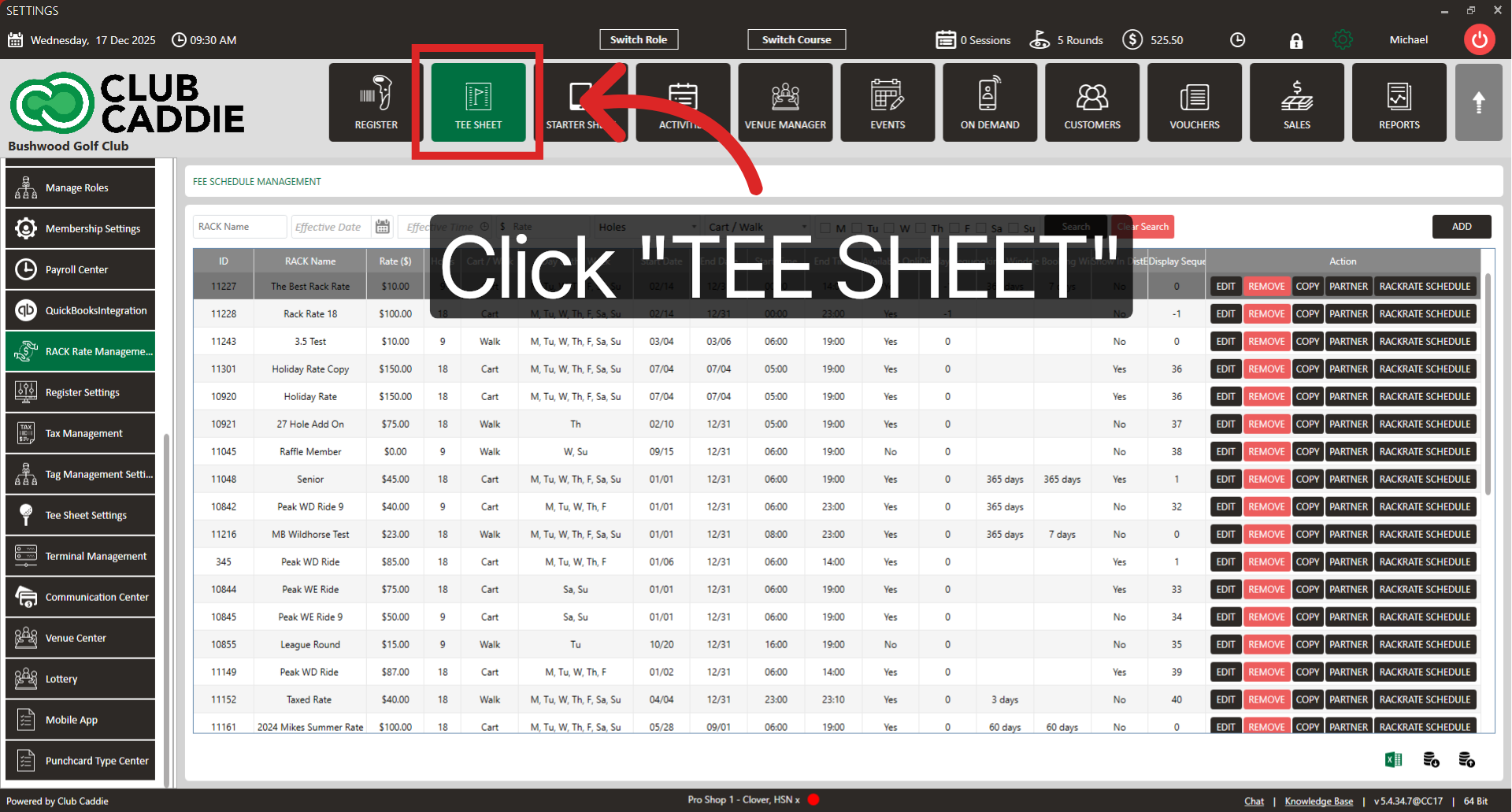
After saving your schedule, go to the Tee Sheet and confirm the correct rate and price appear for the dates and times you configured.
Good to Know
- If you have multiple schedules for the same rate, all associated revenue will report under the same inventory item.
- The Rack Rate Scheduler works the same way for class rates (member rates). The concepts in this article apply to both.
- If you’ve set a Floor Price in your inventory setup for a greens fee or cart fee item, you will not be able to create a schedule with a price below that floor.
- The Override All RackRates checkbox makes a rate the first option during its booking window. There is also an Override All ClassRates checkbox that does the same for class rates. Both follow the same date range behavior described above.
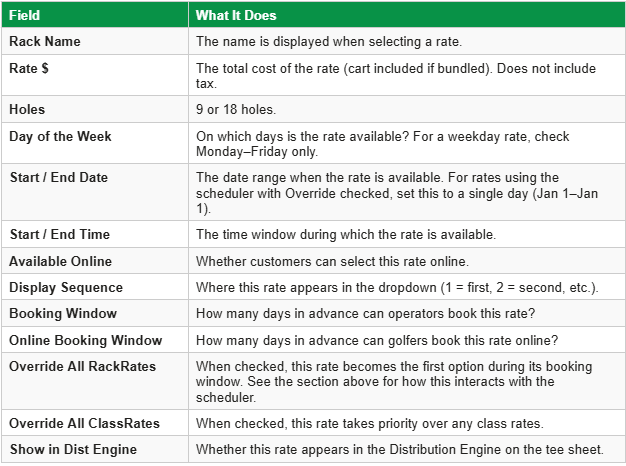
Quick Reference: Rack Rate Fields
For reference, here are the key fields you’ll see when creating or editing a rack rate. These are set in Rack Rate Management (Settings), not in the scheduler.
Real-World Scenarios
Scenario 1: Same Rate Name, Different Seasonal Pricing
A course uses one “18-Hole Rack Rate” but needs the price to change throughout the year. They set the Initial Rate at $75 with a date range that covers the full year. Then in the Rack Rate Scheduler, they add a winter schedule at $60 (mornings only) and a peak season schedule at $80 (all day). When staff book tee times, Club Caddie automatically applies the correct price based on the booking date and time.
Goal: The same rate exists all year, but the price changes depending on season and time of day.
Scenario 2: Holiday Rate — Specific Dates Only
A course wants a “Holiday Rate” that only shows on certain dates. They create the rate with a narrow Initial Rate date range, then add entries in the Rack Rate Scheduler for each holiday they want to cover — for example, the first holiday of the year, a spring holiday, a mid-summer holiday, and a late-fall holiday. Club Caddie applies the Holiday Rate only on those scheduled dates.
Goal: The rate is not always available. It only appears on specific dates defined in the scheduler.
Quick Tip: If you’re using the Override checkbox with a holiday rate, set the Initial Rate’s date range to be as narrow as possible — just enough to cover the earliest date you need the rate to appear. Then let the Rack Rate Scheduler control the rest. This prevents the override from unintentionally applying on dates you didn’t intend.